Newsletter Subscribe
Enter your email address below and subscribe to our newsletter

Frequently Asked Questions
To run CMD as administrator, search for cmd, choose Run as administrator, and approve the Windows security prompt. This opens an elevated Command Prompt, which you need for tasks such as repairing protected system files or changing certain Windows settings.
The methods below work in Windows 11 and Windows 10, although some menu labels differ. You will also learn how to select CMD inside Windows Terminal, check the permissions of your session, and solve common problems without changing your account settings.
To run CMD as administrator, search for cmd, choose Run as administrator, and approve the Windows security prompt. This opens an elevated Command Prompt, which you need for tasks such as repairing protected system files or changing certain Windows settings.
The methods below work in Windows 11 and Windows 10, although some menu labels differ. You will also learn how to select CMD inside Windows Terminal, check the permissions of your session, and solve common problems without changing your account settings.
Windows Search gives you a straightforward way to open an elevated Command Prompt. CMD is included with Windows, so you can use this method without installing additional software.
cmd or Command Prompt.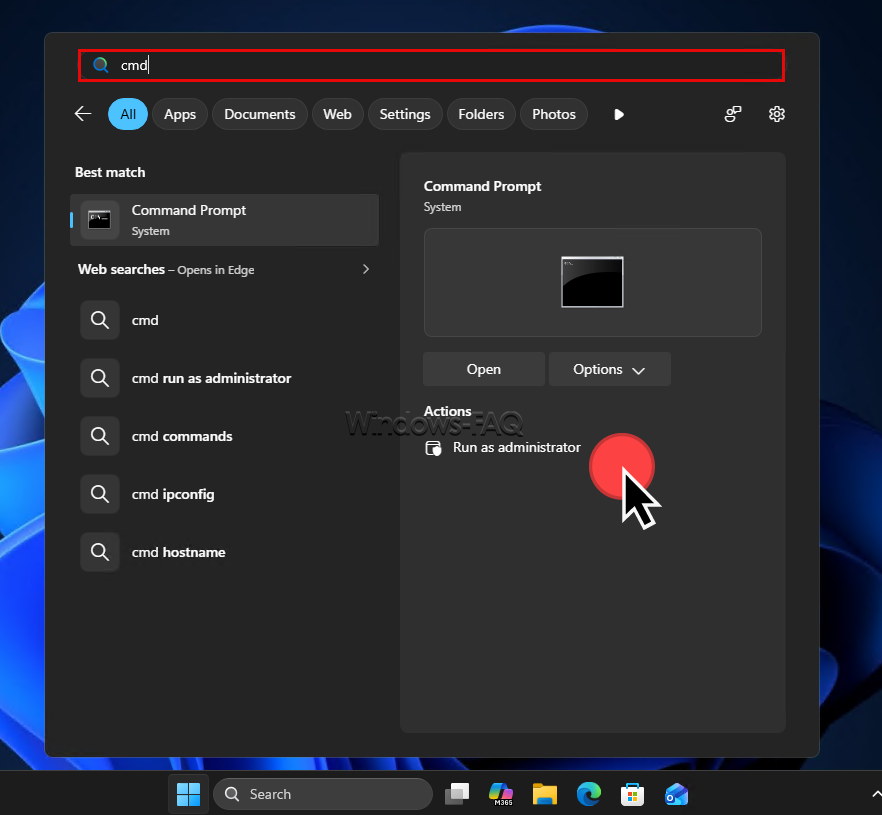
For a keyboard alternative, select the Command Prompt search result and press Ctrl + Shift + Enter. Pressing Enter on its own normally opens CMD with your regular permissions.
You can also read the original German version of this guide on Windows-FAQ.de.
Diesen Artikel auf Deutsch lesenCommand Prompt is the Windows command interpreter, started through cmd.exe. An elevated Command Prompt runs with an administrator access token, allowing it to perform operations that a regular session cannot normally carry out.
User Account Control, usually shortened to UAC, manages this elevation process. With the usual UAC configuration, even an administrator account starts most applications with limited permissions until additional rights are approved.
This explains why a command can fail even though your Windows account is already an administrator. Your account’s membership and the permissions of the particular CMD session are separate things.
Using automatic sign-in in Windows 11 does not automatically give your applications elevated permissions. Signing in to Windows and approving an administrative action are separate processes.
The Run dialog is useful when you prefer a short keyboard sequence or do not want to use Windows Search. The decisive step is the key combination you use after entering the command.
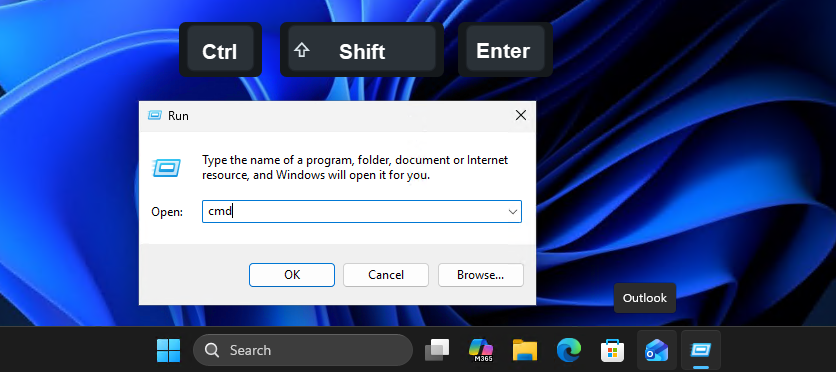
cmd in the Open field.Using the ordinary OK button or pressing Enter without Ctrl and Shift does not request elevation. If the shortcut does not work on your device, the Run as administrator option in Windows Search provides another route.
Windows 11 may display Command Prompt inside Windows Terminal instead of a separate console window. Terminal provides the window and tabs, while CMD or PowerShell interprets the commands you enter.
| Component | What it does |
|---|---|
| Command Prompt, or CMD | Runs traditional Windows commands and batch files through cmd.exe. |
| PowerShell | Provides a different shell with cmdlets, objects, and its own scripting syntax. |
| Windows Terminal | Hosts shells such as CMD and PowerShell in windows, tabs, and panes. |
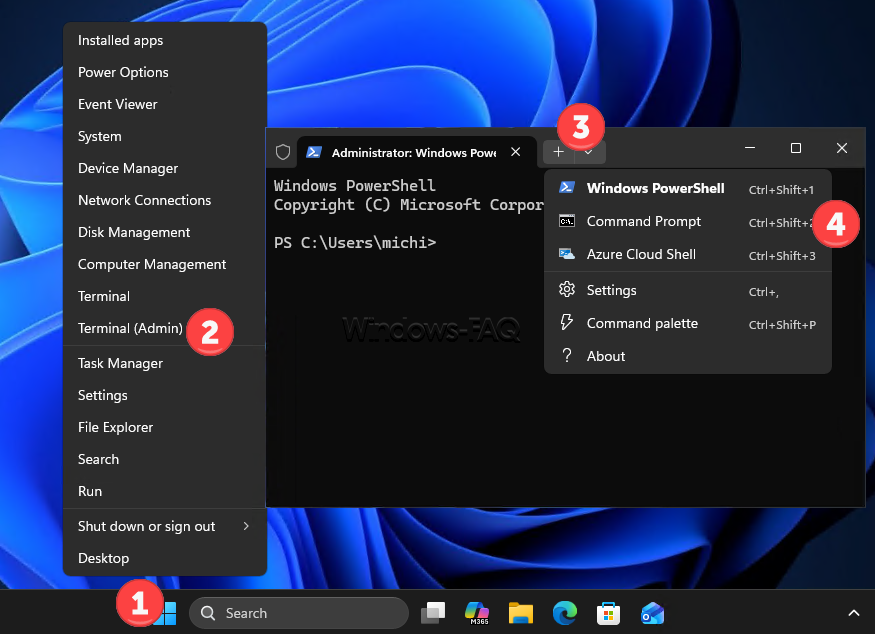
The Command Prompt tab in this elevated Terminal window also runs with elevated rights. If PowerShell appears first, that normally reflects the default profile and does not mean the launch failed.
On Windows 10, the Windows + X menu may show Windows PowerShell (Admin) instead. After opening that elevated shell, you can enter cmd to start Command Prompt within it. A menu that already offers Command Prompt (Admin) lets you select it directly.
Some commands work in both CMD and PowerShell, but their syntax is not interchangeable. For example, %ProgramFiles% is CMD environment-variable syntax, while PowerShell uses $env:ProgramFiles.
This distinction matters when you follow instructions to check your Office installation’s licensing information. Using the intended shell prevents syntax errors that administrator rights alone cannot fix.
Task Manager is a useful alternative when Start or Windows Search is not responding. Its layout differs between Windows versions, but the Run new task function serves the same purpose.
cmd.Entering cmd alone does not guarantee administrator rights. If the administrative option is unavailable, use Windows Search or contact the person who manages the computer, then verify the new session before running an administrative command.
A dedicated desktop shortcut can save time if you regularly perform administrative tasks. Giving it a clear name also helps you distinguish it from an ordinary Command Prompt shortcut.
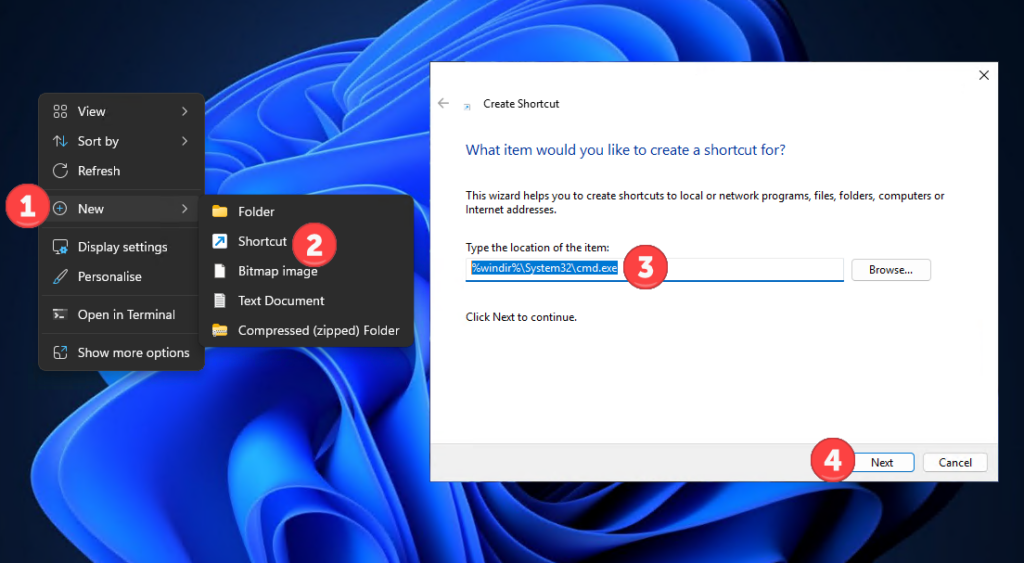
%windir%\System32\cmd.exe as the item location.Command Prompt Admin.Opening this shortcut requests elevation each time. The setting applies to this shortcut only, and the normal security prompt still applies.
Practical tip: keep an ordinary CMD shortcut for everyday work. Tasks such as listing your own files or viewing basic network information do not need an elevated session.
If you are already working in PowerShell, you can request an administrator Command Prompt with Start-Process.
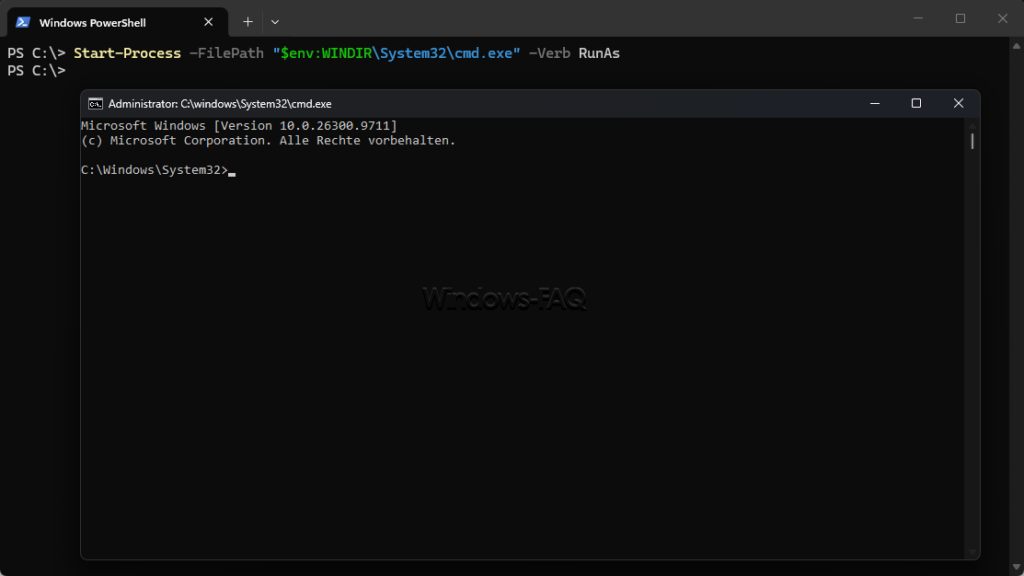
Enter the following command in PowerShell:
Start-Process -FilePath "$env:WINDIR\System32\cmd.exe" -Verb RunAsThe -Verb RunAs parameter requests elevation for the new process. After you approve the security prompt, a separate elevated CMD session opens; the original PowerShell session keeps its existing permissions.
If PowerShell is already elevated, entering cmd is sufficient to start CMD with inherited administrator rights. Entering the same command in a regular PowerShell window does not add those rights.
The runas.exe command starts a program under another user account. Switching accounts is not the same operation as explicitly requesting UAC elevation, so runas /user:Administrator cmd is not a reliable substitute for Run as administrator.
Use the PowerShell command above when you specifically need an elevated session. There is no need to enable the built-in Administrator account or change UAC settings just to open CMD.
An elevated Command Prompt normally shows Administrator in its title. However, window titles can be customized, so you can also inspect the security information associated with the current session.
Enter the following command and look for the mandatory integrity level in the output. This displays information and does not change your system:
whoami /groups| Result | Meaning in a normal interactive session |
|---|---|
| High Mandatory Level, S-1-16-12288 | The high integrity level expected for an elevated administrator session. |
| Medium Mandatory Level, S-1-16-8192 | The usual integrity level of a session without elevation. |
The numerical identifier is useful when Windows displays group names in another language. High integrity does not mean that every protected file, remote resource, or organizational setting is automatically accessible.
A starting path such as C:\Windows\System32 is not proof of elevation. Likewise, whoami without parameters identifies the account, but does not by itself tell you whether the session is elevated.
Administrator rights depend on what a command does, not simply on whether it runs in CMD. Reading information usually requires fewer permissions than changing protected operating-system components.
| Example | Administrator rights normally needed? | Purpose |
|---|---|---|
ipconfig | No | Displays basic IP configuration. |
whoami | No | Displays the account used by the current session. |
dir in your own document folder | No | Lists files you already have permission to access. |
sfc /scannow | Yes | Checks protected system files and attempts repairs. |
DISM.exe /Online /Cleanup-Image /RestoreHealth | Yes | Repairs the component store used by the running Windows installation. |
The repair commands are examples of tasks that need elevation, not a checklist you must run after opening CMD. Use them when they match the problem you are investigating.
Computer-wide Registry changes are another common administrative task. One example is configuring fClientDisableUDP for Remote Desktop troubleshooting, where the relevant setting affects the computer rather than only your personal files.
The same distinction is helpful when you check Windows product key and activation information. Viewing information and changing the licensing configuration are different operations, so follow the permissions required by the particular command.
These messages can appear when a command does not have sufficient permissions. First establish whether the CMD session is elevated, then check the exact resource or operation named in the error.
If elevation is already confirmed, repeated launches are unlikely to help. File permissions, network-share permissions, security software, or organizational policies may still block the operation.
For example, when you troubleshoot Windows Defender settings, local administrator rights do not automatically override centrally managed security controls. The solution depends on the restriction involved.
If System File Checker says you must be an administrator running a console session, return to the elevation check above. You may have entered the command in an older regular window while a newly elevated one was open elsewhere.
After confirming the correct session, you can run the intended SFC command there. Changing the current folder to System32 does not resolve missing administrator permissions.
A standard account normally needs credentials for an account with administrator permissions. Some security configurations also require additional authentication from administrators, so the appearance of a credential prompt is not necessarily an error.
A Windows Hello PIN and an account password are different credentials. Use the authentication method offered by the prompt; if it asks for a password, do not assume that your sign-in PIN is interchangeable with it.
If you do not have the required credentials, the account owner or IT administrator needs to authorize the task. Selecting another CMD launch method does not remove this requirement.
Make sure you are viewing the Command Prompt application result, rather than a folder, document, or unrelated search suggestion. You can then try the Run dialog method or your dedicated administrator shortcut.
On a managed computer, application controls or elevation policies may restrict what you can start. A message saying the administrator has blocked the application needs to be resolved through the responsible administrator.
Start-Process is a PowerShell cmdlet, so CMD does not understand it as a built-in command. Select a PowerShell tab before using the elevation command from the PowerShell section.
Conversely, CMD variables such as %windir% do not use PowerShell’s variable syntax. A command being unrecognized is often a shell or spelling issue, rather than a request for more permissions.
A drive letter visible in File Explorer may be missing from an administrator Command Prompt. Network-drive mappings can belong to a different sign-in or security context from the elevated process.
For commands that accept network paths, you can use the authorized UNC path, such as \\server\share\folder, instead of the drive letter. Alternatively, the share may need to be connected in the elevated context with an account that has permission to access it.
An elevated Command Prompt may start in a different folder from the one containing your files. Before running a command that uses relative paths, you can change to the intended location with cd /d.
The following example changes both the drive and the directory. Replace the example path with an existing folder on your computer:
cd /d "D:\Work Files"Quotation marks keep paths containing spaces together, and /d allows CMD to switch drives as well as folders. If you authenticated with another administrator account, environment variables such as %USERPROFILE% may also refer to that administrator’s profile.
Once the administrative task has finished, you can enter exit to leave the current CMD session. If you started CMD inside an already elevated PowerShell session, this returns you to that PowerShell session, which remains elevated; close the administrator window when you have finished using it.
Press Windows + R, type cmd, and press Ctrl + Shift + Enter. Complete the security prompt to open an elevated Command Prompt.
An administrator account may only need to approve a consent prompt, depending on its security settings. A standard account normally needs authorized administrator credentials; a shortcut does not bypass that requirement.
Windows normally starts applications with limited permissions under User Account Control. Run as administrator requests the additional rights for that particular application.
Terminal (Admin) is an elevated terminal window that can host different shells. Select its Command Prompt profile when you need CMD rather than PowerShell.
A regular CMD process does not become elevated just because you type another command into it. Open a new elevated session, then continue the administrative task in that session.
No. The shortcut requests elevated permissions when you launch it, and Windows still applies the configured approval or authentication requirements.
No. Specific file permissions, remote-resource permissions, encryption, and security policies can still limit access. An elevated session is not a universal override for those protections.
Windows Search is a convenient starting point for occasional administrative commands, while a dedicated shortcut can make regular maintenance easier. Whichever method you choose, confirm the session’s permissions and make sure you are using the shell expected by your instructions.
If a command still fails, its exact error message provides the next useful clue. Administrator rights solve permission problems only when missing elevation is actually the cause.