Frequently Asked Questions

How to Find Your Windows Product Key in Windows 11 and 10
Share your love
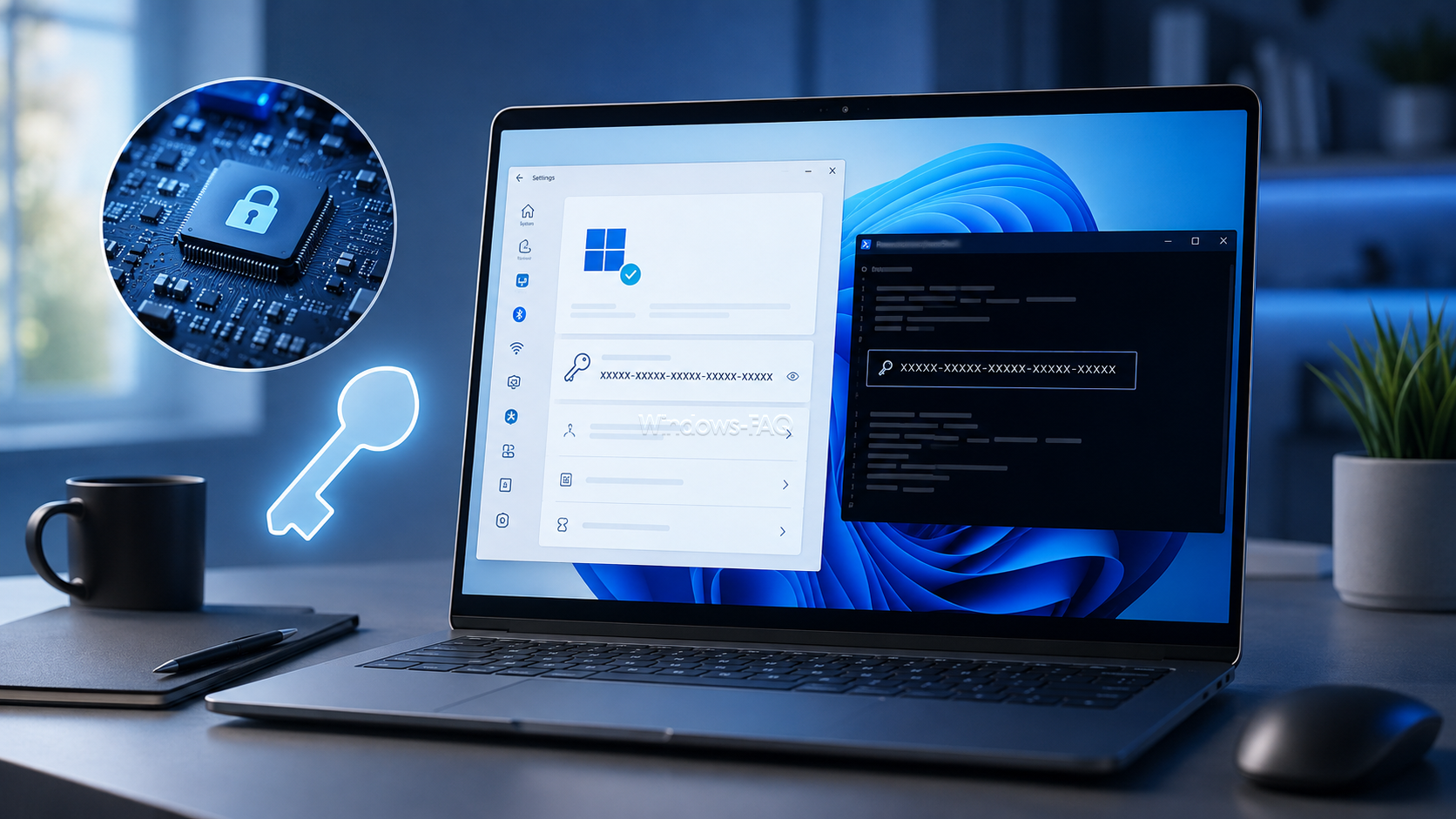
Need to find your Windows product key? On many PCs, the quickest method is a short PowerShell command. However, modern Windows 11 and Windows 10 installations often use a digital license instead of a product key that you can actually display.
This guide explains how to find a Windows product key with PowerShell, check your Windows activation status, use SLMGR, inspect the Registry and understand why some commands return an empty result. It also explains what has changed with the old WMIC method on current Windows 11 versions.
Quick answer: Open PowerShell or Windows Terminal and run the following command:
(Get-CimInstance -ClassName SoftwareLicensingService -Property OA3xOriginalProductKey).OA3xOriginalProductKeyIf Windows displays a 25-character key, your PC normally has an OEM product key stored in its UEFI or BIOS firmware. If nothing appears, this does not automatically mean that Windows is unlicensed. Your computer may instead use a digital license, a retail license or an organization-managed activation method.
This article is also available in German
You can also read the original German version of this guide on Windows-FAQ.de.
Diesen Artikel auf Deutsch lesenWhat is a Windows product key?
A Windows product key is a 25-character code used to activate a compatible edition of Windows. Its format looks like this:
XXXXX-XXXXX-XXXXX-XXXXX-XXXXXThe product key helps Windows determine whether the installed edition can be activated with the available license. Windows Home and Windows Pro, for example, use different licensing entitlements.
A Windows product key should not be confused with your Windows password, Microsoft account password or Windows Hello PIN. If you are actually looking for stored login credentials, see our guide on how to view saved passwords on Windows.
Windows product key or digital license: What do you have?
Before trying several commands, it helps to understand how Windows is activated. Microsoft currently uses two main activation methods for Windows 11 and Windows 10.
| Activation method | What it means | Can you display a 25-character key? |
|---|---|---|
| OEM product key | A key supplied with the PC and often stored in UEFI or BIOS firmware | Often yes |
| Retail product key | A separately purchased Windows license | Possibly, depending on how it was purchased and installed |
| Digital license | Activation associated with the device and potentially your Microsoft account | Often no |
| Volume activation | Activation managed by an organization using methods such as KMS or MAK | Usually not as a useful full key |
This distinction is important. Many users search for their Windows 11 product key even though their computer is already activated through a digital license and there is no useful 25-character key they need to recover.
Check your Windows activation status first
Before extracting any key, check whether Windows is already activated.
- Open
Settings. - Select
System. - Open
Activation. - Check the activation status shown by Windows.
If Windows reports that the system is activated with a digital license, you normally do not need to find a product key before reinstalling the same Windows edition on the same PC.
If the digital license is linked to your Microsoft account, this can also make reactivation easier after certain hardware changes.
Microsoft provides additional information about the different licensing scenarios in its official Windows product key documentation.
Method 1: Find the Windows product key with PowerShell
PowerShell is currently the best built-in method for checking whether your PC contains an OEM key in its firmware.
Step 1: Open PowerShell or Windows Terminal
- Right-click the Start button or press
Windows + X. - Open
Terminal (Admin)or PowerShell with administrator privileges. - Confirm the User Account Control prompt if Windows displays one.
Step 2: Run the product key command
Enter the following command:
(Get-CimInstance -ClassName SoftwareLicensingService -Property OA3xOriginalProductKey).OA3xOriginalProductKeyPress Enter.
Step 3: Interpret the result
If a firmware-based OEM key exists, PowerShell should display a value similar to this:
XXXXX-XXXXX-XXXXX-XXXXX-XXXXXStore the key in a secure location if you have a legitimate reason to keep a copy. Do not publish it in screenshots, forum posts or support requests.
If the command returns an empty line, your computer may simply not contain an OA3 product key in its firmware. This is common with digital licenses, separately purchased retail licenses and volume-licensed systems.
Why Get-CimInstance is better than Get-WmiObject
Older instructions often use the following PowerShell command:
(Get-WmiObject -query 'select * from SoftwareLicensingService').OA3xOriginalProductKeyThis can still work in Windows PowerShell environments where Get-WmiObject is available. However, Get-CimInstance is the more modern approach and is the better choice for current Windows systems.
Both commands are trying to retrieve the OA3xOriginalProductKey property from the Windows Software Licensing Service. This property is primarily useful for OEM keys stored in the computer firmware.
Method 2: Find the Windows product key from Command Prompt
Many older tutorials recommend the following CMD command:
wmic path softwarelicensingservice get OA3xOriginalProductKeyThis method is now obsolete on current Windows 11 installations.
WMIC has been removed from current Windows 11 versions
WMIC was deprecated by Microsoft several years ago. In August 2026, Microsoft confirmed that WMIC had been removed and was no longer available as a Feature on Demand on Windows 11 version 24H2 and later.
Therefore, you should not install or restore WMIC just to retrieve a Windows product key. Use PowerShell with Get-CimInstance instead.
Run the PowerShell lookup from CMD
If you prefer Command Prompt, you can still launch the PowerShell query from CMD:
powershell -NoProfile -Command "(Get-CimInstance -ClassName SoftwareLicensingService -Property OA3xOriginalProductKey).OA3xOriginalProductKey"The command runs PowerShell in the background and returns the firmware product key if one is available.
Method 3: Check Windows licensing with SLMGR
Windows includes the Software Licensing Management Tool, commonly known as slmgr. It is useful for checking activation information, installing a product key and starting online activation.
However, SLMGR should not be confused with a full product key extractor. Commands such as slmgr /dli normally show only partial key information.
Check detailed Windows license information
Open Command Prompt or Windows Terminal and run:
slmgr /dlvAfter a short delay, Windows displays a licensing information dialog. Depending on the license, you can see information such as the license status, activation channel, activation ID and part of the installed product key.
Display basic license information
Use:
slmgr /dliThis displays a shorter overview of the installed Windows license. It is useful when you want to identify the license channel or compare the last characters of a product key, but it does not normally reveal the complete key.
Check whether Windows activation expires
Another useful command is:
slmgr /xprFor normal permanently activated retail or OEM installations, Windows should report permanent activation. The command is especially useful on systems using organizational or KMS-based activation.
Install or change a Windows product key
If you already have a valid product key, you can install it with:
slmgr /ipk XXXXX-XXXXX-XXXXX-XXXXX-XXXXXReplace the example with your actual key. Run this command from an elevated terminal.
Activate Windows online
After installing a valid key, you can request online activation with:
slmgr /atoWindows then attempts to activate the installed license.
Remove the installed product key
The following command removes the currently installed product key from the local Windows installation:
slmgr /upkUse this command carefully. Removing the local product key does not automatically give you the legal right to transfer the license to another PC. Transfer rights depend on the type of license and the applicable Microsoft license terms.
Important SLMGR commands at a glance
| Command | Purpose |
|---|---|
slmgr /dli | Displays basic license information |
slmgr /dlv | Displays detailed licensing information |
slmgr /xpr | Shows whether activation has an expiration date |
slmgr /ipk | Installs or replaces a product key |
slmgr /ato | Requests Windows activation |
slmgr /upk | Removes the installed product key |
Method 4: Check the Windows product key in the Registry
The Windows Registry contains licensing information, but it is less reliable for determining the exact license that activates your PC.
To inspect the relevant Registry location:
- Press
Windows + R. - Enter
regedit. - Select
OK. - Confirm the User Account Control prompt.
- Navigate to the following location:
HKEY_LOCAL_MACHINE\SOFTWARE\Microsoft\Windows NT\CurrentVersion\SoftwareProtectionPlatformLook for the value:
BackupProductKeyDefaultA 25-character key may appear there. However, you should not automatically assume that this is the firmware OEM key or the key currently responsible for Windows activation.
The Registry can contain default, backup or generic installation information. For this reason, the PowerShell firmware query and the activation status in Settings are usually more useful.
Which Windows product key method should you use?
| Method | Best use | Shows full key? |
|---|---|---|
| PowerShell Get-CimInstance | Checking for an OEM key stored in UEFI or BIOS | Yes, if an OEM firmware key exists |
| Settings > Activation | Checking whether Windows is activated | No |
| SLMGR | Checking licensing and activation details | Normally no |
| Registry | Secondary inspection of licensing information | Sometimes, but may not be the relevant activation key |
| WMIC | Legacy Windows systems only | Previously yes for firmware OEM keys |
What if the Windows product key command returns nothing?
An empty PowerShell result is one of the most common situations and usually does not indicate a problem.
Possible explanations include:
- Your PC uses a Windows digital license.
- Windows was purchased separately as a retail license.
- Your organization manages activation through volume licensing.
- No OEM key is stored in UEFI or BIOS.
- The current Windows edition differs from the edition originally supplied with the computer.
Open Settings > System > Activation before troubleshooting further. If Windows is already activated, you normally do not need to recover a firmware key.
Can you reinstall Windows without knowing the product key?
In many cases, yes.
If the device already has a valid digital license for Windows 11, you can normally reinstall the same edition of Windows 11 on the same hardware without entering a product key during setup.
When Windows Setup asks for a key, select I don't have a product key. Make sure you install the same edition that was activated before, such as Windows 11 Home or Windows 11 Pro.
Once the installation is complete and the computer connects to the internet, Windows can reactivate automatically when the device is recognized.
OEM PCs can retrieve the key automatically
Many computers that were sold with Windows contain the OEM key in UEFI firmware. Windows Setup can read this key automatically, which is why some PCs never ask you to enter a product key during a clean installation.
On these systems, manually writing down the key is useful as a backup, but it is often not necessary for reinstalling the original Windows edition.
How to find the Windows product key if the PC no longer boots
If Windows no longer starts, the best approach depends on the license type.
PC originally came with Windows
If the manufacturer supplied Windows with the device, an OEM key may be stored in UEFI or BIOS. Windows Setup can normally detect it during reinstallation.
PC uses a digital license
Install the same Windows edition that was previously activated. After connecting to the internet, Windows may reactivate automatically.
You purchased Windows separately
Check your purchase confirmation, retailer account, Microsoft order history, product packaging or Certificate of Authenticity, depending on how you obtained Windows.
The motherboard was replaced
A major hardware change can affect activation because the digital license is associated with the device hardware. If the license was linked to your Microsoft account, the Windows Activation troubleshooter may help reactivate the device.
Can you use a Windows Home product key for Windows Pro?
No. A Windows Home product key does not normally activate Windows Pro.
The installed edition must match the license. If your computer has a Windows Home license but Windows Pro is installed, you need a valid Pro entitlement to activate the Pro edition.
Windows Pro includes additional business and management features that are not available in Home, so Microsoft licenses the editions separately.
If you are reinstalling Windows on a previously activated computer, always choose the edition that corresponds to the existing license unless you have purchased an upgrade.
Should you use a third-party Windows key finder?
A third-party key finder can be useful when built-in Windows methods do not provide enough information. However, you should be selective because product key tools require access to sensitive system licensing data.
ShowKeyPlus is one well-known option available through the Microsoft Store. Tools of this type may distinguish between an installed key and an OEM key stored in firmware.
Avoid downloading unknown key finders from random websites. Do not disable antivirus protection simply because an untrusted tool asks you to do so.
Installed key, OEM key and digital license are not always the same thing
This is one of the most important points when troubleshooting Windows activation.
A computer can contain several pieces of licensing information at the same time. For example, the motherboard may contain an OEM Windows Home key while the computer currently runs Windows Pro using a separately purchased digital license.
A Registry value or key finder may therefore show a key that is different from the entitlement currently activating Windows.
Do not assume that two different displayed keys mean something is wrong. First check the installed Windows edition and its activation status.
FAQ about finding a Windows product key
Why does PowerShell show no Windows product key?
The computer may use a digital license, retail license or volume activation instead of an OEM key stored in UEFI or BIOS. An empty result does not automatically mean Windows is not activated.
Can PowerShell display my full Windows 11 product key?
PowerShell can display the full OEM product key when one is stored in the computer firmware. It cannot turn every digital license into a readable 25-character key.
Does slmgr /dli show the complete Windows product key?
No. SLMGR normally shows licensing information and only part of the installed product key. It is designed primarily for activation and license management rather than full key recovery.
Does WMIC still work for finding a Windows product key?
Not on current Windows 11 versions. Microsoft removed WMIC from Windows 11 version 24H2 and later in August 2026. Use the PowerShell Get-CimInstance command instead.
Can I reinstall Windows 11 without entering a product key?
Yes, if the device already has a valid digital license for the same Windows edition. You can usually skip the product key during setup and Windows will reactivate after installation when the device connects to the internet.
Is a Windows digital license the same as a product key?
No. A product key is a 25-character code. A digital license is an activation entitlement associated with the device and potentially a Microsoft account, so there may be no readable product key to retrieve.
Can a Windows Home key activate Windows Pro?
No. Windows Home and Windows Pro use different licensing entitlements. To activate Windows Pro you need a valid Pro license or upgrade.
Should I post my Windows product key when asking for support?
No. Do not publish your full product key in screenshots, forums or support messages. If identification is necessary, the last few characters are normally sufficient for comparison.
Conclusion
The easiest way to find a Windows product key on a modern PC is to use PowerShell and query the OA3xOriginalProductKey property. If a firmware OEM key exists, Windows can display the full 25-character key.
If PowerShell returns nothing, do not assume that your Windows license is missing. Modern Windows 11 and Windows 10 systems frequently rely on digital activation, which does not require a readable product key.
Check Settings > System > Activation first. Use SLMGR when you need detailed licensing information, and treat Registry values only as secondary information. The old WMIC method should now be considered a legacy solution because it is no longer available on current Windows 11 systems.
If you regularly troubleshoot Windows, you can find additional tutorials in our Windows guides.