Newsletter Subscribe
Enter your email address below and subscribe to our newsletter

Frequently Asked Questions
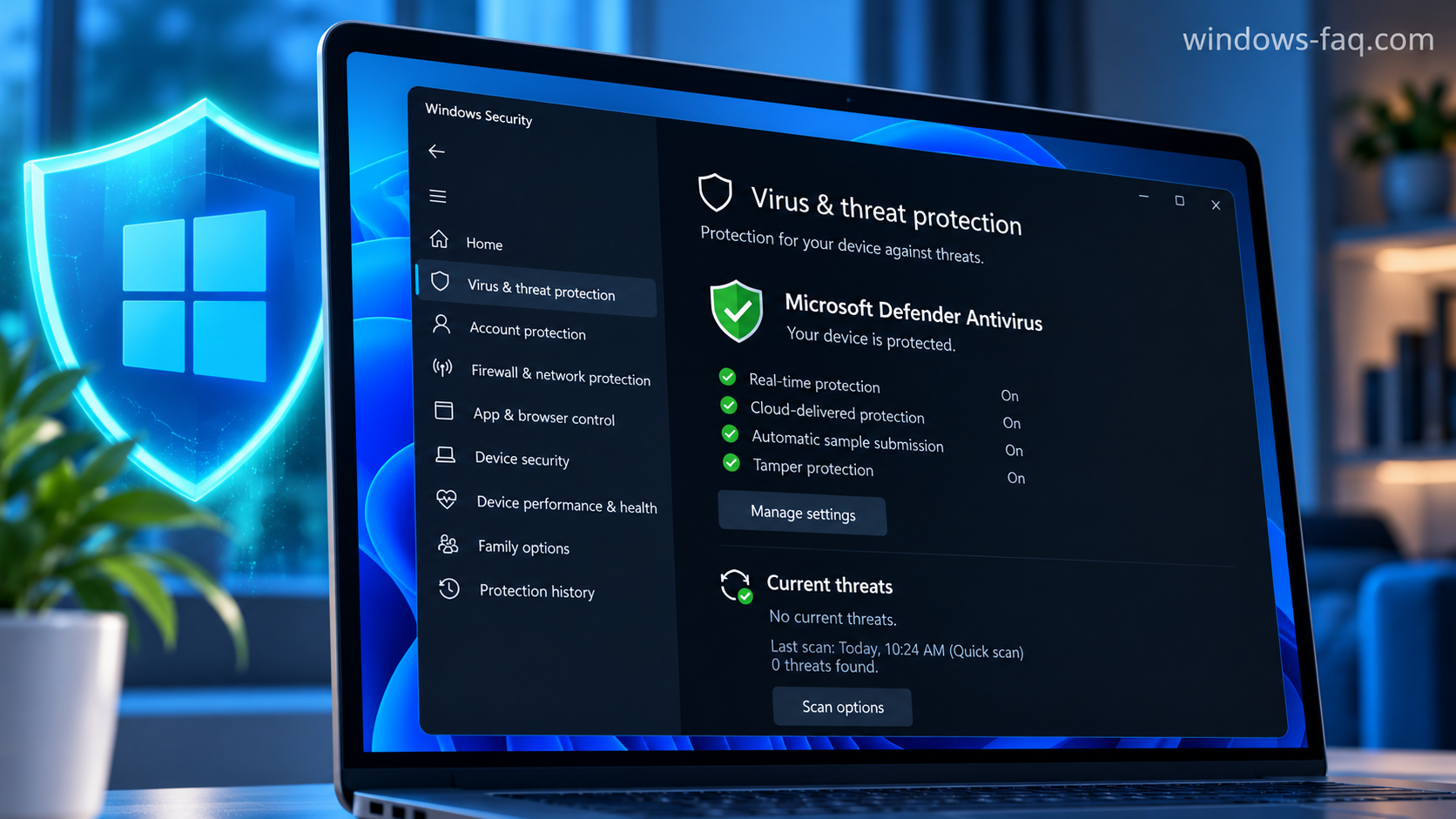
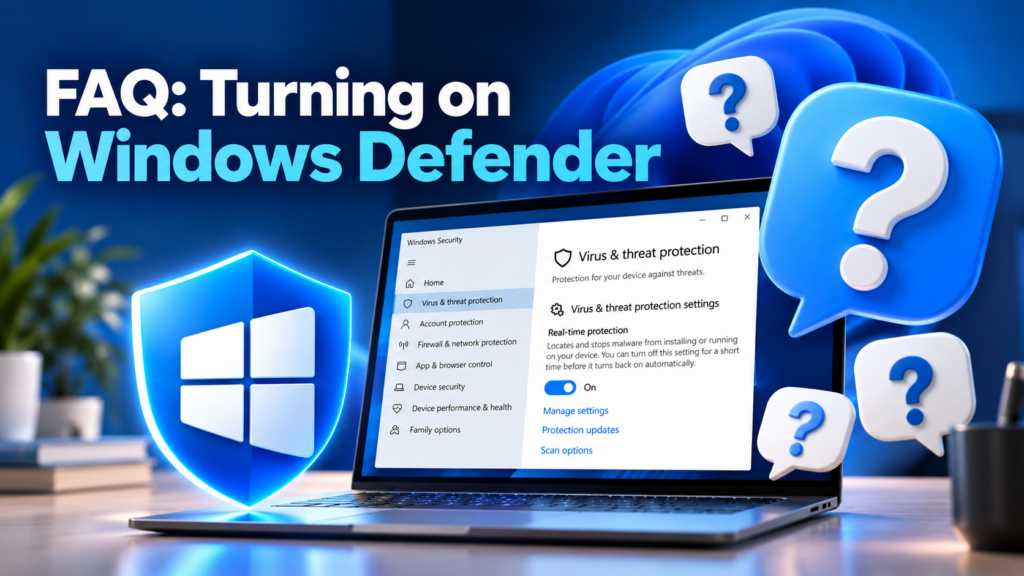
To turn on Windows Defender, open Windows Security, choose Virus & threat protection, select Manage settings, and turn Real-time protection on. If the switch is missing, grayed out, or immediately turns off again, the next step is to find out what is controlling your antivirus protection.
The built-in antivirus is now called Microsoft Defender Antivirus. This guide shows you how to enable it in Windows 11 and Windows 10, confirm that it is protecting your computer, and work through the most common activation problems.
To turn on Windows Defender, open Windows Security, choose Virus & threat protection, select Manage settings, and turn Real-time protection on. If the switch is missing, grayed out, or immediately turns off again, the next step is to find out what is controlling your antivirus protection.
The built-in antivirus is now called Microsoft Defender Antivirus. This guide shows you how to enable it in Windows 11 and Windows 10, confirm that it is protecting your computer, and work through the most common activation problems.
For a personal Windows 11 PC that uses Microsoft Defender Antivirus, the usual activation method takes only a few steps. You might need administrator approval to change protection settings.
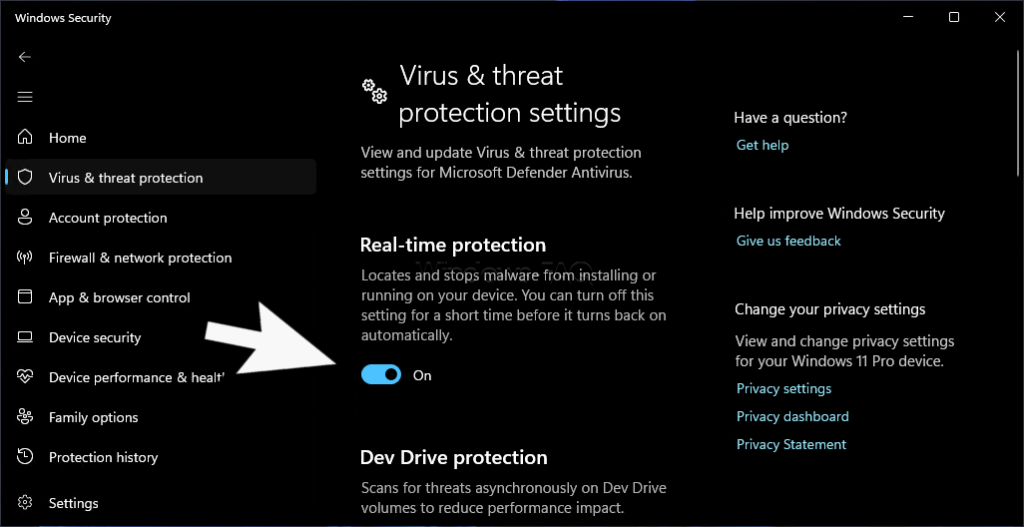
You can also reach the app through Settings > Privacy & security > Windows Security > Open Windows Security. Searching for the app directly is often easier because it avoids differences between Settings layouts.
If Real-time protection is already on, you do not need to toggle it off and on again. The useful next step is to check the active antivirus provider and protection updates, especially if a notification still says your computer needs attention.
Microsoft Defender Antivirus is the antivirus component built into Windows 11 and Windows 10. It checks for malicious software, monitors activity while you use the computer, and can remove or quarantine detected threats.
The similar product names can make the settings confusing. These are the distinctions that matter when you want to enable protection:
| Name | What it means |
|---|---|
| Windows Defender | The older name that many people still use for the built-in antivirus. |
| Microsoft Defender Antivirus | The antivirus engine included with Windows. This is the component you enable for malware protection. |
| Windows Security | The built-in app where you view antivirus status, firewall settings, and other Windows security features. |
| Microsoft Defender app | A separate app available with eligible Microsoft 365 subscriptions. You do not need it to enable the antivirus built into Windows. |
| Microsoft Defender Firewall | The Windows component that controls network traffic. Its settings are separate from antivirus protection. |
Microsoft Defender Antivirus does not require a separate download, subscription, or activation key on a normal Windows installation. You manage it through the Virus & threat protection settings in Windows Security.
It helps to establish whether you are managing a personal PC or a computer controlled by your employer or school. On a managed device, the organization may choose the antivirus product and lock particular settings, even when you can sign in as a local administrator.
You do not need to disable the firewall, remove your Windows password, or change your Microsoft account to enable Defender. These controls protect different parts of the system and can remain in place.
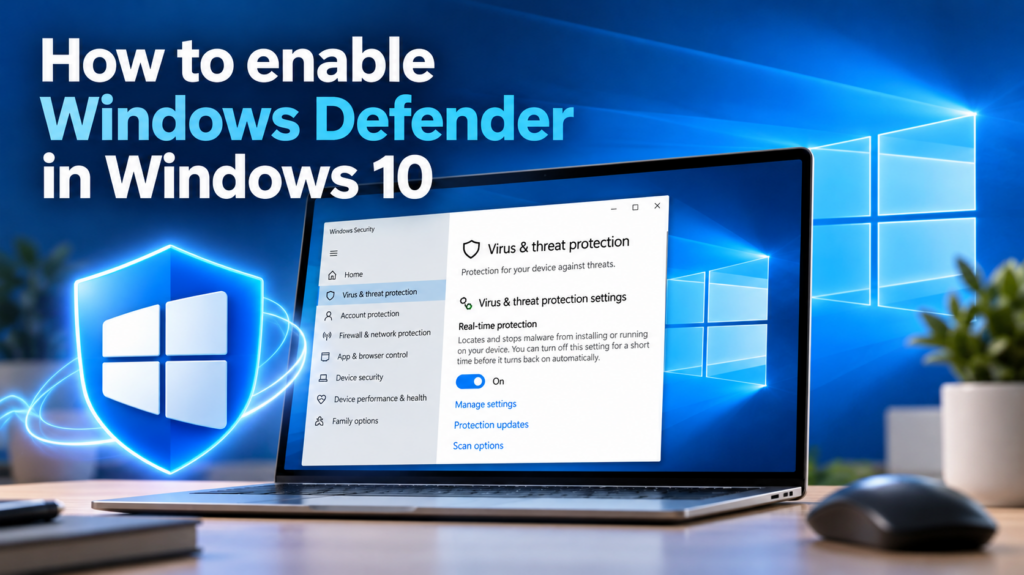
Windows 10 uses the same Windows Security app, but the route through Settings is different. You can open Settings > Update & Security > Windows Security, then choose Virus & threat protection.
Under Virus & threat protection settings, select Manage settings and set Real-time protection to On. Searching the Start menu for Windows Security also works, so you can use that route if you cannot find the Settings page.
Standard support for Windows 10 Home and Pro ended on October 14, 2025. Antivirus protection remains useful, but it does not replace operating system security updates. A Windows 10 PC therefore also needs an applicable Extended Security Updates (ESU) arrangement or a move to a supported Windows version.
A protection switch, an old notification, and a completed scan tell you different things. To confirm the current situation, check which antivirus is responsible for the PC, whether its protection is enabled, and whether its threat information is up to date.
In Windows Security, select Settings and then Manage providers. Expand Antivirus to see which product is registered and whether it reports that protection is on. Some layouts also offer Manage providers from the Virus & threat protection page.
If you intend to use Defender, Microsoft Defender Antivirus should be the active antivirus provider. If a different product is active, Defender being inactive does not automatically mean the computer is unprotected. The important question is whether the antivirus you have chosen is working.
Security intelligence contains information Defender uses to recognize threats. Windows normally updates it automatically, but a manual check is useful after protection has been disabled or the computer has spent a long time offline.
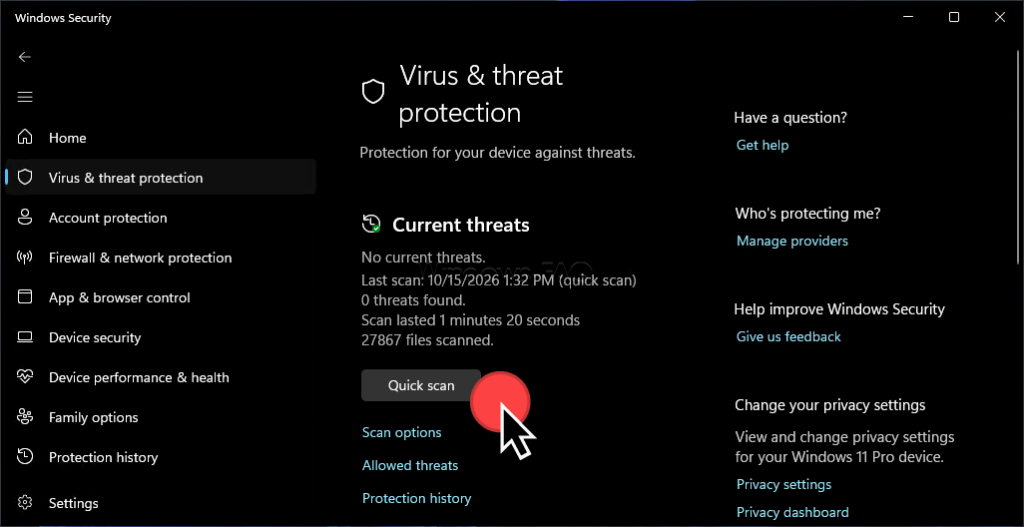
A successful scan and ongoing real-time protection are separate checks. After the scan, confirm that real-time protection is still enabled. A clean scan result also cannot guarantee that every possible threat has been ruled out.
Under Manage settings, Cloud-delivered protection and Automatic sample submission help Defender assess suspicious activity and files using online analysis. Automatic sample submission can send suspicious file samples to Microsoft for analysis.
On a personal PC, keeping these options enabled supports the built-in protection. Tamper Protection should also remain enabled to help prevent unwanted changes to security settings. On a work device, these choices may be controlled by your organization.
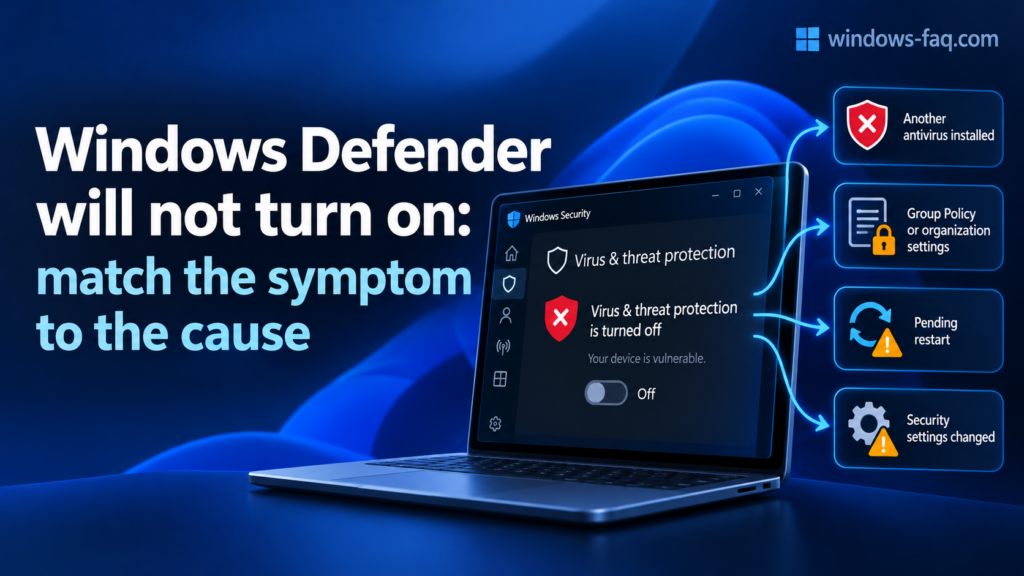
The most useful fix depends on what Windows actually displays. This table helps you choose the relevant troubleshooting section without changing unrelated settings.
| What you see | What to check first |
|---|---|
| Another antivirus product appears in Windows Security. | Whether that product is your intended active antivirus. |
| Real-time protection is grayed out or marked as managed. | Organization management or a local security policy. |
| Defender stays off after another antivirus was removed. | Whether the uninstall finished, a restart is pending, or the old provider is still registered. |
| The Windows Security window is blank or closes unexpectedly. | Windows updates, the app interface, and possible system file problems. |
| The setting changes back after you enable it. | Another antivirus, centrally applied settings, or a tool that changes security configuration. |
| A warning remains even though the settings look correct. | The current provider status, pending actions, and Defender’s status in PowerShell. |
Windows normally lets a compatible antivirus product become the main protection provider. Microsoft Defender Antivirus can then be disabled or operate in another mode, depending on the Windows configuration. Trying to force both products into full real-time operation is not a useful first troubleshooting step.
If you want to switch to Defender on your personal PC, you can remove the other antivirus through Settings > Apps > Installed apps in Windows 11. In Windows 10, the corresponding list is under Settings > Apps > Apps & features.
After the uninstall finishes, restart the computer and check Manage providers again. Defender should normally take over automatically. If it does not, the old product may still have components or registration information present. Completing its supported removal procedure is safer than deleting program folders or security services yourself.
Messages such as “This setting is managed by your administrator” can appear when a workplace policy controls antivirus protection. On a company or school device, your IT administrator needs to check the intended configuration. Local changes may be blocked or replaced when the device receives its next policy update.
On a personal computer, the same message can result from a local policy or a privacy or tuning utility that previously changed Windows settings. It does not prove that the PC belongs to an organization or that malware is present. The useful starting point is the change you made before the message appeared.
If you previously changed Defender policies on your own Windows Pro PC, you can review that specific configuration. Windows Home does not include the Local Group Policy Editor, and this procedure is not intended for organization-managed devices.
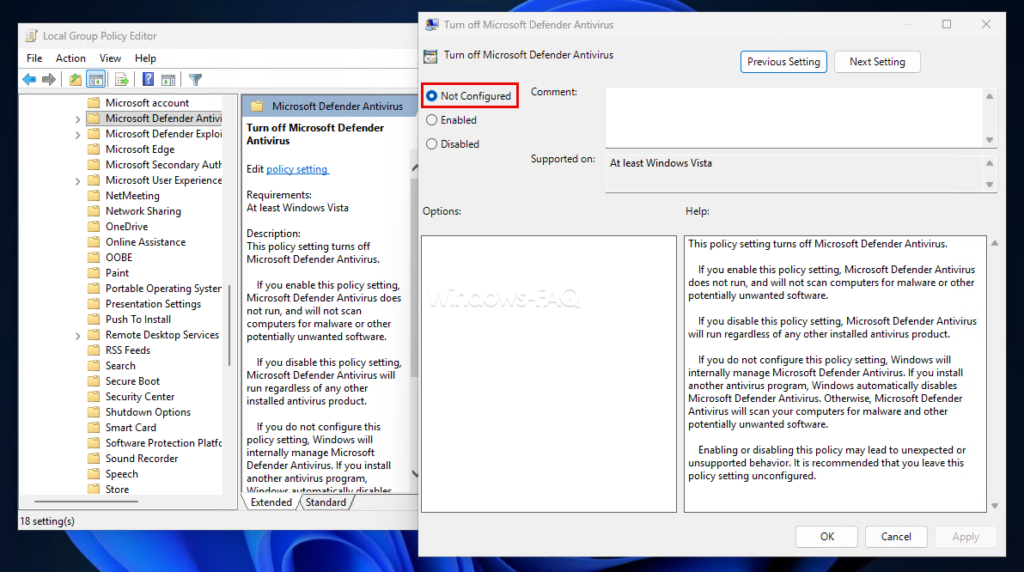
gpedit.msc, and confirm with Enter.The policy name can be misleading because enabling it turns the antivirus off. Returning a known local change to Not Configured allows Windows to manage Defender normally. It is not a reason to reset every security policy or import Registry changes from an unknown script.
The Windows Security interface and the antivirus engine are separate components. A window that fails to open does not, by itself, tell you whether the antivirus engine is running. The PowerShell status check below helps distinguish a display problem from disabled protection.
If Windows explicitly says that your IT administrator has limited access to a page, the administrator-policy section above is the relevant starting point. That message alone is not evidence that the app needs repair.
First, you can install available Windows updates and restart the PC. If your Windows version exposes Advanced options for Windows Security with a Repair button, that is another reasonable step. Its availability and location vary, so the absence of that button is not a separate fault.
Keeping the installed Windows release supported also matters. Our guide to Windows 11 feature updates explains the upgrade process. You do not normally need a feature upgrade just to switch on Defender.
If Windows Security fails alongside other Windows components, the built-in repair tools can check for system corruption. You can search for Command Prompt, select Run as administrator, and run the following command:
DISM.exe /Online /Cleanup-Image /RestoreHealthDISM repairs the Windows component store and normally obtains required repair files through Windows Update.
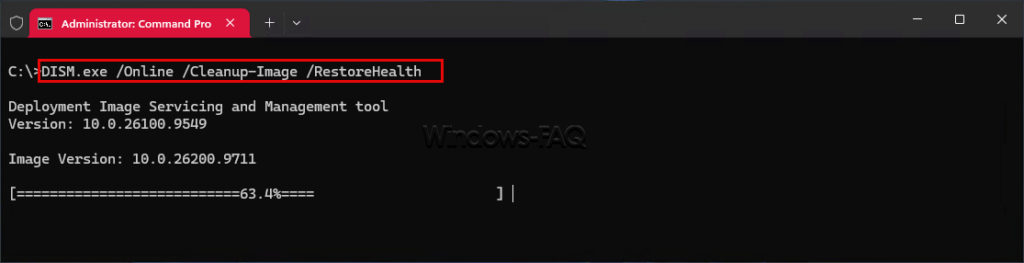
After it completes successfully, you can run System File Checker:
sfc /scannowAllow the scan to finish, read its result, and restart the computer if repairs were made. If either command reports an unresolved error, keep the exact message for further troubleshooting. These tools repair Windows components; they do not override an intentional antivirus policy.
PowerShell is useful when you want a more detailed status report or need to check a PC whose Windows Security window is unreliable. For these commands, you can search for Windows PowerShell in Start and choose Run as administrator.
The following command only reads information. It shows Defender’s operating mode, antivirus status, real-time protection status, and the date of the last recorded security intelligence update.
Get-MpComputerStatus | Select-Object AMRunningMode, AntivirusEnabled, RealTimeProtectionEnabled, AntivirusSignatureLastUpdated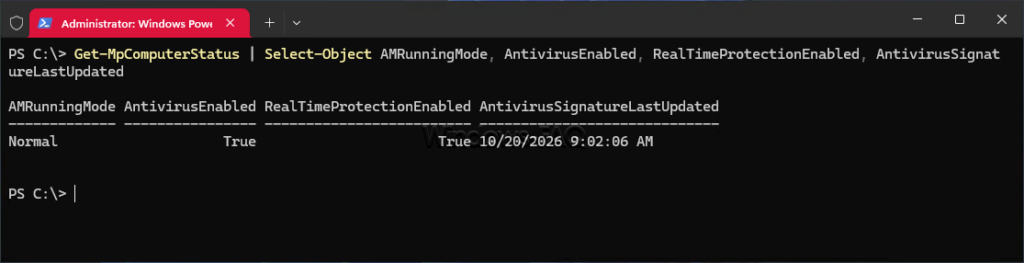
| Property | How to read it |
|---|---|
AMRunningMode | Normal indicates standard active mode. Other values need to be interpreted with the security configuration. |
AntivirusEnabled | True means Defender reports its antivirus functionality as enabled. |
RealTimeProtectionEnabled | True means Defender reports real-time protection as enabled. |
AntivirusSignatureLastUpdated | Shows when the installed threat definitions were last updated. |
For standard active Defender protection, Normal together with the two True values is the usual result. Windows 11 can also use Hybrid mode with Smart App Control. Passive mode can occur when another antivirus is responsible for protection, so a different mode does not automatically mean the PC is unprotected.
The active provider in Windows Security remains important when interpreting the output. Seeing MsMpEng.exe in Task Manager only tells you that the Defender process is present; it does not establish the complete protection state.
On a personal PC where Defender is the intended antivirus and you are permitted to change its settings, this command requests that real-time monitoring be enabled:
Set-MpPreference -DisableRealtimeMonitoring $falseThe wording looks reversed because $false applies to DisableRealtimeMonitoring. You are telling Defender not to disable real-time monitoring. Afterward, run the status command again to check the actual result.
This command changes a preference; it does not remove another antivirus or bypass organizational management. Tamper Protection and managed policies can prevent a change from taking effect. If the status does not change, the cause needs to be resolved through the relevant settings or administrator.
If protection repeatedly changes after you have enabled it, look for a setting or program that is applying that configuration again. Useful clues include a recently installed security suite, a tuning tool, or a message that the device is managed.
Practical tip: Make one change at a time and check the provider and protection status afterward. This makes it easier to tell which action helped and prevents several unrelated changes from making the problem harder to diagnose.
If Defender detects threats that return after cleanup, an additional scan may be appropriate. Under Virus & threat protection > Scan options, a Full scan checks more of the computer. On supported PCs, Microsoft Defender Antivirus (offline scan) restarts into a recovery environment; this option is not supported on Windows on Arm. Save open work before an offline scan, then review Protection history when Windows returns.
Broad exclusions can also weaken protection while the main switch still shows On. A whole drive or Downloads folder should not be excluded merely to silence a detection. If an unfamiliar item is being blocked, understanding the detection is a better next step than allowing it automatically.
Antivirus protection and the firewall have separate controls. Microsoft Defender Antivirus checks for malicious software, while Microsoft Defender Firewall controls network connections according to its rules.
You can check the firewall in Windows Security > Firewall & network protection. Choose the relevant network profile and confirm that Microsoft Defender Firewall is On, unless another managed firewall configuration applies. Turning on real-time antivirus protection does not replace this check.
Antivirus software does not stop someone who already has access to an unlocked Windows session from opening your files. You can set up Windows Hello for convenient sign-in protection and lock the PC with Windows + L when you step away.
If you use Windows 11 auto login, remember that anyone who starts the computer may gain access to the signed-in account. Keeping Defender enabled is one part of protecting the computer; secure access to your account is another.
Microsoft Defender Antivirus is included with Windows 11 and Windows 10 at no extra charge. You do not need a Microsoft 365 subscription or a separate activation key to use the built-in antivirus.
Yes. You can manage Microsoft Defender Antivirus while signed in with a local Windows account. Windows may still ask for administrator approval before allowing you to change protection settings.
A managed security policy or another active antivirus product can prevent you from changing Defender settings. Check the antivirus provider in Windows Security and whether the device is managed by your employer or school.
It normally takes over after the other product has been fully removed. Restart the PC if requested, then check Manage providers in Windows Security to confirm that the change was successful.
Yes. Local scanning and real-time protection can use the security intelligence already installed on your PC. Cloud-based checks and downloading current protection updates require an internet connection.
No. Limited periodic scanning can provide occasional Defender scans alongside another antivirus in supported configurations. It does not make Defender your primary antivirus or provide its full real-time protection.
A restart is not normally necessary for changing the Real-time protection switch. It may be required after removing another antivirus, applying updates, or repairing Windows components. Follow any restart prompt and check protection again afterward.
Yes. Windows 11 Home includes Microsoft Defender Antivirus and the Windows Security app. You do not need to upgrade to Pro to enable antivirus protection; the Group Policy Editor is the edition-specific tool mentioned in this guide.
For most personal PCs, turning on Windows Defender starts with the Real-time protection switch in Windows Security. The final check is just as useful: your chosen antivirus should be active, its protection updates should be current, and any outstanding threat actions should be resolved.
If Defender will not stay on, checking the active provider and the settings that control it usually gives you a clearer direction. Work through the relevant cause, then confirm the result before making further changes.