Newsletter Subscribe
Enter your email address below and subscribe to our newsletter

Frequently Asked Questions
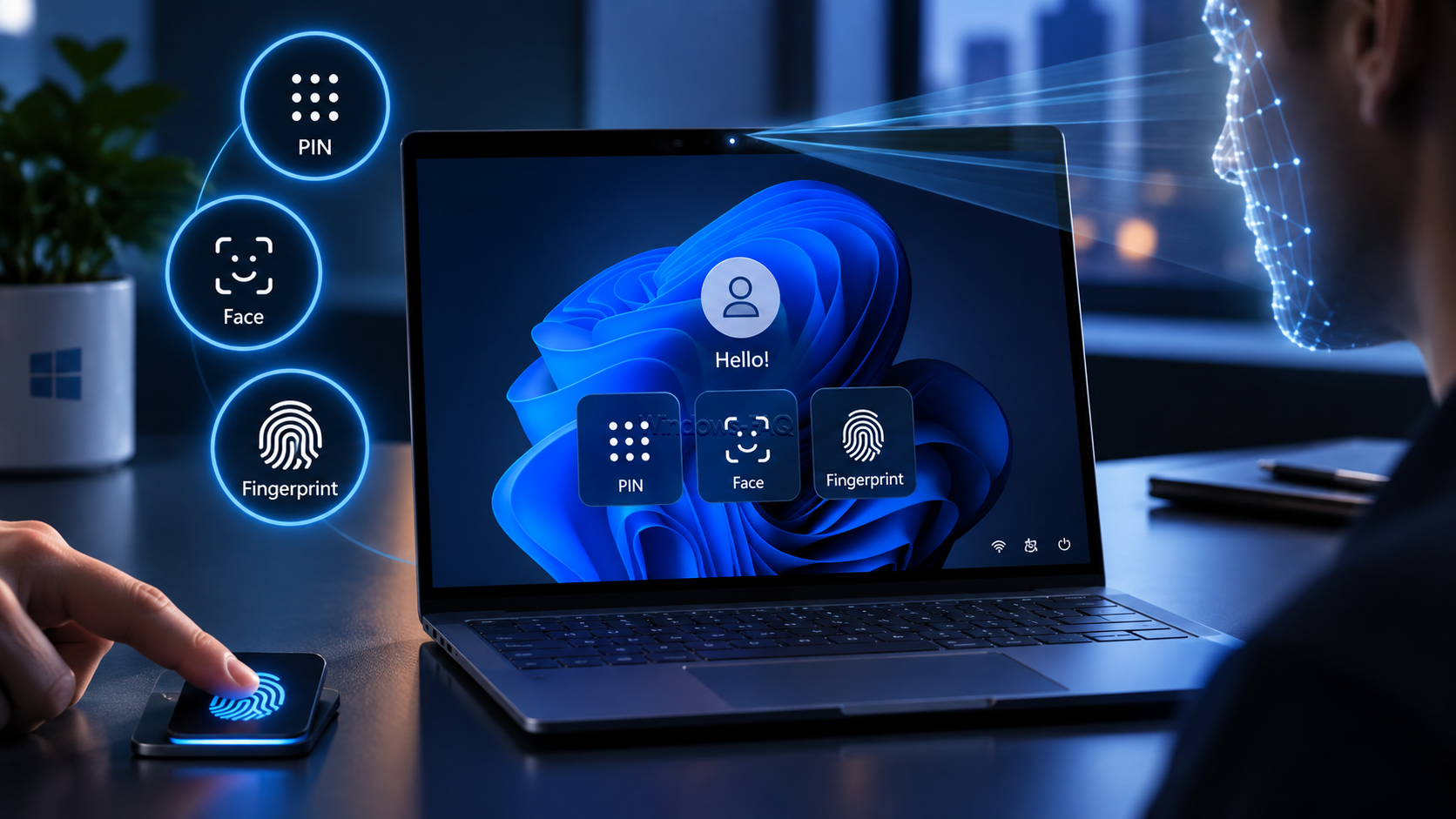
Windows Hello lets you sign in to your Windows PC with a PIN, facial recognition, or a fingerprint instead of typing your account password. The important difference is that your Windows Hello PIN belongs to that particular device. It is not a shorter version of your Microsoft account password.
Windows Hello lets you sign in to your Windows PC with a PIN, facial recognition, or a fingerprint instead of typing your account password. The important difference is that your Windows Hello PIN belongs to that particular device. It is not a shorter version of your Microsoft account password.
To set up Windows Hello in Windows 11, open Settings > Accounts > Sign-in options and choose your preferred method. A PIN works without biometric hardware. Face sign-in requires a compatible infrared camera, while fingerprint sign-in requires a supported reader. This guide walks you through setup, explains the security basics, and helps you fix common sign-in problems.
Windows Hello is the sign-in technology behind the PIN, face, and fingerprint options in Windows. You might already use it whenever you open your laptop or unlock your desktop. Instead of entering a reusable online password, you verify your identity on the device you are using.
That distinction matters. Learning your laptop’s Hello PIN does not let someone use that PIN to sign in to your Microsoft account on their own computer. However, anyone who has both your laptop and your PIN may be able to access your Windows session, so you still need to keep the PIN private.
| Windows Hello method | How you sign in | What you need |
|---|---|---|
| PIN | Enter a device-specific code. | A configured Windows account and an available PIN setup option. |
| Facial recognition | Look toward the camera. | A Windows Hello-compatible infrared camera and a backup PIN. |
| Fingerprint recognition | Touch the fingerprint sensor. | A Windows Hello-compatible fingerprint reader and a backup PIN. |
A physical security key is a separate sign-in option. It may also support passwordless authentication, but it is not a fourth Windows Hello biometric or PIN method. Do not confuse a security key’s own PIN with the Hello PIN configured on your PC.
You can also read the original German version of this guide on Windows-FAQ.de.
Diesen Artikel auf Deutsch lesenA working webcam is not necessarily a Windows Hello camera. An ordinary RGB webcam can work perfectly in video calls while remaining unsuitable for face sign-in. Check the specifications for your exact laptop or camera model and look for explicit Windows Hello support.
The same applies to fingerprint readers. The sensor needs compatible hardware and a suitable driver. Different configurations of the same laptop family may ship with different cameras or no fingerprint reader at all. Software cannot add an infrared sensor that your device does not contain.
Windows Hello can be used with Microsoft accounts and, where supported by the device configuration, local accounts. Work or school devices may use Windows Hello for Business. On a managed PC, your organization can control enrollment, PIN requirements, and whether biometric sign-in is available.
Start with a PIN, then add facial recognition or a fingerprint. This gives you a fallback before you begin using biometrics. Keep access to your account recovery methods, and complete any pending restart before changing sign-in settings.
Windows + I to open Settings.Windows + L to lock your PC and test the PIN.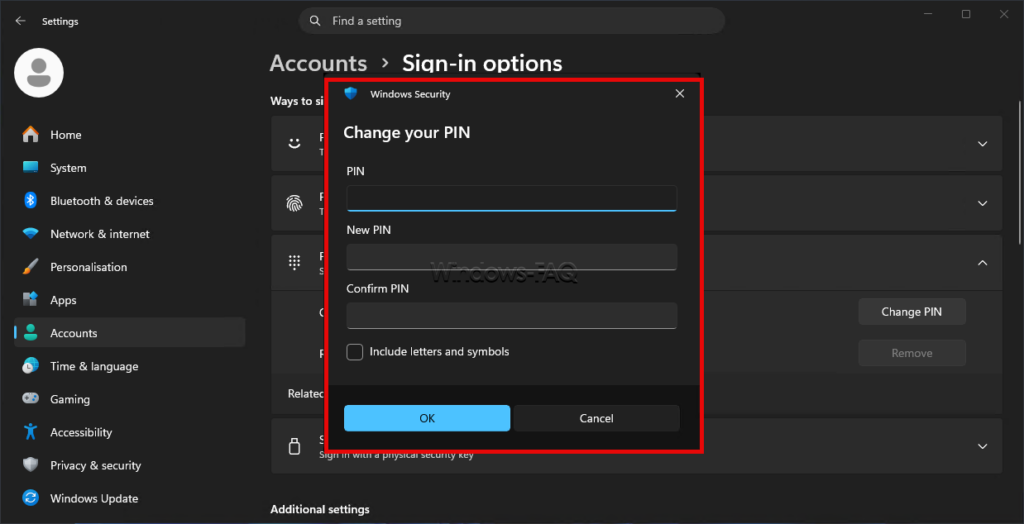
If a PIN is already configured, Windows may show Change PIN instead of Set up. You do not need to recreate it just to add a fingerprint or face sign-in. For a personal PC, a practical starting point is at least six non-obvious digits. Avoid birthdays and repeating patterns, and follow any stricter company requirements.
Keep the camera uncovered and sit at a normal working distance. If you wear glasses, use Improve recognition afterward to help Windows recognize you in your usual combinations of appearance and eyewear.
Register only your own fingers for your account. On a shared PC, each person should use a separate Windows account rather than adding their fingerprint to somebody else’s profile.
Before making further changes, test the new biometric method and the PIN separately. At the sign-in screen, choose Sign-in options to select another available method. This simple check is more useful than discovering that you cannot remember the PIN when a sensor stops responding.
Windows 10 also provides Hello setup under Settings > Accounts > Sign-in options. Choose the PIN, face, or fingerprint entry and follow the enrollment prompts. The layout differs from Windows 11, but the hardware requirements and the distinction between PIN and password remain relevant.
Windows 10 Home and Pro reached the end of standard support on October 14, 2025. Windows Hello does not extend operating system support. Check your device’s applicable support or Extended Security Updates coverage rather than assuming that a secure sign-in method replaces security updates.
An online account password can be used to authenticate from another device. A Hello PIN is tied to the device where it was configured. In key-based Windows Hello deployments, entering the PIN unlocks a cryptographic credential rather than sending the PIN to the service as a reusable password.
A Trusted Platform Module, or TPM, can protect that credential in hardware and restrict repeated guessing attempts. The security benefit comes from this combination of device possession, protected keys, and local verification. It does not mean that an obvious PIN is a good choice.
Local-account sign-in needs a qualification: Windows Hello can make it more convenient, but it does not provide the same asymmetric, key-based account authentication used with Microsoft accounts or Windows Hello for Business. Avoid treating every Windows PIN configuration as technically identical.
Windows Hello stores biometric templates locally rather than uploading your face or fingerprints to Microsoft’s servers. These templates are mathematical representations used for matching, not an online photo album. Some supported fingerprint sensors store the protected template within the sensor itself.
Biometric enrollment does not mean your face becomes your Microsoft account password. It verifies your presence for an authentication operation on the device. Windows diagnostic information about feature usage is a separate issue from the biometric templates themselves.
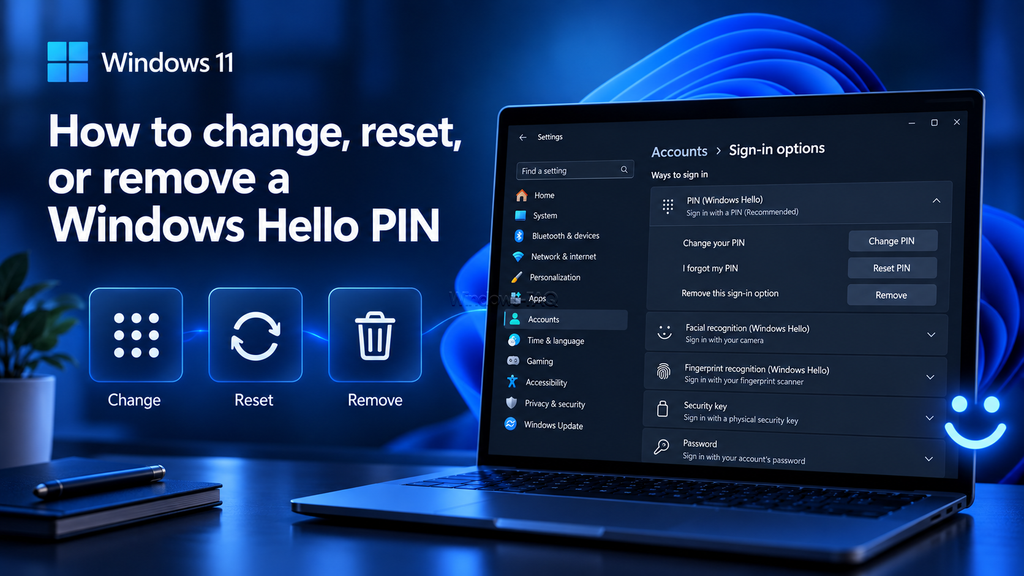
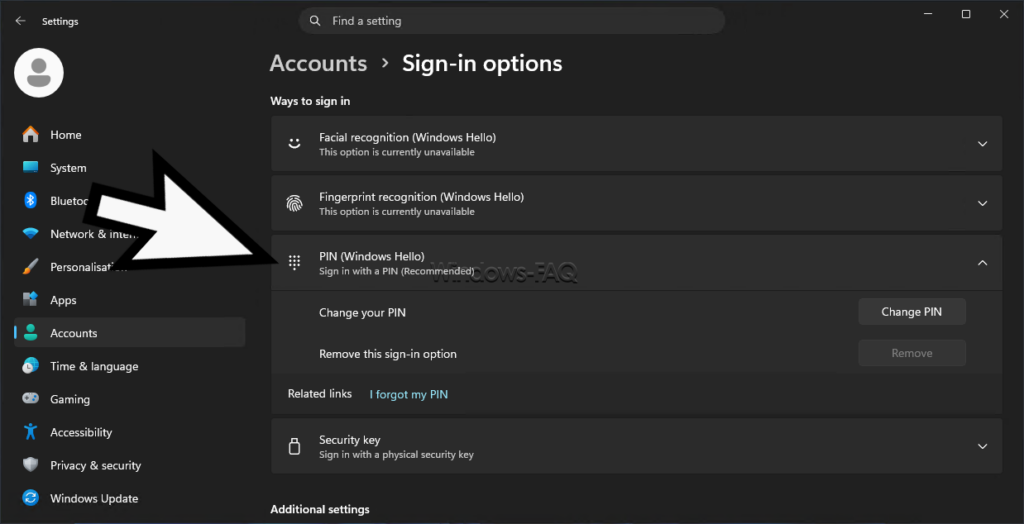
Open Settings > Accounts > Sign-in options > PIN (Windows Hello) > Change PIN. Enter the current PIN, choose a new one, and confirm it. Changing this device’s PIN does not change your Microsoft account password.
For a Microsoft account, select I forgot my PIN on the sign-in screen when the option is available. Follow the identity verification prompts, which may require an internet connection. If you can already access Windows, the reset option is also available under PIN (Windows Hello) in Settings.
For a local account, the Microsoft-account PIN reset link is not available on the sign-in screen. Select Sign-in options, sign in with your local account password, and reset the PIN from Settings. If you have also forgotten that password, recover access to the local account first.
For a work or school account, follow your organization’s recovery process. Reset requirements can depend on its Windows Hello for Business configuration.
Before removing your PIN, confirm that another permitted sign-in method works. On a personal PC, open Sign-in options and check Additional settings. An enabled option to only allow Windows Hello sign-in for Microsoft accounts on the device can prevent the normal switch back to password sign-in.
The wording and availability of this setting vary. Turning it off does not create a password for an account that is already passwordless. A company policy may also prevent removal. Do not try to bypass that policy with registry changes.
Removing the PIN can also affect biometric sign-in because biometrics rely on a PIN fallback. To stop using only your face or fingerprint, remove that specific enrollment instead of removing the PIN.
Start by checking whether only one biometric method fails or whether all Hello methods are affected. If the PIN still works, use it to access Settings before troubleshooting the camera or fingerprint reader. Record the exact message rather than treating every failure as the same problem.
| Symptom | What to check first |
|---|---|
| No compatible camera is detected. | Actual Windows Hello hardware support, camera connection, and manufacturer drivers. |
| Face sign-in works only sometimes. | Camera obstruction, lighting, and the Improve recognition option. |
| The fingerprint is not recognized. | A clean, dry sensor, the correct finger, and a second enrolled finger. |
| The PIN is unavailable or needs to be set up again. | The offered recovery process, recent system changes, and account verification. |
| An external biometric device works in apps but not at sign-in. | Hello compatibility and Enhanced Sign-in Security requirements. |
Restart Windows, install applicable Windows updates, and inspect the relevant hardware in Device Manager. Camera devices are usually listed under Cameras, while fingerprint readers commonly appear under Biometric devices. A missing entry or warning symbol is a reason to investigate the device and its driver before re-enrolling biometrics.
Use the PC or sensor manufacturer’s support resources for the exact model. Avoid downloading an unrelated driver simply because it mentions Windows Hello. For an external reader or camera, also check its connection and the manufacturer’s installation instructions.
Clean the camera area, open any physical privacy shutter, and make sure your face is unobstructed. Try balanced room lighting rather than a strong light directly behind you. Then open Facial recognition (Windows Hello) and select Improve recognition before removing the enrollment entirely.
App camera permissions are not the same as Hello permissions. Windows Hello can use the camera for sign-in even when camera access for apps is turned off. Enabling camera access for every app is therefore not a general solution to a Hello problem.
Windows 11 can temporarily increase screen brightness to illuminate your face when the infrared camera detects you but the color camera needs more light. The display returns to its previous brightness after the attempt. This behavior can be part of Windows Hello rather than a display fault.
Where available, the setting to automatically adjust screen brightness during face recognition appears under Facial recognition (Windows Hello). Leaving it enabled can help in dim rooms. Do not disable camera hardware or security checks just to restore an older low-light behavior.
Dry your hands and gently clean the sensor according to the manufacturer’s instructions. Try another enrolled finger. If recognition remains unreliable, sign in with your PIN and add or re-register a fingerprint, capturing different angles as prompted.
If Windows cannot detect the reader at all, focus on hardware and driver detection instead. Repeating fingerprint enrollment cannot repair a sensor that Windows does not recognize.
Enhanced Sign-in Security, or ESS, adds protection to biometric authentication. On compatible PCs, an external camera or fingerprint reader can support Windows Hello but still be incompatible with the active ESS requirements.
On Windows 11 version 24H2 and later, relevant devices may show Enhanced sign-in security under Additional settings. Older layouts can instead describe allowing an external camera or fingerprint reader. Allowing a non-ESS sensor can mean reducing this protection. Check compatibility first, and consult IT before changing the setting on a managed PC.
Do not begin by deleting the NGC folder, clearing the TPM, or running commands that remove the Windows Hello credential container. These actions can affect protected credentials and, depending on the action, locally stored passkeys. TPM changes can also affect access to encrypted data.
Use the built-in recovery flow first. Any advanced reset should start with verified account recovery options and the relevant BitLocker recovery key. Microsoft’s Windows Hello troubleshooting guidance provides an official reference for the supported first-line checks.
Windows Hello can also confirm your identity when you use a passkey for a supported website or app. The passkey is the credential for that service. Your face, fingerprint, or Hello PIN authorizes its use. The website does not receive your fingerprint or your Windows PIN as its password.
Not every Windows Hello prompt means that a passkey is being used. A browser may also ask you to verify your identity before showing a saved password. Our guide to viewing saved passwords in Windows and your browser explains where those passwords are stored and how to access them.
Passkey availability on another device depends on where the passkey is stored. A device-bound passkey and a passkey synchronized through a credential manager have different recovery options. Keep an alternative way to access important accounts before resetting credentials or replacing a PC.
Windows Hello for Business adds organizational authentication and management capabilities. It can integrate with Microsoft Entra ID or Active Directory, depending on the deployment. The device holds a protected credential, and the user’s PIN or biometric gesture authorizes its use.
Before a rollout, define hardware requirements, enrollment, PIN policy, recovery, and device replacement procedures. Pilot the configuration with the actual laptop models and peripherals in use. A working fingerprint reader on one model does not prove that every device meets the same security requirements.
Explain the difference between a Windows PIN, an account password, and a recovery key in the user instructions. Also distinguish a deliberately blocked setting from a technical failure. Changing an enrollment policy should be an administrator decision, not an improvised fix on individual PCs.
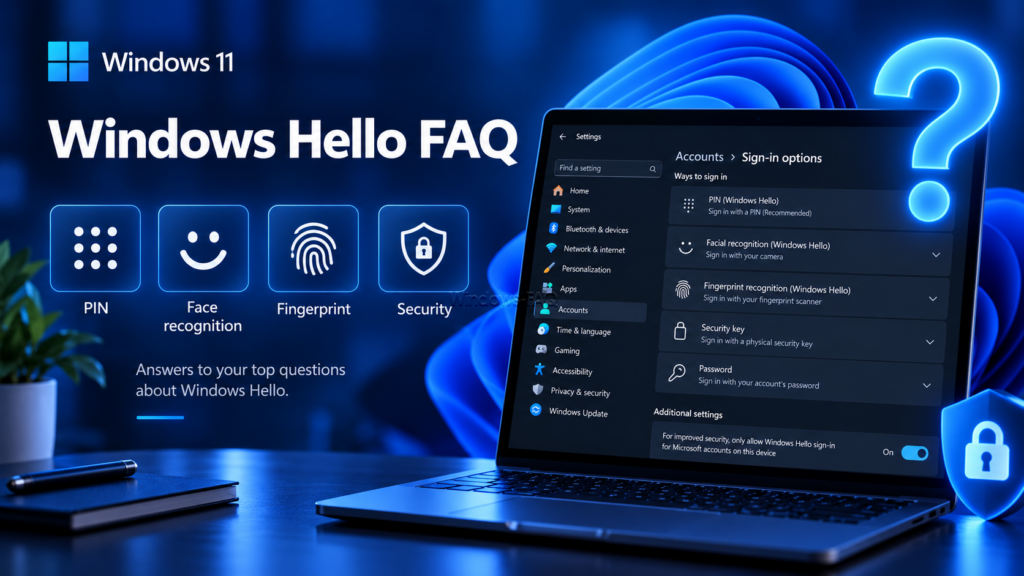
Yes. You can use a Windows Hello PIN without biometric hardware. A compatible camera or fingerprint reader is required only for the corresponding biometric method.
Yes. The PIN provides a fallback when your biometric sensor is unavailable or cannot recognize you. Keep it accessible to you, but do not share it with other people.
Yes, where supported by your configuration. Local-account Hello sign-in is not the same key-based account authentication used with Microsoft accounts or Windows Hello for Business.
No. The PIN belongs to the Windows device. Changing it does not change your Microsoft account password or the PIN configured on another PC.
A Hello-only sign-in setting or an organizational policy can restrict removal. Check the available sign-in settings and make sure an alternative permitted method works before removing your PIN.
Windows Hello face authentication uses compatible infrared hardware and anti-spoofing checks to distinguish a live person from an image. It is designed to resist photo attacks, but no authentication system should be treated as impossible to defeat.
No. The biometric templates used by Windows Hello remain local to the device or supported sensor. They are not uploaded to Microsoft’s servers as part of biometric enrollment.
Yes. Open Settings, Accounts, Sign-in options, and Facial recognition (Windows Hello), then select Remove. This removes face enrollment rather than the PIN sign-in method.
Start with a private, memorable PIN, add supported biometrics, and test both methods. When something goes wrong, identify whether the issue involves recognition, device detection, credentials, or policy before changing settings. Keep your account recovery options current and avoid destructive resets as a shortcut. For related setup and troubleshooting topics, browse our Windows guides.