Newsletter Subscribe
Enter your email address below and subscribe to our newsletter

Frequently Asked Questions

Windows 11 auto login takes you straight to the desktop without typing a password or PIN at startup. You can configure it with netplwiz, provided your account and device settings allow password-based automatic sign-in. Your account password stays in place: Windows supplies the saved credentials for you.
To set it up, press Windows + R, enter netplwiz, select your account, and clear the option that requires a username and password.
Windows 11 auto login takes you straight to the desktop without typing a password or PIN at startup. You can configure it with netplwiz, provided your account and device settings allow password-based automatic sign-in. Your account password stays in place: Windows supplies the saved credentials for you.
To set it up, press Windows + R, enter netplwiz, select your account, and clear the option that requires a username and password. When prompted, enter your actual account password, not your Windows Hello PIN. If the checkbox is missing, first check the Windows Hello-only setting under Settings > Accounts > Sign-in options.
Security warning: Automatic sign-in removes an important barrier between your files and anyone who can start your computer. Avoid it on laptops, shared computers, and devices containing confidential information. These instructions are for an account you can already access, not for recovering a forgotten password.
The built-in User Accounts tool lets you configure automatic sign-in without manually editing the Registry. Before starting, make sure you know the password for the account you intend to use. A PIN that unlocks your PC is not a substitute for that password.
You can also read the original German version of this guide on Windows-FAQ.de.
Diesen Artikel auf Deutsch lesenOn a PC that uses a Microsoft account, Windows can be configured to allow only Windows Hello sign-in. Check this setting before opening the automatic login dialog, especially when the expected checkbox is missing.
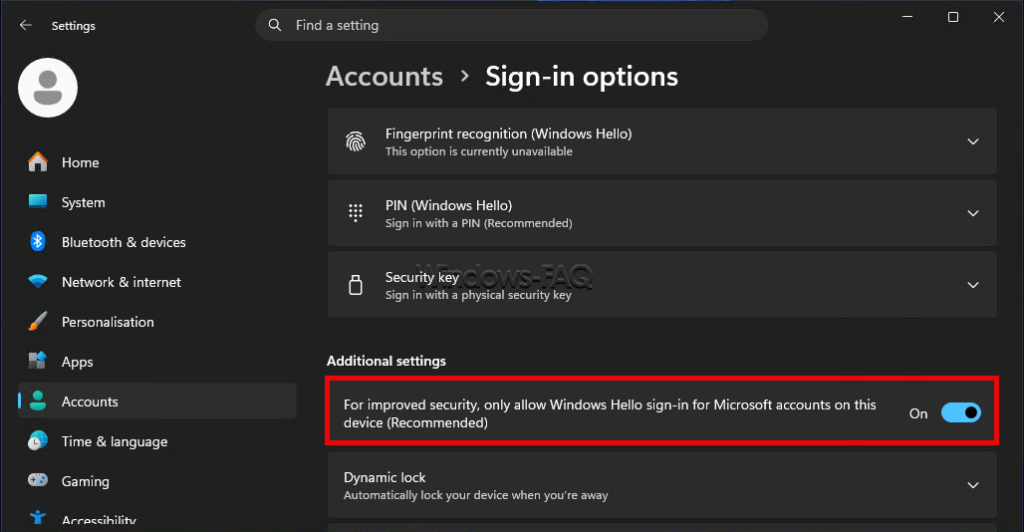
The wording and availability can vary with your account and device configuration. A local account may not show this Microsoft-account-specific switch. Turning the switch off allows password sign-in; it does not itself enable automatic login or remove your PIN.
netplwiz and select OK. Complete any administrator approval Windows requests.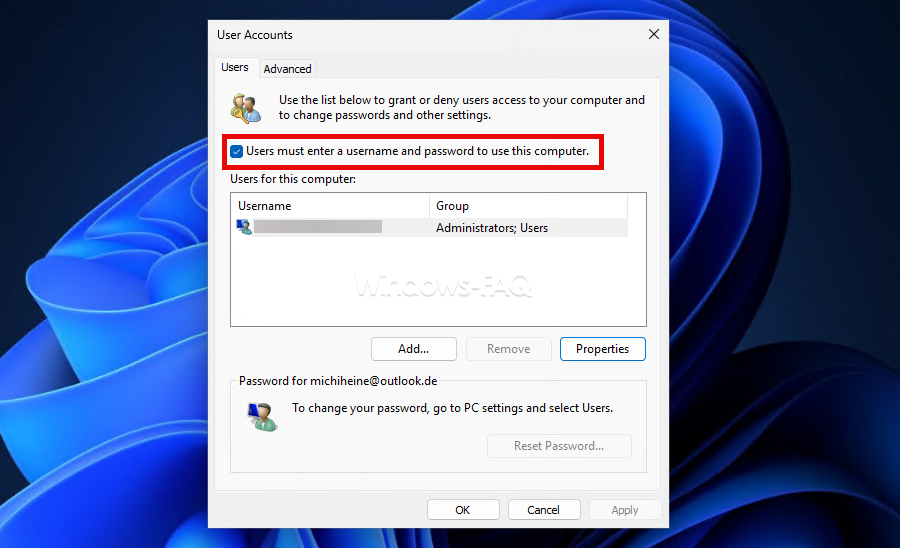
If the configuration succeeds, Windows signs in to the selected account and opens the desktop without asking you to type its password or PIN. This changes the sign-in process, not the password itself. Keep the password available for situations where manual authentication is still required.
Do not leave the password fields empty merely because you normally use a PIN. An account with a password still needs that password for this setup. A genuinely passwordless Microsoft account requires a different approach, as explained below.
If the username-and-password checkbox does not appear, return to the Windows Hello-only setting above. After changing it, close netplwiz completely and open it again. Restarting Windows is also a reasonable next check if the dialog has not refreshed.
A missing checkbox does not automatically mean that Windows is damaged. Account restrictions and organization-managed settings can affect the available controls. On a work or school computer, ask your administrator rather than trying to override the sign-in policy with Registry changes.
If clearing the checkbox produces no password confirmation dialog, check whether automatic sign-in was already configured. You can select the checkbox again, apply the change, and then repeat the setup. Confirm the selected account before saving new credentials.
The phrase “start Windows 11 without a password” can describe several different goals. The distinction matters because removing a PIN or enabling passwordless sign-in does not tell Windows to open an unattended desktop.
| Your goal | Relevant setting or method | What happens |
|---|---|---|
| Go straight to the desktop at startup | Automatic sign-in with netplwiz or Autologon | Windows uses saved account credentials. |
| Avoid typing your account password while keeping sign-in protection | Windows Hello | You authenticate with a PIN, face, or fingerprint. |
| Stop using a Windows Hello PIN | Remove the PIN in Sign-in options | Another permitted sign-in method is still required. |
| Avoid signing in again after sleep | The sign-in requirement under Additional settings | Windows changes when it requests authentication after you have been away. |
For most everyday computers, Windows Hello is the better compromise between convenience and protecting your account. Our guide to setting up Windows Hello with a PIN, face, or fingerprint explains the available options and their requirements.
A passwordless Microsoft account has had its account password removed through Microsoft’s account security settings. It is not simply an account that you usually unlock with a PIN. The password-based automatic login methods in this guide need usable account credentials, so an empty password field or a Hello PIN cannot replace a password that no longer exists.
Turning off the Windows Hello-only switch on the PC does not recreate the online account password. Keep Windows Hello for convenient authenticated sign-in, or review the account configuration before attempting password-based auto login.
Removing your PIN is not the same as enabling automatic login, and it should not be treated as a universal prerequisite. Start with the Hello-only setting and the automatic sign-in configuration. If automatic login works, deleting additional sign-in methods is unnecessary.
To stop using the PIN itself, first confirm that you can sign in with another permitted method. On a personal PC where password sign-in is available, the removal process is:
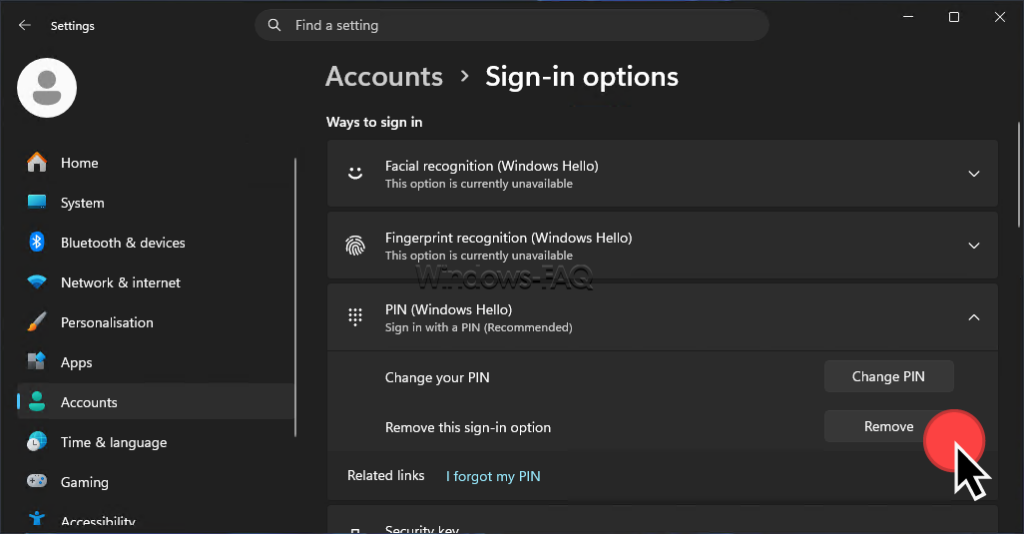
If Remove is grayed out, check the Hello-only switch and any applicable device policy. Removing the PIN can also affect biometric sign-in, which uses a PIN as a fallback. To stop using only your face or fingerprint, remove that particular enrollment instead.
After PIN removal, Windows may simply request your account password instead. Automatic sign-in must still be configured separately if the goal is to reach the desktop without entering anything.
Microsoft Sysinternals Autologon configures Windows’ built-in automatic sign-in mechanism. It stores the password as an encrypted Local Security Authority secret rather than a readable DefaultPassword entry in the Winlogon key.
Autologon does not validate the submitted credentials when you enable it. An incorrect password can therefore produce a failed sign-in at the next startup. Encrypted storage also does not make the password inaccessible to someone with administrative privileges.
To undo this configuration, reopen Autologon and select Disable. Holding Shift before automatic sign-in occurs skips it for that particular logon.
The manual Registry method is an advanced alternative, not the first choice for a personal computer. Its main drawback is that the account password is stored in plain text. Anyone who obtains sufficient access to that entry can read it.
Before editing the Registry, make a backup and record the existing values. The example below is for a local account on a PC you control. Avoid experimenting with these settings on organization-managed devices or mixing several automatic login methods.
Press Windows + R, enter regedit, and confirm the administrator prompt. Navigate to the following location:
HKEY_LOCAL_MACHINE\SOFTWARE\Microsoft\Windows NT\CurrentVersion\WinlogonWith the Winlogon key selected, File > Export lets you save a copy of that branch before making changes. Keep Registry exports private, especially if they contain an existing password entry.
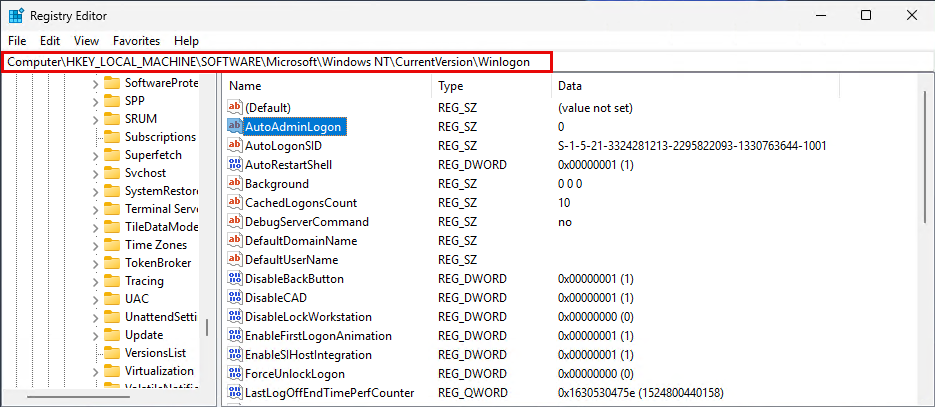
Use the following entries in the right-hand pane. These are String Values, shown as REG_SZ, not DWORD values. To create a missing entry, right-click an empty area and choose New > String Value.
| Value name | Type | Value data |
|---|---|---|
AutoAdminLogon | REG_SZ | 1 |
DefaultUserName | REG_SZ | The actual local account username |
DefaultPassword | REG_SZ | The account password, stored in plain text |
DefaultDomainName | REG_SZ | The local computer name for this local-account example |
The computer name is available under Settings > System > About. Use the actual account username rather than assuming that its display name is identical. After checking the entries, close Registry Editor and restart the PC.
For a domain account, the account context differs. Microsoft’s documented domain-joined configuration uses the fully qualified domain name for DefaultDomainName. That is an administrator-managed scenario, not a reason to copy the local-account example onto a company computer.
The clear-text password warning applies to Registry backups and screenshots as well. Never include a real DefaultPassword value in an image, support message, or shared configuration file.
Startup auto login and the sign-in requirement after sleep are separate settings. Successfully reaching the desktop after a restart does not necessarily stop Windows from asking you to authenticate when the computer wakes up.
The control can be unavailable or restricted by a security policy. Leaving the normal sign-in requirement enabled is the safer choice when other people can access the device. Automatic login does not require you to disable this additional protection.
Start by identifying when Windows asks you to sign in: after a restart, after sleep, or after manually locking the computer. These are different situations. Then check the account and saved credentials before changing additional system settings.
| Symptom | What to check |
|---|---|
| The netplwiz checkbox is missing | Review the Windows Hello-only setting, reopen netplwiz, and check whether the device is managed. |
| Windows reports an incorrect username or password | Check the selected account, account context, and actual password. A Hello PIN is not the account password. |
| Automatic sign-in stopped after a password change | Update the saved credentials using the same method that originally configured automatic login. |
| Two similar account entries appear at sign-in | Check for an incorrect automatic login identity before assuming that a second user account needs to be deleted. |
| Login works after restarting but not after sleep | Review the separate sign-in requirement under Additional settings. |
| Windows still asks for authentication after Windows + L | A manual lock normally requires you to authenticate again. Startup auto login does not mean every lock is removed. |
When credentials are rejected, sign in through your normal working method and correct the automatic login configuration from there. Avoid deleting user profiles or clearing security settings as a first response. If the underlying account password is forgotten, use account recovery before attempting automatic sign-in.
Automatic login can suit a narrowly defined task on a physically controlled computer, but it is a poor default for a normal personal or business PC. Anyone who can start the device may gain access to the selected account’s files, applications, and already signed-in services.
On a shared computer, Windows automatically opens one person’s profile instead of asking everyone to choose their own account first. Other accounts are not deleted, and switching users remains possible. The problem is that the automatically opened profile is already accessible.
An open desktop can expose email, documents, browser sessions, and other private information. Some password managers require additional authentication before revealing saved passwords, so it would be inaccurate to say every stored password becomes immediately readable. Our guide to saved passwords in Windows and web browsers explains these separate stores and prompts.
BitLocker protects encrypted data, but its protection depends on how the drive is unlocked. With a TPM-only configuration, the system drive can unlock during a normal startup without a person entering a separate PIN. If Windows then signs in automatically, that person can reach the desktop.
Drive encryption therefore does not cancel out the risks of automatic login. A separate BitLocker startup PIN changes the boot experience, but it is not the same credential as your Windows Hello PIN. Do not turn off encryption simply to avoid a sign-in prompt.
Windows + L still provides a useful way to lock an existing session when a working sign-in method remains configured. However, it does not remove automatic sign-in from the next startup. A person who can restart an auto-login computer may reach the automatically opened account again.
For a laptop or a PC containing private files, keep authenticated sign-in enabled. A Windows Hello PIN, compatible fingerprint reader, or supported face camera offers convenience without automatically opening your account to whoever presses the power button.
Undo the configuration with the same method you used to enable it. Afterward, restart the PC and confirm that it asks you to sign in before opening the desktop.
For netplwiz, press Windows + R, enter netplwiz, and select “Users must enter a user name and password to use this computer.” Apply the change and close the window. For Sysinternals Autologon, use its Disable button instead.
For a manual Registry configuration, set the AutoAdminLogon string to 0 and remove the clear-text DefaultPassword value you created. Do not delete the Winlogon key. You can also restore the Windows Hello-only setting and the normal sign-in requirement after sleep where appropriate.
Can Windows 11 sign in automatically without a password or PIN?
Yes. On a compatible account configuration, netplwiz or Autologon can make Windows use saved credentials at startup. You avoid typing the password, but the account still needs valid credentials for these methods.
Why is the automatic login checkbox missing in netplwiz?
Check whether Windows is set to allow only Windows Hello sign-in for Microsoft accounts. Turn that option off where permitted, then reopen netplwiz. Organization-managed policies can also restrict the available settings.
Should I enter my Windows Hello PIN in netplwiz?
No. Use the actual password for the selected local or Microsoft account. A Windows Hello PIN belongs to the device and is not a replacement for the account password in the automatic login dialog.
Does removing the PIN enable automatic login?
No. Removing the PIN changes the available sign-in methods. Windows can still ask for your account password. Automatic login is a separate configuration.
Why does Windows still ask for a password after sleep?
The sign-in requirement after sleep is separate from startup automatic login. You can review it under Settings, Accounts, Sign-in options, and Additional settings. A device policy may prevent changes.
Does BitLocker make automatic login safe?
Not by itself. With TPM-only unlocking, the system drive can unlock during normal startup without user input. If Windows then signs in automatically, someone at the computer can reach the account.
How do I turn Windows 11 auto login off again?
Undo the configuration with the same method you used to enable it. In netplwiz, select the checkbox requiring a username and password, apply the change, and restart to confirm that manual sign-in is required.
To start Windows 11 without typing a password or PIN, configure automatic sign-in with valid account credentials. Netplwiz offers a built-in route, while Sysinternals Autologon avoids manually placing a readable password in the Winlogon key. PIN removal and sign-in after sleep remain separate decisions.
The convenience comes with a clear cost: someone who can start the computer may be able to use your account. For most everyday devices, Windows Hello is the better way to make sign-in easier while keeping an authentication step in place.