
Newsletter Subscribe
Enter your email address below and subscribe to our newsletter

Frequently Asked Questions

To find your Microsoft Office product key, start with your purchase records and the account linked to Office. Modern Office installations do not display the full 25-character key inside Word or Excel. If your goal is to reinstall Office, signing in with the correct account will often get you further than a key finder.
This guide explains where to look for an Office product key, how to check the last five characters of an installed key, and when Microsoft 365 requires a different approach. The command examples are for Windows PCs.
To find your Microsoft Office product key, start with your purchase records and the account linked to Office. Modern Office installations do not display the full 25-character key inside Word or Excel. If your goal is to reinstall Office, signing in with the correct account will often get you further than a key finder.
This guide explains where to look for an Office product key, how to check the last five characters of an installed key, and when Microsoft 365 requires a different approach. The command examples are for Windows PCs.
The best method depends on how you obtained Office. A retail purchase, a Microsoft 365 subscription, and an Office installation managed by your employer can use different activation methods.
| Your situation | Best place to start | What you can find |
|---|---|---|
| Microsoft 365 subscription | The personal, work, or school account associated with the subscription | Your subscription or assigned license, rather than a reusable installation key |
| Office 2024, 2021, or 2019 linked to a Microsoft account | Your Microsoft account’s Services & subscriptions page | The purchased product and available installation options |
| A purchase supplied with a product key | The original key card, purchase email, or retailer order details | The complete key, if it was provided with the purchase |
| Office volume license at work | Your IT administrator or the OSPP licensing script | Organizational licensing information and, with OSPP, the installed key’s last five characters |
A full Office product key has five groups of five characters, for example XXXXX-XXXXX-XXXXX-XXXXX-XXXXX. Seeing only the final five characters is enough for some identification tasks, but those characters cannot be used as a complete activation key.
Before choosing a recovery method, it helps to identify the product installed on the PC. Office 2024 and Microsoft 365 can both include Word and Excel, so the application icons alone do not tell you how the software is licensed.
The Office architecture matters when choosing a command path later in this guide. A PC running 64-bit Windows can still have 32-bit Office installed.
For an Office purchase already associated with a personal Microsoft account, the account is usually the starting point for reinstallation. This also applies to many one-time purchases of Office 2024, Office 2021, and Office 2019. You do not need to extract a key from the old computer just to locate the product in your account.
In your browser’s address bar, you can enter account.microsoft.com/services. You can then sign in with the account used to buy or redeem Office. If the existing installation shows an email address under Belongs to, that is a useful starting point.
If you have forgotten the password and previously saved it in your browser, our guide explains how to view saved passwords in your browser. If no saved password is available, Microsoft’s account recovery process is the next option.
On the Services & subscriptions page, look for your Office purchase or Microsoft 365 subscription. Depending on the current page layout, the section may be labeled Subscriptions. An Install or Manage option can lead to the installation files or subscription details.
If Office is missing, consider whether you used another personal email address for the purchase. A work or school license is managed separately and may require the account provided by your organization.
You can use the installation option for the listed product, then sign in to an Office app when prompted. For example, if your account contains Office Home & Business 2021, that product’s installation option is the appropriate choice. The edition you install needs to match the license in your account.
A visible Show product key button is not a universal feature of Microsoft accounts. Its absence does not mean your license has disappeared. Some older purchase arrangements and certain Microsoft Store orders have their own key-viewing options, but account access and installation options are the more useful checks for most readers.
If you specifically need the original purchase key, the purchase records are the next place to look. The key might have been supplied separately from the computer, and a working Office installation does not guarantee that it can reveal the original code.
Searching your own mailbox for the retailer’s name, the Office edition, and the approximate purchase date can be more useful than searching only for “product key.” Some messages contain an order reference and a download link without placing the key directly in the email.
For an organization-owned volume license, your IT department is the appropriate contact. Authorized administrators can find volume license keys in the Microsoft 365 admin center under Billing > Your products > Volume licensing > View downloads and keys. Access requires a suitable volume licensing role.
Microsoft’s OSPP.VBS script can display licensing information for supported Office installations. It is used for volume editions such as Office LTSC 2024 and Office LTSC 2021. Microsoft also documents it for identifying installed keys in older retail versions, including Office 2019 and Office 2016.
The following method displays a partial key. It does not recover the complete purchase key. For current Microsoft 365 Apps activation, use the separate PowerShell method later in this guide.
You can search the Start menu for cmd, choose Run as administrator for Command Prompt, and confirm the Windows permission prompt. The commands below use Command Prompt syntax, including environment variables such as %ProgramFiles%.
Microsoft documents Microsoft Office\root\Office16 as the script location for current volume editions. This example uses the normal Program Files folder for 64-bit Office.
That folder also applies to 32-bit Office on 32-bit Windows:
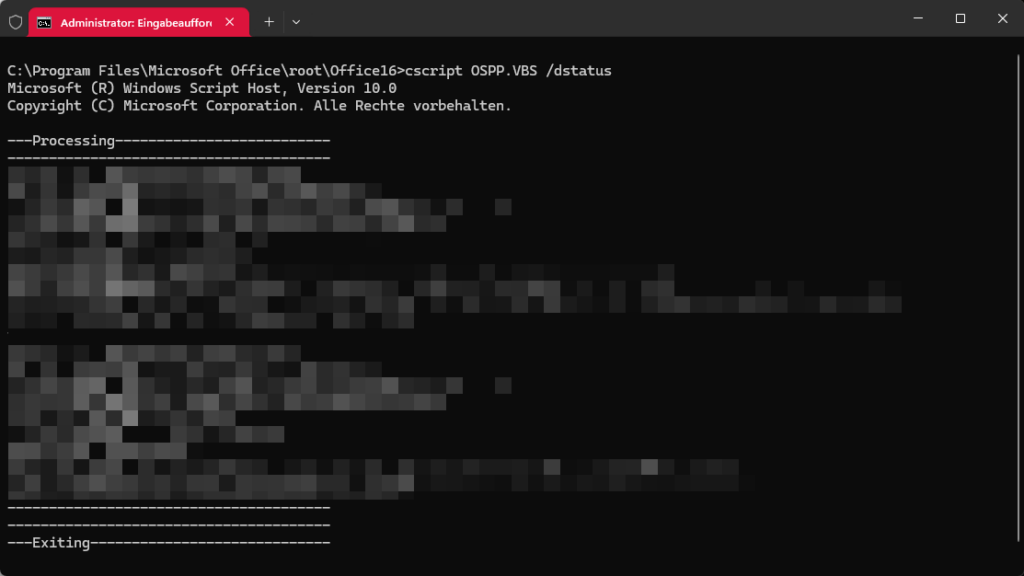
cscript "%ProgramFiles%\Microsoft Office\root\Office16\OSPP.VBS" /dstatusFor 32-bit Office installed on 64-bit Windows, the corresponding example is:
cscript "%ProgramFiles(x86)%\Microsoft Office\root\Office16\OSPP.VBS" /dstatusSome installations use a path without root. If the script is located there, the appropriate alternative is one of these commands:
cscript "%ProgramFiles%\Microsoft Office\Office16\OSPP.VBS" /dstatus
cscript "%ProgramFiles(x86)%\Microsoft Office\Office16\OSPP.VBS" /dstatus
You only need to run the command matching the actual script location. The quotation marks enclose the file path and end before /dstatus. Also, the Office16 folder name is used by several Office releases, so it does not identify the product as Office 2016 by itself.
Look for the license name, license description, activation status, and the line showing the last five characters of the installed product key. A shortened example, with the key characters replaced, looks like this:
LICENSE STATUS: ---LICENSED---
Last 5 characters of installed product key: XXXXX
The suffix can help distinguish installed keys when you maintain a record of several licenses. If several entries appear, the license name helps you identify the Office product you are investigating.
The additional option /dstatusall lists information for all installed licenses. It does not change how many key characters you can recover.
A script-not-found message usually calls for checking the path. In File Explorer, you can look in the relevant Microsoft Office folder and confirm whether the installation uses root\Office16 or Office16. For an older Office 2013 installation, Microsoft’s examples use Office15.
A missing script is not proof that Office is unlicensed. The installation layout, Office architecture, and licensing method all matter. If the product is Microsoft 365 Apps, OSPP is not the current tool for checking its subscription activation.
Microsoft 365 Apps uses a different activation system from traditional Office retail licenses. Microsoft provides a diagnostic tool called vnextdiag.ps1 that can display information about installed products and their activation status.
The diagnostic tool is located in the Microsoft Office installation directory. For most 64-bit installations, you can find it in C:\Program Files\Microsoft Office\Office16. Computers running 64-bit Windows with 32-bit Office typically use C:\Program Files (x86)\Microsoft Office\Office16 instead.
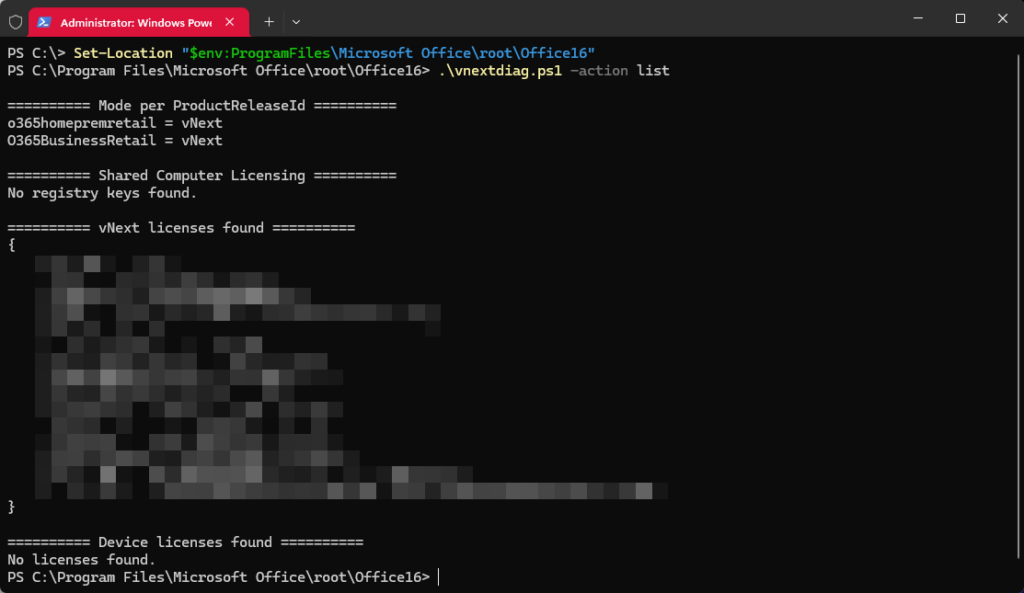
You can open Windows PowerShell, navigate to the appropriate directory, and run the diagnostic script using its -action list parameter. The results may include the product name, license type, activation status, and email address associated with the license.
Unlike traditional Office product key utilities, this method does not reveal a reusable 25-character activation key. It is primarily intended for checking licensing information and troubleshooting activation problems.
For a normal Microsoft 365 reinstallation, signing in with the account associated with your subscription is usually sufficient. You can also find your activation information in Word or Excel under File > Account.
The ability to recover an Office product key depends on the installed version and the licensing method. Modern Office installations often do not store the original purchase key in a form that third-party utilities can retrieve.
Some older Office versions are supported by utilities such as NirSoft ProduKey. However, compatibility with Office 2003, Office 2007, or Office 2010 does not guarantee support for newer releases such as Office 2021 or Office 2024.
Before using a key finder, check which Office versions the developer officially supports. Also remember that a Product ID, a partial key, and a complete activation key are different things. Finding license information on your computer does not necessarily mean you can recover the original product key.
The Registry is not a dependable shortcut to the full key for a modern Office installation. Older tutorials often describe decoding a DigitalProductID value. That procedure should not be assumed to work for your Office version or installation type.
A Registry entry may contain licensing information without storing a recoverable product key. There is no need to change Registry values to identify the account linked to Office or run the licensing checks in this guide.
Office can use different keys at different stages of purchase and activation. Microsoft explains that a key associated with an Office product can differ from the original code on a retail card or email receipt. A mismatch is therefore not, by itself, evidence that you purchased the wrong product.
Business installations add another possibility. Volume editions configured for Key Management Service, commonly called KMS, can use a generic volume license key. That key identifies an activation configuration and is not a unique retail purchase key belonging to the person using the PC.
When comparing records, consider the Office edition, account, purchase information, and activation method together. The final five characters are a useful clue, but they are not a complete record of the license.
The frequently shared PowerShell query for OA3xOriginalProductKey reads a firmware-based Windows key when one is available. It does not retrieve the key for Word, Excel, or the Office suite. Windows and Office are licensed separately.
If you are actually looking for the operating system’s key, our guide explains how to find your Windows product key. For Office, use the account, purchase records, or Office licensing tools described above.
Before replacing a PC or removing Office, it is useful to collect the information you would need to restore the installation. A short record can save you from repeating the same investigation later.
Keep the record in a secure place that remains accessible if the old PC fails. For an account-linked purchase, being able to sign in and locate the correct Office product is a more useful preparation check than simply recording a partial key.
No. A Product ID identifies product or installation information. The activation key is a separate code with 25 characters arranged in five groups. A License ID reported by a diagnostic tool is also a separate identifier and cannot be entered as a product key.
This message normally means the key has already been redeemed and linked to an account. You can sign in with that account to install the associated product. Repeatedly entering the same code on the setup page will not create another license.
For an account-linked Office purchase, you can access the product from another computer by signing in to the correct account. The old PC does not need to start for that account lookup. Any installation on a replacement PC still needs to follow the device and transfer conditions of your license.
Not necessarily. Preinstalled apps may offer a trial or ask you to purchase or activate Office. A paid Office bundle may instead use a digital activation process without a printed key. The computer purchase details and the activation information in Office help establish what was included.
You may be signed in with a different account from the one associated with Office. For a work or school account, the plan must include the desktop apps, and an administrator must assign the relevant license and allow installation. Your IT team can check those settings.
Yes. A retail purchase or renewal card can include a code that you redeem to add or renew a subscription on an account. After redemption, that account manages the subscription. The code is not a key you repeatedly extract from each installed Office app.

