Newsletter Subscribe
Enter your email address below and subscribe to our newsletter

Frequently Asked Questions

A free word processor for Windows can handle letters, resumes, reports, and everyday documents without a Microsoft 365 subscription. Our first recommendation for offline writing is LibreOffice Writer. Word for the web is a convenient choice if you want Microsoft's editor in your browser, while Google Docs works well for shared documents.
The right choice depends on where you want to save your files, whether you need an account, and how often you exchange documents with Microsoft Word users. This guide compares eight options, explains their main limitations, and shows you how to install a free writing program and save your first document.
A free word processor for Windows can handle letters, resumes, reports, and everyday documents without a Microsoft 365 subscription. Our first recommendation for offline writing is LibreOffice Writer. Word for the web is a convenient choice if you want Microsoft’s editor in your browser, while Google Docs works well for shared documents.
The right choice depends on where you want to save your files, whether you need an account, and how often you exchange documents with Microsoft Word users. This guide compares eight options, explains their main limitations, and shows you how to install a free writing program and save your first document.
Start with the task you need to complete. A tool for drafting a novel serves a different purpose from an editor for exchanging carefully formatted DOCX files, so these recommendations are based on features and intended use.
| Program | Recommended use | Offline use | Main limitation |
|---|---|---|---|
| LibreOffice Writer | Everyday writing and longer documents | Yes | Complex Word layouts may change |
| Word for the web | Microsoft Word without installing Office | No | Requires an account and internet access |
| Google Docs | Sharing and editing documents together | Yes, after setup | Cloud storage is central to the workflow |
| FreeOffice TextMaker | A familiar Office interface | Yes | Some features belong to paid SoftMaker products |
| ONLYOFFICE Desktop Editors | Working mainly with DOCX files | Yes | Advanced Word features still need checking |
| Zoho Writer | Browser writing or local desktop editing | Yes, in the desktop app | Cloud collaboration needs an account |
| Apache OpenOffice Writer | Existing OpenOffice and ODT workflows | Yes | Opens DOCX but cannot save as DOCX |
| FocusWriter | Focused drafting and creative writing | Yes | Limited document layout tools |
You can also read the original German version of this guide on Windows-FAQ.de.
Diesen Artikel auf Deutsch lesen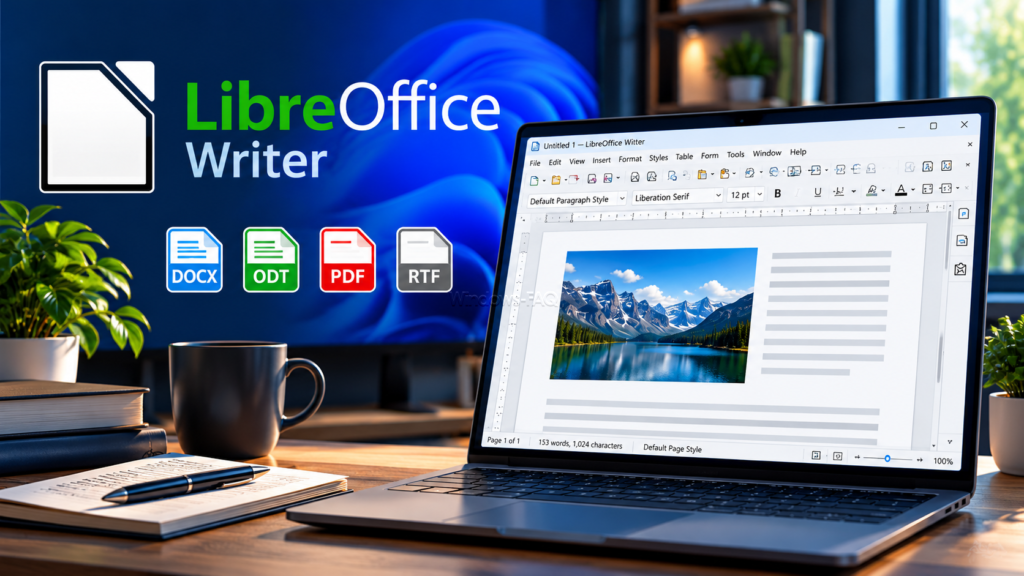
LibreOffice Writer is a full word processor included in the free, open-source LibreOffice suite. You can use it for personal or business work without paying license fees, and ordinary local editing does not require an online account.
Writer covers the tasks most people expect from a Word alternative: paragraphs, tables, images, headers, footers, page numbers, styles, and tables of contents. That makes it useful for a one-page letter as well as a structured report with chapters and references.
You can open and save Microsoft Word DOC and DOCX files, work with OpenDocument Text files, and export finished documents to PDF. Its combination of local storage and document tools makes Writer our recommendation if you want one free program for a wide range of writing tasks.
Document compatibility deserves a quick check when a file contains complex tables, unusual fonts, fields, or carefully positioned objects. Support for the DOCX format does not guarantee that every page will look identical in every editor.
Keep the original file and try a copy in Writer before changing your usual workflow. Word macros are another reason to check first, because Microsoft Office automation generally does not run unchanged in LibreOffice.
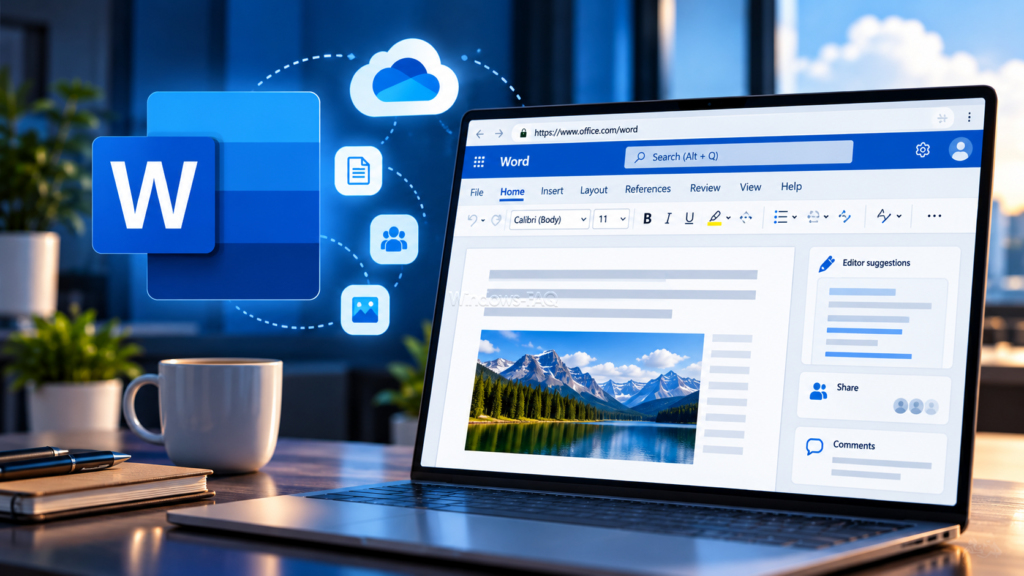
Word for the web is Microsoft’s free browser version of Word. You sign in with a Microsoft account, create or open a document, and work online without installing the paid desktop application.
For letters, short reports, basic resumes, and shared notes, it offers a familiar starting point. Documents normally save to OneDrive, and you can share a document with another person or download a copy to your PC.
The free web version has a different feature set from desktop Word. Offline editing, running macros, and mail merge are examples of tasks for which you need a different solution. PDF export is available, so you can still prepare a finished document for sending or printing.
If you previously bought Office, you may already have a license associated with your Microsoft account. Before replacing an existing installation, our guide explains how to check your Microsoft Office product key and account-linked license.
Google Docs is a browser word processor that you can use with a personal Google account. It is especially useful when several people need to edit one document, add comments, or review changes without emailing different versions back and forth.
You can import Word documents and download your work as DOCX or PDF. A shared project outline, meeting record, or draft article is a natural fit, particularly when the people involved use different devices.
Yes, but you need to prepare it while you still have an internet connection. On a Windows PC, Google’s instructions call for Chrome or Microsoft Edge, the Google Docs Offline extension, and offline access enabled in the relevant Google settings.
Make the documents you need available offline before traveling, then check their status. Private browsing is not supported for this workflow, and an organization can restrict offline access on a managed account.
If you cannot remember the password for an existing Google or Microsoft account, it may already be saved in your browser. Our guide shows how to view saved passwords in Chrome, Edge, and Firefox.
FreeOffice TextMaker is the word processor in SoftMaker’s free office suite. It supports both a ribbon interface and traditional menus, which gives you a choice of layouts when moving from another writing program.
FreeOffice is available for personal and business use, and TextMaker can open and save DOC and DOCX documents. It also supports ODT and RTF files and can create PDFs directly, covering the formats commonly needed for letters, applications, and business documents.
TextMaker is a useful option if LibreOffice’s interface does not suit the way you work. It runs locally, so you can continue writing without a permanent internet connection.
FreeOffice and the paid SoftMaker Office products have different feature sets. Before relying on a particular advanced function or deploying the program across an organization, check the current feature list, activation requirements, and license terms for the free edition.
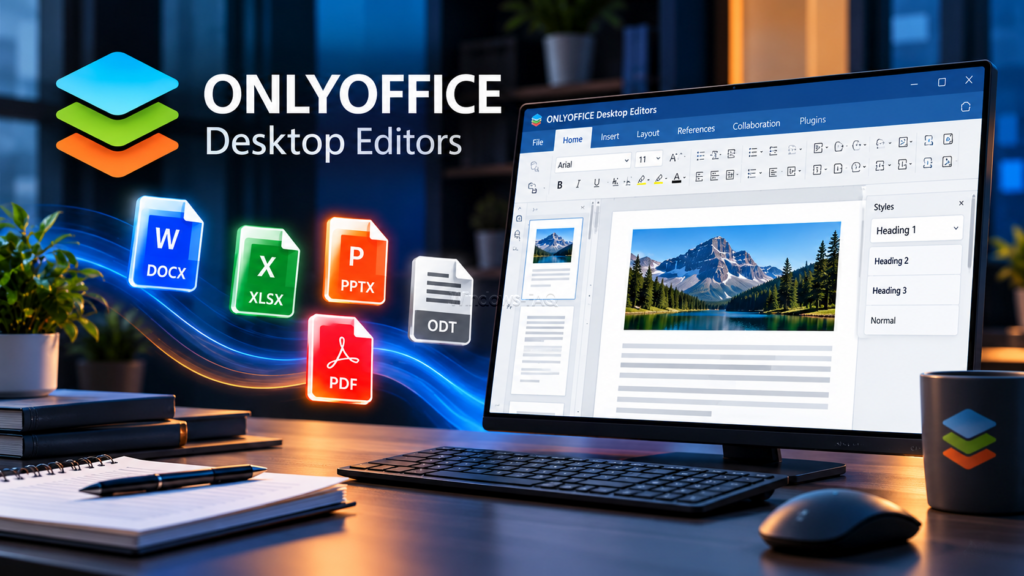
ONLYOFFICE Desktop Editors combines document, spreadsheet, presentation, and PDF tools in one desktop application. The desktop product is free for personal and professional use and can create, edit, and save files on your computer while offline.
Its document editor is a useful candidate if most of the files you receive are DOCX documents. The interface follows familiar Office conventions, and Microsoft Office formats are a central part of its workflow.
You can work with local files without connecting a cloud service. Cloud connections become relevant when you want online collaboration, while separate server products, services, and support can have their own costs.
Before choosing any editor for a business template, try a representative document containing your normal tables, comments, headers, and page breaks. The result with your own files is more useful than a general promise of perfect Word compatibility.
Zoho Writer is available online and as an individual desktop app for Windows. The desktop app can open, edit, and save local DOCX files, and it also supports ODT, TXT, and Markdown.
A useful detail is that Zoho’s individual Writer desktop app is free and does not require an account for local use. You can write offline and sign in later if you want to upload documents, share them, or collaborate through Zoho’s cloud service.
This makes Writer worth considering if you like its interface but prefer to keep some work on your PC. Document automation has separate quotas and paid credits, so free writing and editing should not be confused with unlimited automation.
The download box below links to the individual Writer app. Zoho’s separate Office Desktop bundle is a different offering with its own pricing.
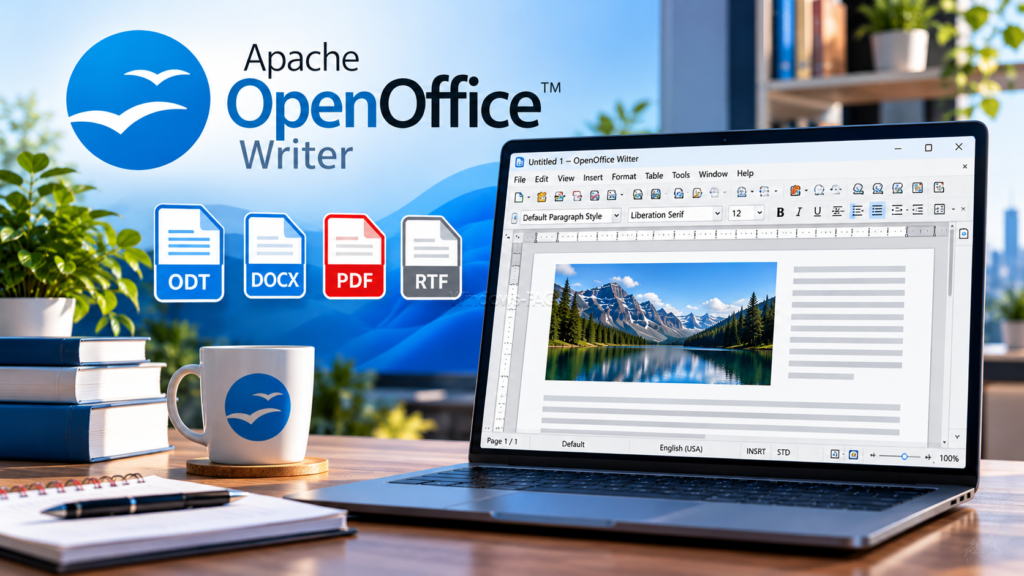
Apache OpenOffice Writer remains a free desktop word processor for working locally. If you already use it for letters and ODT documents, its traditional interface and familiar workflow may be enough for your needs.
The main limitation for people exchanging modern Word files is specific: OpenOffice Writer can open DOCX files, but it cannot save documents in DOCX format. Saving as the older DOC format is not the same as returning the requested DOCX file.
For a new installation focused on regular Word-file exchange, we would choose LibreOffice Writer, FreeOffice TextMaker, or ONLYOFFICE Desktop Editors first. OpenOffice makes more sense when you have a clear reason to keep an established OpenOffice workflow.
FocusWriter concentrates on the writing process. Its interface moves out of the way while you type, with tools such as writing goals, word statistics, themes, and spellchecking available when you need them.
It is a free, open-source option for stories, articles, journal entries, and other drafts. A Windows portable download is also available, which can be convenient when you want to keep the application in a separate folder.
Choose FocusWriter when staying focused matters more than arranging a complex document. For a final report with detailed tables, references, and precise page layout, a full word processor such as LibreOffice Writer will usually be the more practical choice.
Choose from eight free word processors and Microsoft Word alternatives. All links lead directly to the official publishers’ websites.
A powerful, free and open-source word processor. Ideal for offline writing, letters, reports and DOCX files.
Download LibreOfficeUse Microsoft’s free online Word editor in your browser. A Microsoft account is required.
Open Word OnlineWrite and edit documents online with powerful collaboration and sharing features.
Open Google DocsA free desktop word processor with a familiar Office-style interface and DOCX support.
Download FreeOfficeFree desktop office software with an emphasis on Microsoft Office document formats and offline editing.
Download ONLYOFFICEA modern writing application with a free desktop version and optional online collaboration.
Download Zoho WriterA classic free word processor for everyday documents and existing OpenDocument workflows.
Download OpenOfficeA distraction-free writing tool for authors, bloggers, notes and creative writing.
Download FocusWriterMicrosoft removed WordPad starting with Windows 11 version 24H2 and Windows Server 2025. If it disappeared after a Windows upgrade, that can be an expected change rather than a fault in your installation.
For formatted letters and older RTF documents, LibreOffice Writer is a practical free replacement. FreeOffice TextMaker is another option if you prefer its interface. Both provide more document tools than WordPad did.
For plain text, Windows Notepad may already do what you need. It does not replace a page-based word processor for DOCX or RTF documents, so the important question is which file type you are trying to open.
If double-clicking an RTF document no longer works, start your chosen word processor and use its File > Open command. Once you have confirmed that the document opens correctly, you can choose that program as the default application for RTF files in Windows.
LibreOffice Writer, Apache OpenOffice Writer, FocusWriter, and Zoho Writer’s individual desktop app can be used without creating a cloud account. ONLYOFFICE Desktop Editors also supports a local workflow without connecting an online service.
For Word for the web and your own Google Docs workspace, signing in is part of the normal workflow. If avoiding registration is your main priority, start with a desktop application and save a test document locally.
Local editing and local-only storage are separate choices. A folder on your PC may synchronize through OneDrive or another service, so check where you save sensitive documents if you want them to remain only on that device.
For a letter, you mainly need readable text, sensible margins, a date, and space for the recipient’s details. LibreOffice Writer, FreeOffice TextMaker, and Word for the web can all handle that without a paid subscription.
Choose the paper size your recipient or printer expects, such as A4 or US Letter. Before printing, use the preview to check that an address, signature, or final paragraph has not slipped onto another page.
A resume or CV needs a clean layout and a file format the employer accepts. PDF is a useful choice when you want to preserve the finished appearance, but an employer’s explicit request for DOCX should take priority.
Keep an editable master as well as the file you send. Simple headings and a clear reading order usually make a document easier to maintain than a design built from many text boxes and manually aligned spaces.
For a long document, look for paragraph styles, page numbering, headings, and a table of contents. Those features help you change the structure consistently as the text grows.
Practical tip: use heading styles from the beginning instead of formatting every heading manually. You will have fewer individual changes to make when you adjust the layout or add a contents page later.
The format you choose affects both editing and sharing. Keep a version you can continue working on, then create a separate copy in the format your recipient needs.
| Format | Use it for | What to remember |
|---|---|---|
| DOCX | Exchanging editable documents with Word users | Check complex layouts after switching editors |
| ODT | Keeping an editable OpenDocument file | A sensible master format for LibreOffice Writer |
| RTF | Older documents and basic formatted text | Advanced layout features may be limited |
| TXT | Plain text and simple notes | Does not preserve a word processor’s page layout |
| Sharing or printing a finished document | Keep an editable source file as well |
A useful workflow is to keep your main document in your chosen editor’s working format and export copies when needed. Repeatedly moving the same document between several editors increases the amount of layout checking you may have to do.
After exporting, open the PDF and check the page breaks, images, and final page. Menu wording can change between releases, but you do not need a separate PDF converter for these basic exports.
LibreOffice Writer is a useful starting point if you want to write offline. The steps below take you from the official download page to a document saved on your PC.
Keep your writing program and Windows security protection up to date. If you are unsure which antivirus protection is active, our guide explains how to check Windows Defender and turn it on when appropriate.
If the layout changes, first check whether the same fonts are available and whether both applications use the same paper size. If you need to exchange an editable file, a simple test with the recipient can reveal problems before you send the final version.
If Windows opens the file in the wrong program, right-click it and use Open with to select your preferred editor. Renaming a file from .odt to .docx does not convert it; use Save As or Export inside the application.
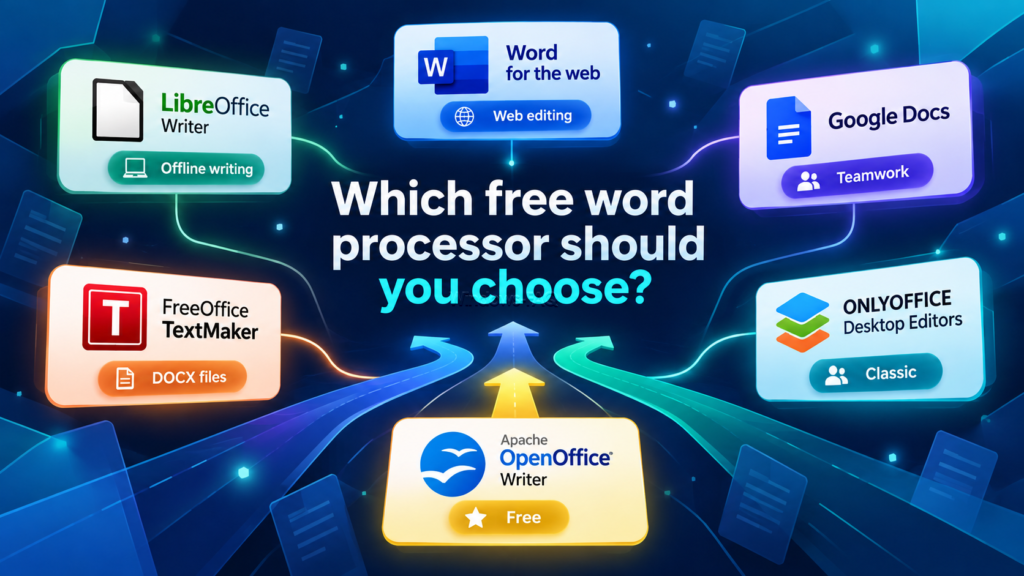
LibreOffice Writer is our starting recommendation for everyday offline writing. Word for the web is convenient when you want Microsoft’s browser editor, while Google Docs suits work that several people need to edit together.
FreeOffice TextMaker, ONLYOFFICE Desktop Editors, and Zoho Writer give you useful alternatives with different interfaces and workflows. Choose one that handles your own documents well, keep an editable master, and use PDF when you need to share a finished layout.
What is the best free word processor for Windows?
LibreOffice Writer is our first recommendation for general offline writing. It works without a subscription or cloud account and handles letters, reports, DOCX files, and PDF export. Word for the web and Google Docs are useful browser alternatives.
Can I use Microsoft Word for free?
Yes. Word for the web is free to use in a browser with a Microsoft account. The free web version does not include the paid desktop application or all of its features, and it requires internet access.
Does Windows 11 include a free word processor?
Windows 11 does not include a free license for desktop Microsoft Word. WordPad was removed starting with version 24H2. For formatted documents, you can install a free alternative or use a browser editor; Notepad remains useful for plain text.
Which free word processor works offline without an account?
LibreOffice Writer and Zoho Writer’s individual desktop app are practical options for offline document editing without an account. OpenOffice and FocusWriter also support local use, and ONLYOFFICE Desktop Editors can work without connecting a cloud service.
Can free word processors open and save DOCX files?
LibreOffice Writer, FreeOffice TextMaker, ONLYOFFICE Desktop Editors, and Zoho Writer can open and save DOCX files. Google Docs can export DOCX. Apache OpenOffice can open DOCX but cannot save in that format, and complex layouts should be checked in any alternative editor.
Which free writing program should I use for a resume?
LibreOffice Writer, FreeOffice TextMaker, ONLYOFFICE Desktop Editors, and Word for the web can handle a resume or CV. Follow the employer’s requested format, and keep an editable copy even when you submit a PDF.
Can I create a PDF without buying Microsoft Office?
Yes. LibreOffice Writer, FreeOffice TextMaker, Google Docs, and Word for the web offer PDF output. Keep the original editable document so you can make changes later without rebuilding it from the PDF.
Is LibreOffice free for business use?
Yes. LibreOffice can be used for personal and business work without license fees. Paid professional support is optional, which can be useful for organizations that need deployment help or support agreements.