Newsletter Subscribe
Enter your email address below and subscribe to our newsletter

Frequently Asked Questions
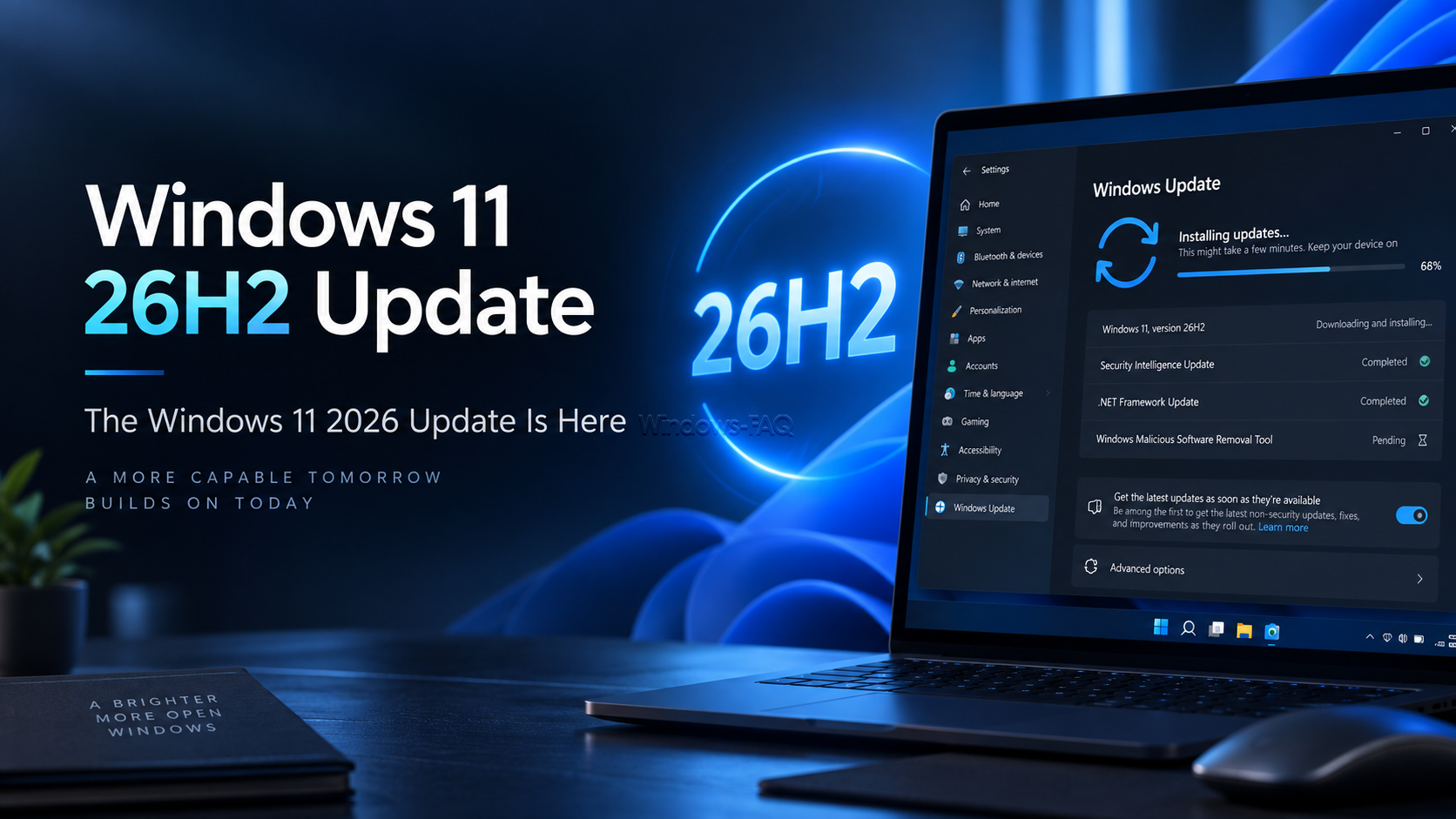
Windows 11 26H2 is now rolling out. Microsoft officially released the Windows 11 2026 Update on September 29, 2026, and eligible Windows 11 PCs can receive the new version through Windows Update.
Windows 11 26H2 is now rolling out. Microsoft officially released the Windows 11 2026 Update on September 29, 2026, and eligible Windows 11 PCs can receive the new version through Windows Update.
For users already running Windows 11 24H2 or Windows 11 25H2, the upgrade is considerably smaller than a traditional Windows feature update. Microsoft uses an Enablement Package called KB5121794 that activates components already delivered to the PC through previous monthly updates.
Quick answer: If your PC runs Windows 11 24H2 or 25H2 and is eligible for the upgrade, open Settings > Windows Update, enable “Get the latest updates as soon as they’re available”, and check for updates. When Windows 11 version 26H2 appears, select Download & install. The upgrade normally requires only one restart.
You can also read the original German version of this guide on Windows-FAQ.de.
Diesen Artikel auf Deutsch lesenMicrosoft calls version 26H2 the Windows 11 2026 Update. The public rollout started on September 29, 2026 after the operating system had previously been tested through the Windows Insider Program.
Windows 11 26H2 continues Microsoft’s annual feature update schedule, but the installation process is different from many older Windows upgrades. Instead of replacing large parts of the operating system, eligible computers receive a comparatively small package that activates features already present in Windows.
If you regularly follow Windows releases, security updates and new Microsoft features, you can also find more articles in our latest Windows news and updates section.
Windows 11 versions 24H2, 25H2 and 26H2 share the same underlying servicing foundation. Microsoft can therefore distribute many of the files required for 26H2 through normal cumulative updates before the feature update itself is installed.
These components remain inactive until the Enablement Package turns them on. You can think of KB5121794 as a switch that changes the installed Windows version and activates the corresponding 26H2 functionality.
This approach has several advantages. The download is much smaller than a traditional feature upgrade, installation takes less time, and the computer normally needs only a single restart.
| Current Windows version | Upgrade to Windows 11 26H2 |
|---|---|
| Windows 11 25H2 | Enablement Package KB5121794 supported |
| Windows 11 24H2 | Enablement Package KB5121794 supported |
| Other Windows versions | KB5121794 is not the intended direct upgrade method |
Microsoft also requires the necessary servicing updates to be installed before the Enablement Package can be applied. At the time of release, Microsoft lists KB5124010 or a later cumulative update as a prerequisite.
The easiest and safest method is Windows Update. You should not manually force the upgrade unless you have a specific reason to do so.
First determine which version of Windows 11 is installed on your PC.
winver.The About Windows dialog displays your Windows version and OS build.
If you currently use Windows 11 24H2 or 25H2, your PC can potentially use the KB5121794 Enablement Package, provided the device meets Microsoft’s requirements and no compatibility block is active.
Open Settings with Windows + I and select Windows Update.
Install any pending cumulative and servicing updates first. This is important because the Enablement Package depends on components that Microsoft has already delivered through previous Windows updates.
Restart the computer if Windows requests it, then return to Windows Update.
If you want Windows 11 26H2 as soon as Microsoft considers your device ready, enable the following Windows Update option:
Get the latest updates as soon as they’re available
After enabling the setting, select Check for updates.
If your PC is included in the current rollout phase, Windows Update should display Windows 11, version 26H2 together with the option to download and install it.
Select Download & install and allow Windows Update to complete the process.
On eligible Windows 11 24H2 and 25H2 systems, this is not a complete operating system reinstall. The Enablement Package activates components already stored on the computer and changes the Windows version to 26H2.
A restart is required to complete the transition.
After Windows has restarted, press Windows + R again and run:
winver
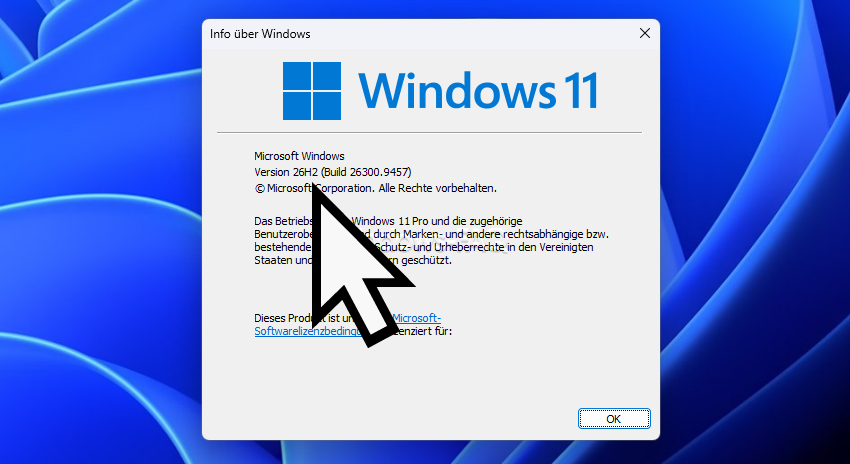
The dialog should now report Windows 11 Version 26H2. The exact revision can change with cumulative updates, but Windows 11 26H2 uses the 26300.x build family.
Do not be concerned if another computer already receives Windows 11 26H2 while yours does not. Microsoft does not release major Windows updates to every compatible PC at the same time.
The company uses a controlled feature rollout. Availability gradually expands as Microsoft collects reliability and compatibility data from devices that have already completed the upgrade.
A second possible reason is a Safeguard Hold. Microsoft can temporarily prevent the upgrade on devices with a known compatibility problem involving a driver, application or hardware configuration.
For example, a problem may affect only a particular audio driver, storage controller, security application or VPN client. In that situation, blocking the feature update can prevent users from installing a Windows version that is already known to cause problems on their hardware.
For most users, bypassing a Safeguard Hold is not advisable. Waiting for Microsoft, the hardware manufacturer or the software vendor to resolve the compatibility problem is usually the safer approach.
The release of Windows 11 26H2 is especially relevant for Windows 11 24H2 Home and Pro users.
Regular servicing for Windows 11 24H2 Home and Pro ends on October 13, 2026. After that date, those editions no longer receive the normal monthly security and quality updates from Microsoft.
If you are still running 24H2, you should therefore start planning your upgrade rather than leaving the system on an unsupported Windows release.
You do not necessarily have to force 26H2 immediately if Windows Update is currently withholding it because of a compatibility issue. The important point is that the system should move to a supported Windows version.
Installing Windows 11 26H2 starts a new servicing period for that Windows release.
| Windows 11 edition | Servicing period |
|---|---|
| Windows 11 Home | 24 months |
| Windows 11 Pro | 24 months |
| Windows 11 Pro for Workstations | 24 months |
| Windows 11 Enterprise | 36 months |
| Windows 11 Education | 36 months |
This servicing model is particularly important for companies because the operating system lifecycle affects deployment planning, security compliance and device management.
Even though 26H2 uses a small Enablement Package on eligible systems, businesses should not treat the upgrade as risk free.
A good deployment strategy starts with a small group of representative computers. Include different notebook and desktop models and test the software and hardware that employees actually depend on.
Important areas to verify include VPN clients, printers, security software, domain authentication, BitLocker, Remote Desktop, docking stations, audio devices and business critical applications.
After the pilot devices have operated normally for several days, the deployment can be expanded in stages.
Microsoft supports Windows 11 26H2 through existing commercial update management tools. Organizations can continue using established update rings, deployment policies and Windows Autopatch strategies.
Before installing a feature update on an encrypted computer, verify that you have access to the BitLocker recovery key.
A normal Windows update should not require the recovery key, but firmware changes, TPM events, boot configuration changes or unexpected recovery situations can trigger a BitLocker recovery prompt.
Knowing where the recovery key is stored can prevent an unpleasant surprise if Windows asks for it after maintenance or troubleshooting.
You should also maintain a current backup of important files before installing major operating system updates.
If an upgrade fails and you later consider reinstalling Windows, check how the PC is activated before making major changes.
Many modern Windows 11 computers use a digital license and do not require you to manually enter a product key during a reinstall. Other systems contain an OEM product key stored in the UEFI firmware.
Our guide explains how to find your Windows product key and check Windows activation before reinstalling the operating system.
If the Windows 11 26H2 installation fails, do not immediately perform a clean installation. Most Windows Update problems can be investigated without deleting the operating system.
Start by checking the basics:
You can also browse our Windows guides for additional troubleshooting and configuration articles.
For a normal home PC running Windows 11 25H2, there is usually no need to rush the upgrade manually. If Microsoft offers 26H2 through Windows Update and no compatibility hold is active, using the regular Windows Update installation is the preferred approach.
The Enablement Package makes the transition considerably less disruptive than a traditional full feature upgrade.
Users running Windows 11 24H2 Home or Pro should pay closer attention because that release reaches the end of servicing on October 13, 2026.
Companies should take a more controlled approach. Deploy Windows 11 26H2 to a pilot group first, verify important applications and hardware, and then gradually expand the rollout.
Yes. Microsoft announced the availability of Windows 11 version 26H2, also called the Windows 11 2026 Update, on September 29, 2026.
Open Settings > Windows Update, enable Get the latest updates as soon as they’re available, and select Check for updates. If your device is eligible, Windows 11 version 26H2 will appear with a download and installation option.
KB5121794 is the Windows 11 26H2 Enablement Package. It activates Windows 11 26H2 on eligible computers already running Windows 11 24H2 or Windows 11 25H2.
No. Eligible Windows 11 24H2 and 25H2 systems can move to 26H2 through the Enablement Package without performing a complete Windows reinstall.
Microsoft is releasing the update gradually. Your device may not yet be included in the current rollout phase, or a known compatibility issue may have triggered a temporary Safeguard Hold.
Yes. The Enablement Package requires a restart to complete the transition to Windows 11 version 26H2.
Microsoft supports the KB5121794 Enablement Package for eligible systems running Windows 11 version 24H2 or Windows 11 version 25H2.
Press Windows + R, enter winver and press Enter. The About Windows dialog should show Windows 11 Version 26H2 and a 26300.x OS build.
Windows 11 Home and Pro releases receive 24 months of servicing. Enterprise and Education releases receive 36 months of servicing.
Businesses should normally begin with a limited pilot deployment. Test important applications, drivers, VPN software, security products and hardware before expanding the upgrade to all devices.
Windows 11 26H2 has officially entered its public rollout, and the upgrade is unusually straightforward for users already running Windows 11 24H2 or 25H2.
Instead of performing a large operating system replacement, Microsoft uses the KB5121794 Enablement Package to activate components that have already been delivered through previous monthly updates. This reduces download size, installation time and downtime.
If Windows Update offers Windows 11 26H2 on your PC, the normal Windows Update installation is the safest choice. If the new version does not appear yet, there is usually no reason to force it. Microsoft may simply not have reached your device in the staged rollout, or a compatibility safeguard may temporarily prevent installation.
Windows 11 24H2 Home and Pro users should pay particular attention to the transition because support for those editions ends on October 13, 2026. Business administrators should use a pilot group before deploying 26H2 widely, even though the Enablement Package makes the technical upgrade relatively small.