

Frequently Asked Questions

FRITZ!Box DNS Filter: How to Block Ads with FRITZ!OS 8.50
Share your love
To set up the FRITZ!Box DNS filter, open Home Network > Network > Network Settings > Change Advanced Network Settings > DNS Filter. Enable DNS filter lists, add a compatible blocklist such as https://big.oisd.nl, and save your changes. On supported routers, this can reduce advertising, tracking and access to known malicious domains for devices that use the FRITZ!Box as their DNS server.
Introduced with FRITZ!OS 8.50, the feature works centrally for the home and guest networks. That makes it useful for Windows PCs, phones, tablets and smart TVs without installing a separate filtering app on each device. However, it cannot remove every advertisement, and a device using a different DNS service may bypass it.
What does the FRITZ!Box DNS filter actually do?
DNS translates domain names into IP addresses. When a device asks your FRITZ!Box to look up a domain, the router can check that name against its configured filter lists and exceptions. If the domain is blocked, the device does not receive the normal DNS answer it needs to connect to that destination.
Depending on your chosen list, filtering can prevent connections to advertising servers, tracking services, phishing websites and domains associated with malware. The decision concerns the domain name, not individual images, videos or paragraphs on a page. An advertisement served from a separate blocked domain may disappear, while an advertisement delivered by the same domain as the main content may remain.
This article is also available in German
You can also read the original German version of this guide on Windows-FAQ.de.
Diesen Artikel auf Deutsch lesenBefore you start: check your FRITZ!Box and firmware
You need a FRITZ!Box model and firmware release that support the DNS filter. FRITZ!OS 8.50 introduced the feature on selected models, so the version number alone is not a complete compatibility check. Similar product names can also refer to different routers, including the FRITZ!Box 5690 and 5690 Pro.
- Check the exact model name and install the current supported FRITZ!OS release for that device.
- Make sure you can sign in to the FRITZ!Box interface and change its network settings.
- Use the main router for this setup. The DNS filter is unavailable when the FRITZ!Box operates as a Mesh Repeater or IP client.
- Make sure the devices you want to filter send their DNS queries to the FRITZ!Box.
The manufacturer’s guide to configuring FRITZ!Box DNS filters documents the requirements and supported list formats. Check the support information for your own model if the DNS Filter tab is missing.
FRITZ!OS 8.50: Official Downloads & Updates
FRITZ!OS 8.50: Official Downloads & Updates
FRITZ!OS 8.50 introduces DNS filtering, improved network prioritization and new smart home features. Check the official firmware availability for your FRITZ!Box model before installing an update.
FRITZ!OS 8.50
FRITZ!Box 7690
Initial release: September 29, 2026
Original package size: 46,660 KB
DNS filtering supported.
Device-specific router firmware.
FRITZ!OS 8.50+
FRITZ!Box 5690
FRITZ!OS 8.50 released.
DNS filtering documented.
Newer firmware may be available.
Update through the router interface.
FRITZ!OS 8.50
FRITZ!Box 5630
Official firmware available.
DNS filter support documented.
Free manufacturer updates.
Installation through FRITZ!OS.
Installation: Open your FRITZ!Box interface at http://fritz.box and navigate to System > Update. Check for available firmware and follow the instructions.
Important: Firmware availability and DNS filter support depend on the exact router model. FRITZ!OS 8.50 may have been superseded by a newer release. These buttons open the official manufacturer update page, not direct firmware files.
Learn more: Official FRITZ!OS 8.50 features
Step 1: Check for a FRITZ!OS update
Connect your computer to the FRITZ!Box by Wi-Fi or Ethernet, then open http://fritz.box in your browser’s address bar. If that address does not work, use the router’s local IP address. On an unchanged FRITZ!Box home network, this is commonly 192.168.178.1, but your network may use a different address.
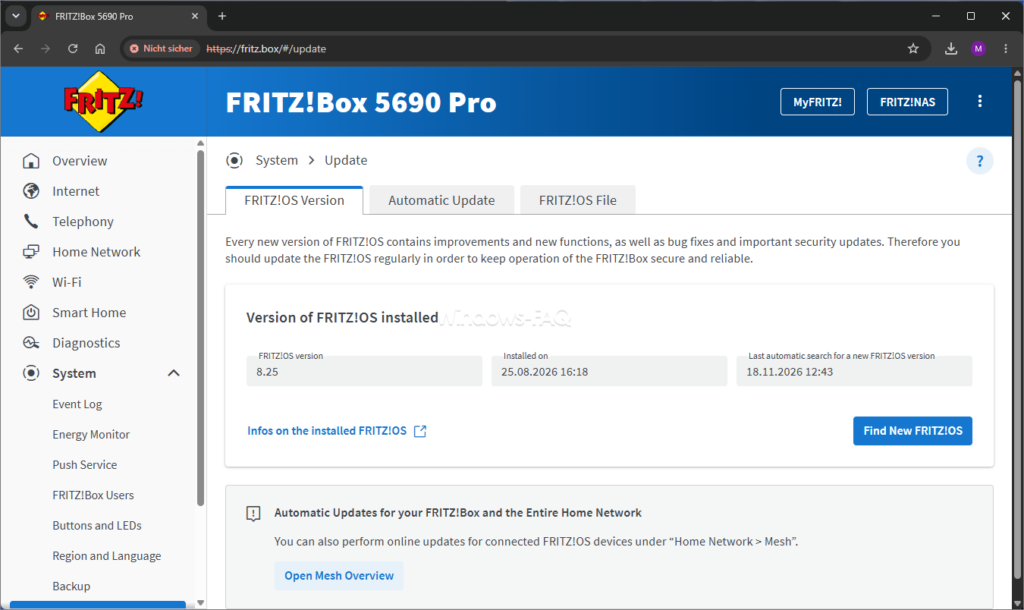
- Sign in with your FRITZ!Box password.
- Open System > Update and check the installed FRITZ!OS version.
- Search for a new FRITZ!OS version and install the update offered for your model.
- Wait for the update and router restart to finish, then sign in again.
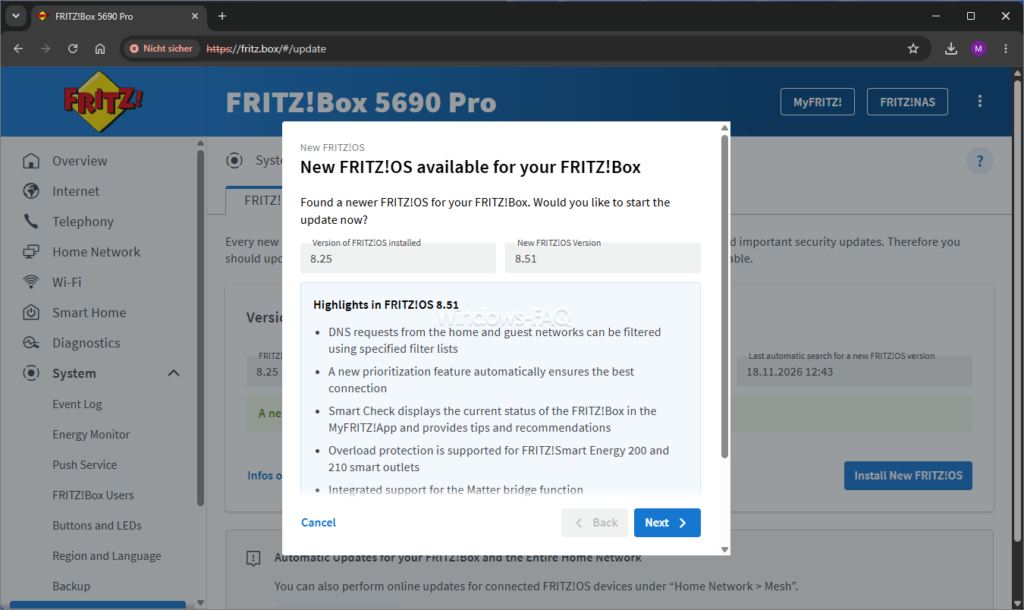
Save a configuration backup before updating if you rely on custom router settings, and keep the router connected to power throughout the installation. If your FRITZ!Box already runs a newer supported release, continue with that version. You do not need to downgrade to FRITZ!OS 8.50 to follow this guide.
Step 2: Enable the FRITZ!Box DNS filter
The DNS filter is configured in the advanced home network settings. The following navigation uses the English interface; individual labels can vary slightly between firmware releases.
- Open Home Network and select Network.
- Select the Network Settings tab.
- Open Change Advanced Network Settings, then select DNS Filter.
- Enable the option to use DNS filter lists and block unwanted websites.
- Select Add filter list.
- Enter a descriptive name, such as
OISD big. - Enter
https://big.oisd.nlas the filter list URL. - Confirm the new entry and select Apply to save the configuration.
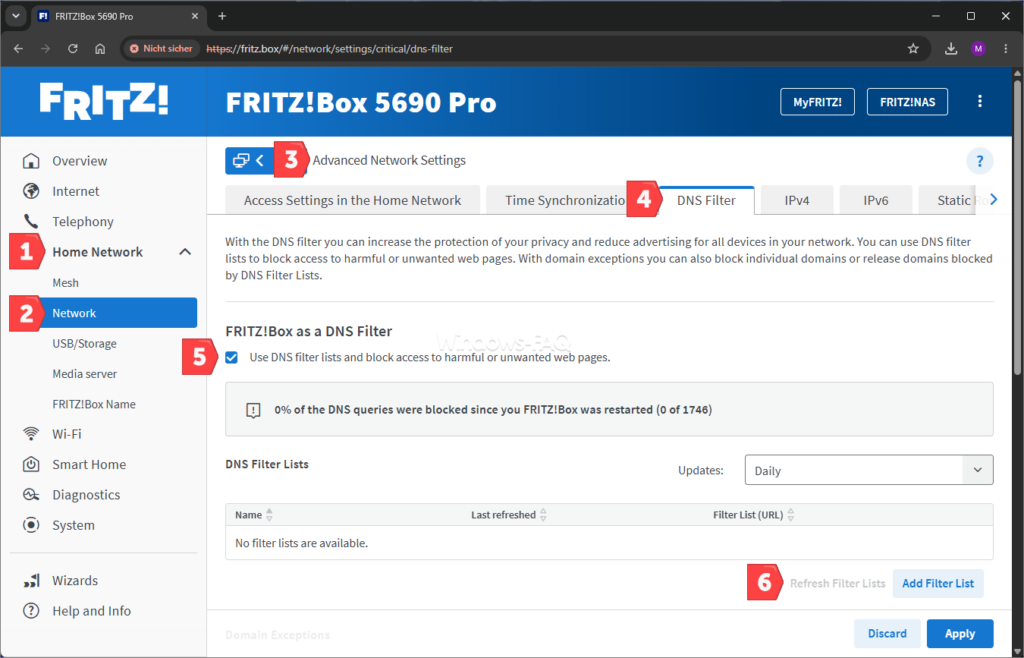
The list URL must point to the filter data, not just the provider’s homepage. After saving, check that your list is present and that the interface does not report a retrieval problem. A saved URL alone does not prove that the router has successfully loaded its contents.
Which DNS blocklist should you use?
FRITZ!OS does not include predefined DNS blocklists, so you must add one yourself. For a straightforward starting point, use the OISD big list shown above. Its stated scope includes advertising, tracking and several categories of malicious domains, but the actual result depends on the entries maintained by the provider.
DNS filter lists for your FRITZ!Box
These are filter data files, not Windows applications. Copy a list’s link address into the FRITZ!Box filter list field; its contents and file size can change as the provider updates it.
- OISD big: Adblock domain rules covering advertising, tracking and malicious domains.
- HaGeZi Pro: Adblock domain rules covering advertising, tracking, telemetry and other unwanted domains.
- Steven Black Hosts: A hosts-format list covering adware and malware domains.
Start with one list and check your everyday applications before adding more. Combining several large lists does not automatically improve the result: duplicate entries add no extra blocking benefit and can create unnecessary work for the router. A larger collection can also make it harder to identify the rule behind a broken website.
The FRITZ!Box supports domain rules in Adblock format, hosts entries and domain lists. This does not mean that every browser ad-blocking list is suitable. Filters that rely on webpage elements or specific URL paths require capabilities that a DNS filter does not provide.
Step 3: Check whether Windows uses the FRITZ!Box for DNS
On your Windows PC, press Windows + R, enter cmd and press Enter. You can inspect the current network configuration in a normal Command Prompt without administrator rights.
ipconfig /allFind the active Wi-Fi or Ethernet adapter and look for DNS Servers. The FRITZ!Box’s local IPv4 address may appear there, for example 192.168.178.1. An IPv6 address belonging to the router can also be correct, so an address containing colons does not automatically indicate a problem.
If an external DNS server is configured, those requests may bypass the FRITZ!Box filter. For a typical private home network, automatically assigned IP and DNS settings are a useful starting point. Also check whether a VPN or your browser uses its own DNS service, because the adapter settings alone cannot reveal every application’s behavior.
On a work or school computer, keep the DNS configuration required by the organization. Replacing an Active Directory DNS server with your home router can break internal name resolution and access to company services. Ask your administrator how filtering should work with that setup.
Step 4: Test the DNS filter with a temporary rule
A controlled test is more useful than judging the filter by how many advertisements you happen to see. You can temporarily block example.org, compare the DNS result, and remove the rule afterwards. Use a harmless example domain instead of a banking, Microsoft sign-in or business domain.
Check the normal DNS response first
Run the following command before creating the temporary block. Replace 192.168.178.1 with your FRITZ!Box’s actual local address if it differs.
nslookup example.org 192.168.178.1The second parameter tells nslookup which DNS server to query. Confirm that the router returns a normal answer before proceeding; if this first request already fails, resolve the connection or DNS problem before treating a later failure as evidence of filtering.
Block the example domain and repeat the lookup
- Return to the DNS Filter tab in the FRITZ!Box interface.
- Find Domain Exceptions and select Add own domain.
- Choose the option to block the domain and enter
example.org. - Save the entry and apply your changes.
- Run the same
nslookupcommand again.
The blocked query should no longer return the normal usable answer for the domain. Do not rely on one particular error message, and do not interpret a timeout alone as proof that filtering works. Remove the temporary rule afterwards, apply the change and check that normal resolution returns.
This checks the router’s response to an explicit DNS query and the effect of a domain rule. It does not prove that every browser, app or device uses that DNS server, or that every downloaded blocklist entry is active. If the browser still opens the blocked domain during your test, investigate its DNS settings and cached connections separately.
Clear cached Windows DNS entries when retesting applications
After changing a rule, applications may still have information from an earlier lookup. To clear the Windows resolver cache, open Command Prompt as administrator and run:
ipconfig /flushdnsThis clears the Windows DNS client cache. It does not automatically clear a browser’s own cache, the router’s cache or an existing connection. Our guide to clearing the DNS cache in Windows 11 explains the different caches and includes the DNS-specific procedure.
Step 5: Allow a website blocked by the DNS filter
A website can stop working even when its main address is not blocked. Sign-in pages, payment services, embedded videos and smart home apps may depend on additional domains. If a problem starts after enabling a list, test whether filtering is responsible before adding broad exceptions.
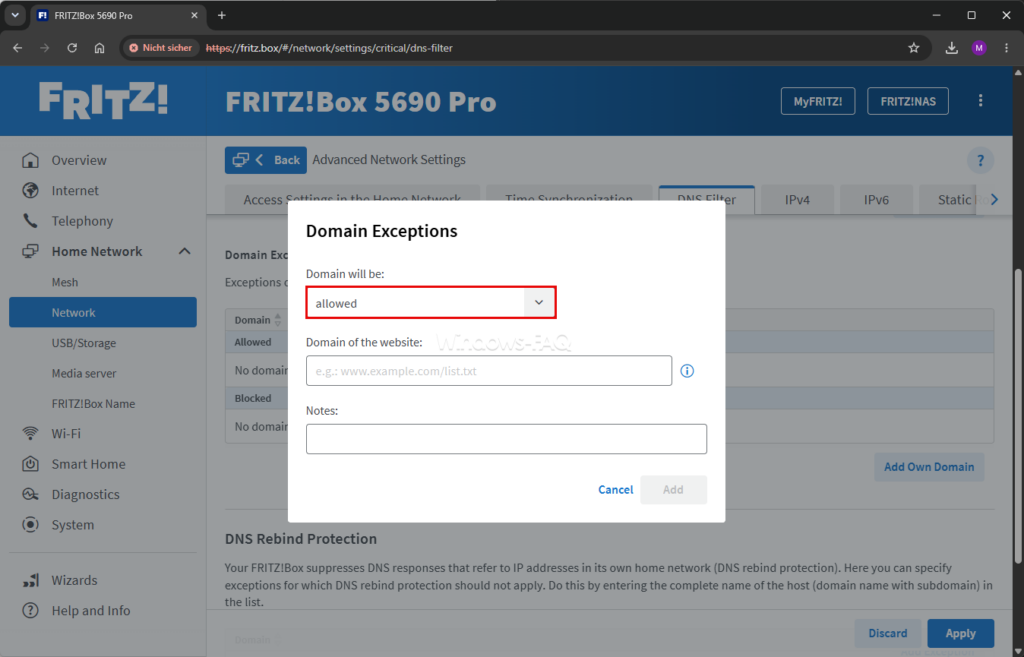
- Open the DNS Filter tab through the advanced home network settings.
- Under Domain Exceptions, select Add own domain.
- Choose the option to permit the domain.
- Enter the required domain name, without a URL scheme such as
https://or a webpage path. - Save the entry, apply your changes and test the affected service again.
Domain exceptions take priority over filter list entries, and permitted domains take priority over blocked domains. Allow only the domain needed for the service to work. An unnecessarily broad exception can also restore access to advertising or tracking services that you intended to block.
FRITZ!Box DNS filter not working: what to check
Different symptoms point to different causes. Start with the device or service that is affected, and change one setting at a time so you can tell whether it helped.
| Problem | What to check |
|---|---|
| The DNS Filter tab is missing. | Confirm the exact router model, installed firmware and operating mode. Check the main router if this FRITZ!Box is a Mesh Repeater or IP client. |
| No list-based blocking is apparent. | Check that filtering is enabled, the list URL is correct and the list was loaded. Then verify which DNS server the device and browser use. |
| Only one device bypasses the filter. | Look for a manually configured DNS service, browser Secure DNS, a VPN or a mobile data connection. |
| A legitimate website or app stops working. | Temporarily disable the filter lists and retest. If that resolves the problem, identify the necessary domain, add a narrow exception and enable filtering again. |
| The problem continues after adding an exception. | Check the domain spelling and whether another service domain is involved. Clear relevant cached data and restart the affected application. |
| Every device loses internet access. | Check the router’s connection status as well as the filter configuration. A wider connection failure does not establish that a blocklist caused it. |
Why the FRITZ!Box cannot reliably block YouTube ads
DNS filtering cannot separate an advertisement from a video when both use the same domain. Blocking that domain can also prevent the video from loading. YouTube is therefore not a reliable test of whether your FRITZ!Box DNS filter is working.
A browser content blocker can apply additional rules to page content, although its effectiveness also depends on the service and the blocker. DNS filtering remains useful for unwanted connections across multiple devices, including devices where browser extensions are not an option. Expect fewer connections to listed domains, rather than a completely advertisement-free internet.
Can Secure DNS or a VPN bypass the filter?
Yes, if the device sends its DNS queries directly to another resolver. A browser using an external DNS-over-HTTPS service, a phone configured with an external private DNS provider or a VPN carrying DNS requests through its tunnel may bypass the router’s local DNS filtering. The exact result depends on the application and network configuration.
There is a useful distinction here: a device choosing an external resolver is different from the FRITZ!Box using an encrypted connection to its own upstream DNS provider. In the second arrangement, the device can still send its initial DNS query to the router. Encryption itself is not the deciding factor; the relevant question is which DNS server receives the device’s query.
For troubleshooting on a personal device, compare the result when the browser uses the system DNS settings, then choose the configuration that fits your privacy and filtering needs. Keep required corporate VPN settings in place. A phone using mobile data is outside the home network and will not use the local FRITZ!Box filter.
DNS filtering, parental controls and antivirus protection
The DNS filter and the FRITZ!Box parental controls serve different purposes. A blocklist defines unwanted domains, while parental controls can manage access profiles and time restrictions for devices. A general advertising or malware list is not automatically a child-safety list, and domain filtering alone does not provide complete parental protection.
DNS filtering does not scan downloaded files or remove malware already on a computer. Keep Windows and your applications updated, and maintain active antivirus protection. If you use the built-in Windows antivirus, our guide explains how to check and enable Microsoft Defender protection.
A practical starting setup for your home network
Begin with one maintained blocklist, verify a temporary domain rule and then try your normal activities. Check banking, shopping, streaming, gaming, video calls and smart home controls before changing more settings. This gives you a useful baseline for spotting a problem caused by a later change.
Keep a short note of any exceptions you add and why they are needed. When a service breaks, that record makes troubleshooting easier and helps you avoid leaving unnecessary permissions in place. Review the setup after significant firmware or list changes, because both the filter data and the services you use can evolve.
FAQ: FRITZ!Box DNS filtering and ad blocking
Is the FRITZ!Box DNS filter free?
The DNS filter is included in supported FRITZ!OS releases, and the example community lists in this guide are available without a subscription. You do not need a Raspberry Pi or another computer to run the router’s built-in filter.
Does the filter work for smart TVs and phones?
It can filter their DNS queries when those devices use the FRITZ!Box DNS service. A device using another resolver, a VPN’s DNS service or mobile data may not be covered.
Does it also filter the FRITZ!Box guest network?
The manufacturer documents filtering for both the home and guest networks. The same requirement applies in each case: the queries must reach the FRITZ!Box DNS servers.
Will changing the DNS server to a public provider improve blocking?
Changing the DNS server on a device to an external provider can bypass the FRITZ!Box’s own lists. An external provider may offer separate filtering, but that is a different configuration with its own rules.
Why are some advertisements still visible?
The domain may not be on your selected list, or the advertisement may share a domain with content you want to see. Some applications also use another DNS service, so a remaining advertisement does not by itself prove that the router filter is broken.
Should I enable every available blocklist?
Start with one suitable list and add another only when you have a specific reason. Overlapping lists can duplicate entries and make it more difficult to trace unwanted blocking.
Do I have to keep using FRITZ!OS 8.50?
No. FRITZ!OS 8.50 is the version that introduced the feature, not a version you need to keep indefinitely. Use the current supported firmware for your exact model and check its DNS filter settings after updating.
