Frequently Asked Questions


fClientDisableUDP: Disable UDP for RDP and Force TCP in Windows
Share your love
Remote Desktop sessions that freeze, pause, or disconnect can sometimes be stabilized by disabling UDP on the Windows client. The policy value fClientDisableUDP provides a direct way to do this. Set the DWORD value to 1, reconnect, and Windows will use TCP only for new RDP connections.
This setting is useful when a VPN, firewall, network appliance, or unstable connection does not handle RDP over UDP reliably. However, it is a troubleshooting measure rather than a universal fix. UDP can provide a smoother Remote Desktop experience on healthy networks, so you should only force TCP when testing or resolving a specific connection problem.
The following methods are suitable for Windows 11 and Windows 10 clients that support the Remote Desktop policy. In managed environments, administrators can deploy the same configuration centrally.
This article is also available in German
You can also read the original German version of this guide on Windows-FAQ.de.
Diesen Artikel auf Deutsch lesenWhat does fClientDisableUDP do?
fClientDisableUDP is a computer policy for the Windows Remote Desktop client. It controls whether the client may use UDP when it connects to another computer through Remote Desktop Protocol.
The value is stored in this Registry location:
HKEY_LOCAL_MACHINE\SOFTWARE\Policies\Microsoft\Windows NT\Terminal Services\ClientThe possible configurations are:
| Registry configuration | RDP behavior |
|---|---|
fClientDisableUDP is missing | The client can attempt to use both TCP and UDP. |
fClientDisableUDP is set to 0 | UDP remains enabled. |
fClientDisableUDP is set to 1 | The client uses TCP only. |
The policy affects outgoing RDP connections started from the computer on which you configure it. It does not disable UDP for Windows, your browser, online games, or other applications.
Does Remote Desktop use TCP or UDP?
Modern RDP connections can use both TCP and UDP. By default, the Windows client attempts to use the available transports and selects the suitable connection method. If UDP succeeds, much of the session traffic can use UDP. If UDP is unavailable, blocked, or disabled, RDP continues over TCP.
UDP was added to improve responsiveness and throughput, especially across wireless networks and wide area connections. It can reduce delays caused by retransmission and packet ordering. TCP provides ordered and reliable delivery, but a lost packet can temporarily delay later data in the same stream.
For this reason, neither transport is automatically better in every environment. UDP often delivers the best user experience on a properly configured network. TCP can be more stable when the UDP path is filtered or otherwise unreliable.
When should you disable UDP for RDP?
Forcing RDP to use TCP is worth testing when you experience one or more of the following symptoms:
- The Remote Desktop window freezes while the remote computer continues running.
- The session disconnects and reconnects repeatedly.
- Keyboard and mouse input stops responding for several seconds.
- The problem occurs mainly through a VPN, mobile connection, or specific firewall.
- RDP works from another network but not from your normal connection.
- You want to determine whether UDP transport is responsible for an intermittent problem.
Please remember that these symptoms can also be caused by packet loss, overloaded systems, display drivers, authentication problems, VPN configuration, or Windows updates. If TCP only mode does not improve the connection, restore the default setting and continue troubleshooting the underlying cause.
Before changing the RDP transport
Configure fClientDisableUDP on the computer from which you start the Remote Desktop connection. For example, if you use a Windows 11 laptop to connect to a Windows Server system, make the change on the Windows 11 laptop.
You need local administrator rights to edit the computer policy or the Registry. Before making manual Registry changes, create a restore point or export the affected key. Close existing RDP sessions before testing because the new transport setting applies to newly established connections.
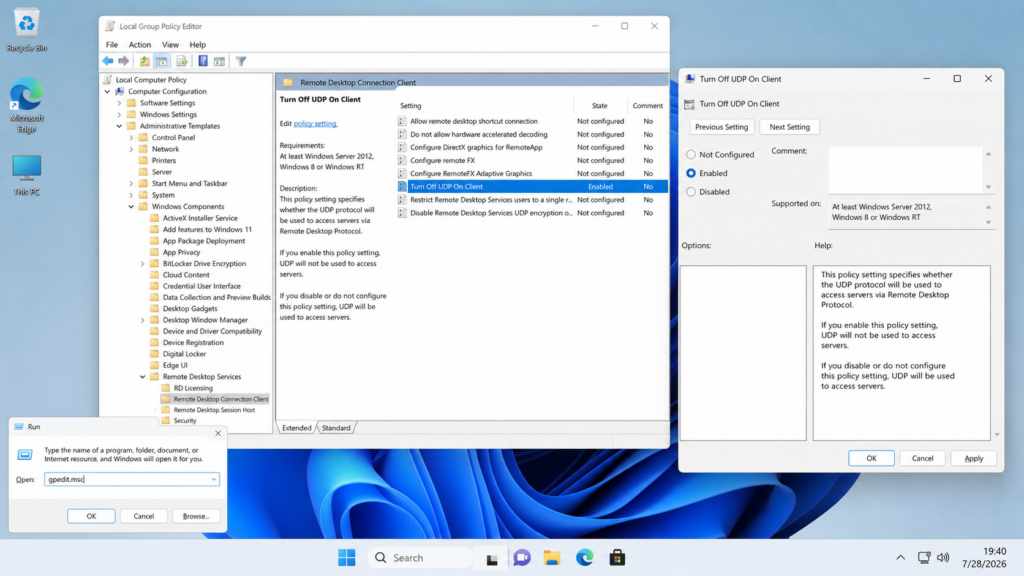
Method 1: Disable RDP over UDP with Group Policy
The Local Group Policy Editor provides the clearest way to configure the setting on supported Windows editions.
- Press
Windows + R. - Enter
gpedit.mscand selectOK. - Open
Computer Configuration. - Navigate to
Administrative Templates > Windows Components > Remote Desktop Services > Remote Desktop Connection Client. - Open the policy named
Turn Off UDP On Client. - Select
Enabled. - Select
Applyand thenOK.
The wording can seem confusing. You enable the policy because the policy itself is named Turn Off UDP On Client. Once enabled, the Remote Desktop client uses TCP only.
In a managed Active Directory environment, you can configure the same policy through the Group Policy Management Console and assign it to the required client computers.
Method 2: Set fClientDisableUDP in the Windows Registry
If the Local Group Policy Editor is unavailable, you can create the policy value directly in the Registry.
- Press
Windows + R. - Enter
regeditand selectOK. - Confirm the User Account Control prompt.
- Navigate to the following path:
Computer\HKEY_LOCAL_MACHINE\SOFTWARE\Policies\Microsoft\Windows NT\Terminal Services\Client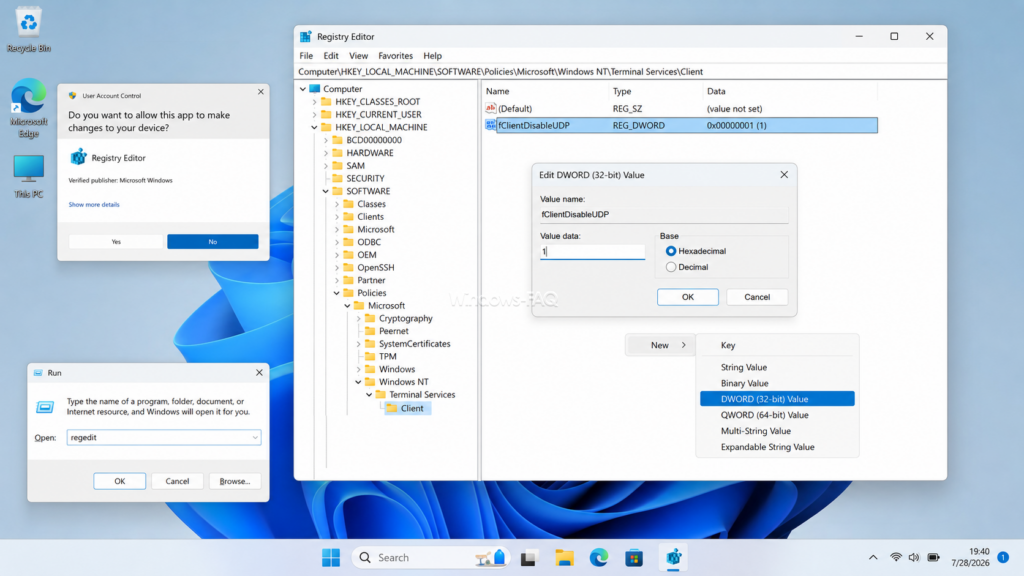
If the Client key does not exist, right-click Terminal Services, select New > Key, and name the new key Client.
- Right-click an empty area in the right pane.
- Select
New > DWORD (32-bit) Value. - Name the value
fClientDisableUDP. - Double-click the new value.
- Enter
1as the value data. - Select
OKand close Registry Editor.
Use a DWORD value even on a 64-bit version of Windows. For the value 1, it does not matter whether the Registry Editor displays the base as hexadecimal or decimal.
Method 3: Disable RDP UDP with Command Prompt
You can create the same Registry value with one command. Open Command Prompt as administrator and run:
reg add "HKLM\SOFTWARE\Policies\Microsoft\Windows NT\Terminal Services\Client" /v fClientDisableUDP /t REG_DWORD /d 1 /fThe command creates the missing key if necessary, writes the DWORD value, and replaces an existing value without another confirmation prompt.
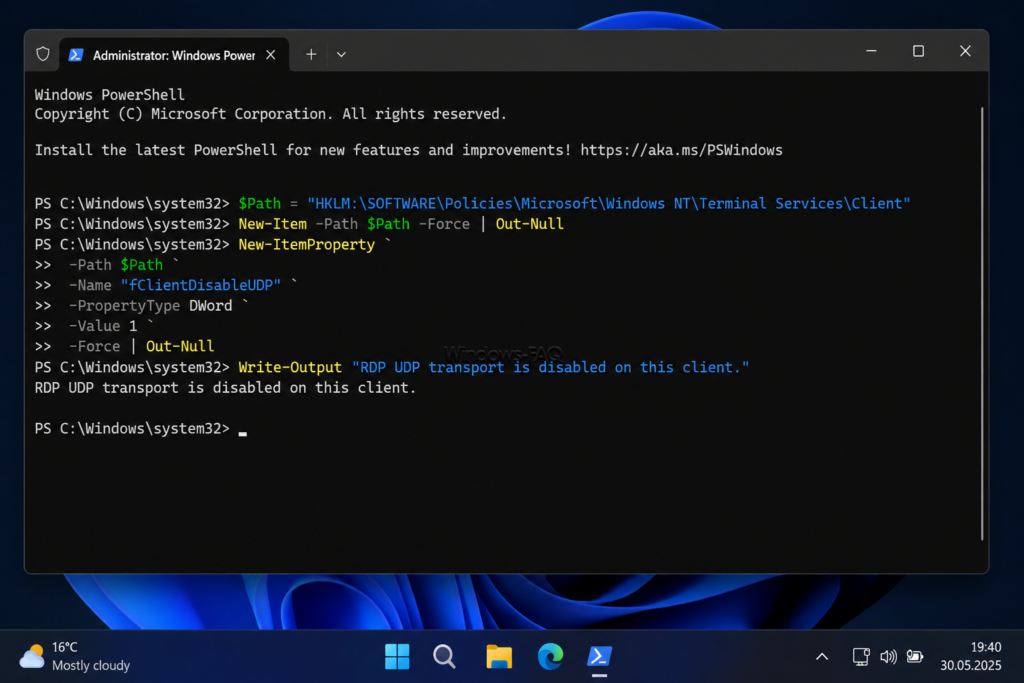
Method 4: Configure fClientDisableUDP with PowerShell
Open Windows PowerShell or Windows Terminal as administrator and run:
$Path = "HKLM:\SOFTWARE\Policies\Microsoft\Windows NT\Terminal Services\Client"

New-Item -Path $Path -Force | Out-Null

New-ItemProperty `
    -Path $Path `
    -Name "fClientDisableUDP" `
    -PropertyType DWord `
    -Value 1 `
    -Force | Out-Null

Write-Output "RDP UDP transport is disabled on this client."
This method is useful for scripts, remote administration, or deployment through a device management platform.
Restart the RDP client and apply the change
Disconnect all active Remote Desktop sessions and close every running Remote Desktop client window. In managed environments, you can also run the following command from an elevated prompt:
gpupdate /forceRestart Windows before testing if you want to ensure that no existing RDP process or policy cache remains active. Then establish a completely new Remote Desktop connection.
How to verify that fClientDisableUDP is enabled
Open Command Prompt and query the value:
reg query "HKLM\SOFTWARE\Policies\Microsoft\Windows NT\Terminal Services\Client" /v fClientDisableUDPThe result should show REG_DWORD and the value 0x1.
You can also verify the value with PowerShell:
Get-ItemPropertyValue `
    -Path "HKLM:\SOFTWARE\Policies\Microsoft\Windows NT\Terminal Services\Client" `
    -Name "fClientDisableUDP"
The command should return 1. In the classic Remote Desktop Connection client, the connection information in the session bar may also show whether UDP is active. The exact display depends on the client version and connection type.
Optional: Force TCP on the Remote Desktop host
The fClientDisableUDP value controls the client computer. Administrators can also restrict the incoming RDP transport on the destination computer.
- Open
gpedit.mscon the RDP host. - Navigate to
Computer Configuration > Administrative Templates > Windows Components > Remote Desktop Services > Remote Desktop Session Host > Connections. - Open
Select RDP transport protocols. - Select
Enabled. - Choose
Use only TCP. - Apply the policy and restart the host.
This host-side policy is separate from fClientDisableUDP. The client setting is usually enough when you only need to test or stabilize connections from one computer. The host policy is more suitable when an administrator wants all clients connecting to that system to avoid UDP.
How to enable UDP for RDP again
To restore the default behavior in Group Policy, open Turn Off UDP On Client and select Not Configured or Disabled.
For a manual Registry configuration, delete the fClientDisableUDP value. You can do this from an elevated Command Prompt:
reg delete "HKLM\SOFTWARE\Policies\Microsoft\Windows NT\Terminal Services\Client" /v fClientDisableUDP /fOr use PowerShell:
Remove-ItemProperty `
    -Path "HKLM:\SOFTWARE\Policies\Microsoft\Windows NT\Terminal Services\Client" `
    -Name "fClientDisableUDP" `
    -ErrorAction SilentlyContinue
After removing the value, update Group Policy if necessary, restart Windows, and reconnect. Setting the DWORD to 0 also permits UDP, but deleting the manually created value returns the client to its normal default configuration.
What changes when RDP uses TCP only?
A TCP-only connection can stop freezes or disconnects when the network path handles UDP poorly. The tradeoff is that Remote Desktop may feel less responsive on a high-latency connection, especially during fast screen updates, video playback, audio streaming, or large graphical changes.
The setting does not change your RDP username, password, certificates, encryption configuration, or configured Remote Desktop port. It only changes the transport protocols that the Windows RDP client is allowed to use.
Forcing TCP is also not automatically a security improvement. Treat it as a compatibility and stability setting. If UDP works reliably in your environment, the default configuration will normally provide the better user experience.
What to do if RDP still freezes over TCP
If the problem continues after you set fClientDisableUDP to 1, the transport was probably not the only cause. Continue with these checks:
- Install the latest Windows updates on the client and the remote computer.
- Test the same destination from another client device.
- Test from another approved network to isolate the VPN, router, or firewall path.
- Check for packet loss, unstable Wi-Fi, overloaded VPN gateways, or restrictive network rules.
- Review the Remote Desktop client and server event logs around the time of the freeze.
- Check CPU, memory, storage latency, and graphics driver behavior on the remote computer.
- Remove the TCP-only setting if it does not improve the connection.
Remote Desktop Gateway, Azure Virtual Desktop, Windows 365, and third-party RDP clients can use different connection paths and ports. Please review the documentation for the specific remote access platform before changing firewall rules.

FAQ about fClientDisableUDP and RDP over TCP
What does fClientDisableUDP value 1 mean?
A value of 1 disables UDP in the Windows Remote Desktop client. New RDP sessions from that computer use TCP only.
Should I create fClientDisableUDP on the client or the server?
Create it on the client computer from which you start the Remote Desktop connection. If several computers have the same problem, configure the policy on each client or deploy it centrally through Group Policy or device management.
Does fClientDisableUDP disable UDP for all applications?
No. The value only controls UDP use by the Windows Remote Desktop client. Other applications and Windows services can continue using UDP.
Does setting fClientDisableUDP to 0 enable UDP?
Yes. A value of 0 permits UDP. Deleting the manually created value is usually preferable because it restores the normal default behavior.
Do I need to restart Windows?
A full restart is the most reliable way to apply the change. At minimum, close all Remote Desktop client processes, update Group Policy if applicable, and create a new connection.
Will forcing TCP fix every RDP freeze?
No. It can help when UDP transport or the network path causes the problem. RDP freezes can also result from packet loss, VPN configuration, drivers, overloaded systems, authentication issues, or software updates.
Is TCP-only RDP more secure than RDP over UDP?
Not automatically. The setting changes the transport behavior, not the identity, authentication, or encryption configuration of the RDP session. Use it for troubleshooting and compatibility rather than as a standalone security measure.
Can I deploy fClientDisableUDP through a domain Group Policy?
Yes. Enable Turn Off UDP On Client under the Remote Desktop Connection Client policies and assign the computer policy to the required devices.
Conclusion
fClientDisableUDP is a targeted and reversible way to force Remote Desktop to use TCP. Set the DWORD to 1 when RDP freezes, disconnects, or behaves unreliably and you suspect the UDP path. If the connection becomes stable, investigate why UDP is failing before deciding whether TCP-only mode should remain permanent.