Frequently Asked Questions


How to Type the Diameter Symbol (⌀, Ø, ø) on Any Keyboard
Share your love
The diameter symbol (⌀) represents the diameter of a circle, hole, pipe, or cylindrical object. To type it in Microsoft Word, enter 2300 and press Alt + X. On Windows, you can also use Alt + 0216 to insert the commonly used alternative character Ø. However, these two characters have different Unicode values.
If you simply need the symbol for an email, document, spreadsheet, or technical drawing, you can copy it directly from this page. This guide also explains how to insert the correct character using Windows 11, Windows 10, Microsoft Word, Excel, Mac, iPhone, Android, and AutoCAD.
Diameter symbol copy and paste
The fastest way to insert a diameter sign is to copy and paste it. Select the character you need, copy it to your clipboard, and paste it into your application. No special keyboard or numeric keypad is required.
| Symbol | Meaning | Unicode | Windows input |
|---|---|---|---|
| ⌀ | Diameter sign | U+2300 | 2300 + Alt + X in Word |
| Ø | Capital O with stroke | U+00D8 | Alt + 0216 |
| ø | Lowercase o with stroke | U+00F8 | Alt + 0248 |
| ∅ | Empty set | U+2205 | 2205 + Alt + X in Word |
| x̄ | Arithmetic mean | Combined characters | Copy and paste |
Use ⌀ whenever you need the actual Unicode diameter sign. Although Ø looks very similar and frequently appears in technical documents, it is a different character. The empty set symbol ∅ has a mathematical meaning and should not normally be used for diameter measurements.
This article is also available in German
You can also read the original German version of this guide on Windows-FAQ.de.
Diesen Artikel auf Deutsch lesenWhat is the diameter symbol?
A diameter is a straight line passing through the center of a circle and connecting two points on its circumference. In engineering, manufacturing, architecture, and technical documentation, a circle with a diagonal stroke indicates this measurement.
The sign usually appears before the numerical value. For example, ⌀25 mm describes a circular object with a diameter of 25 millimeters, while ⌀0.5 in indicates a diameter of half an inch.
Typical applications include:
- Engineering and mechanical drawings
- Drill hole dimensions
- Pipe and tubing specifications
- Shaft and bearing dimensions
- Manufacturing documentation
- Product specifications
- Architectural and construction plans
- CAD drawings
What is the difference between ⌀, Ø, ø, and ∅?
Several characters look almost identical to the diameter sign. Nevertheless, their meanings and Unicode code points differ. This distinction becomes particularly important when exchanging technical data, exporting documents, or searching for specific characters.
⌀: The actual diameter sign
The Unicode Standard identifies ⌀ as the DIAMETER SIGN with the code point U+2300. Unlike Ø and ø, it is not a letter and has no uppercase or lowercase equivalent. It is the semantically correct character for representing a diameter in Unicode text.
You can find its official definition in the Unicode Miscellaneous Technical character list. For engineering documents and structured technical data, this character is generally preferable when your software and font support it.
Ø and ø: Letters with a stroke
The characters Ø and ø belong to the Latin alphabet and appear in languages such as Danish and Norwegian. Because they closely resemble the diameter sign, many people use them as convenient alternatives in everyday documents.
Their main advantage is keyboard accessibility. In many Windows applications, you can insert both characters using traditional Alt codes without opening a symbol selection window.
∅: The empty set symbol
In mathematics, ∅ represents a set containing no elements. Its Unicode code point is U+2205, which distinguishes it from the actual diameter sign.
Some specialized CAD systems use their own character conventions for dimensioning. Outside those applications, however, the empty set symbol should not replace U+2300 in technical text.
Does Ø mean average in English?
In some European countries, particularly Germany, Ø is also used as shorthand for an average. This convention is less common in English-language documents.
English speakers generally use the words average or mean, the abbreviation Avg., or the mathematical notation x̄. Therefore, you should avoid using Ø to represent an average in international technical documentation unless its meaning is clearly defined.
How to type the diameter symbol on a Windows keyboard
Standard US and UK keyboards do not include a dedicated diameter key. Fortunately, Windows offers several ways to insert the character, including Alt codes, the clipboard, and Character Map. The best method depends on your keyboard and the application you are using.
Method 1: Use the diameter symbol Alt code
To insert the commonly used Ø character, use the Windows Alt code 0216. This method works in many desktop applications with a compatible numeric keypad and character input system.
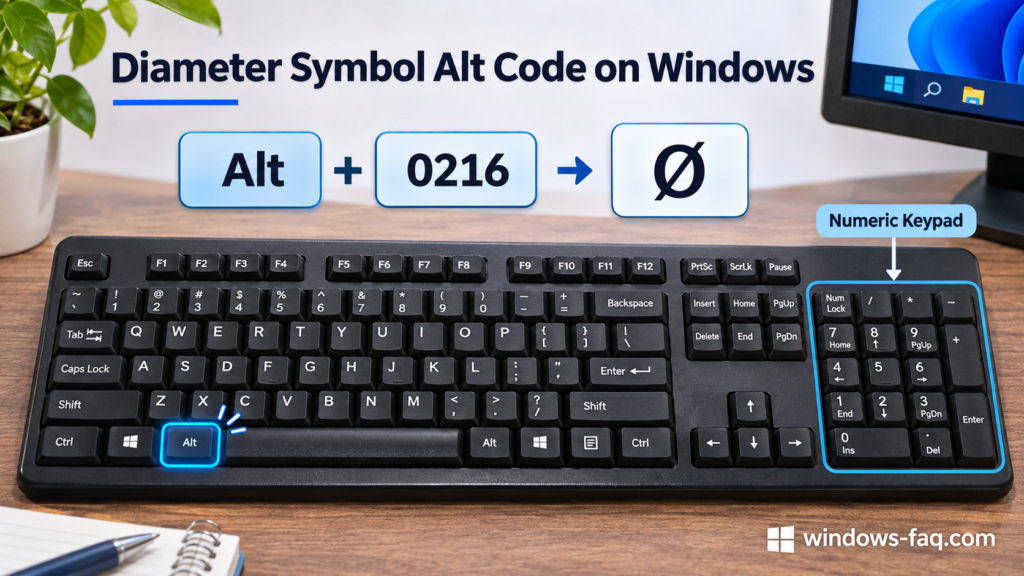
- Place the cursor where you want to insert the character.
- Enable Num Lock if necessary.
- Press and hold the left Alt key.
- Enter 0216 using the numeric keypad.
- Release the Alt key.
The character Ø should now appear. To produce the lowercase version ø, repeat the same steps using Alt + 0248.
| Character | Alt code |
|---|---|
| Ø | Alt + 0216 |
| ø | Alt + 0248 |
Remember to use the numeric keypad rather than the number keys above the letters. The leading zero is also important because it influences how Windows interprets the character code.
Method 2: Copy and paste without a numeric keypad
Many modern laptops and compact keyboards do not have a numeric keypad. In this situation, copying the symbol is often easier than trying to emulate a traditional Alt code.
- Select the required character: ⌀ or Ø.
- Press Ctrl + C to copy it.
- Switch to your document or application.
- Press Ctrl + V to paste the symbol.
This approach works in most browsers, email applications, spreadsheets, and text editors that support Unicode. It also avoids the limitations of traditional Windows Alt codes.
Method 3: Use Windows Character Map
Character Map is a built-in Windows utility for finding and copying special characters. You can access it in both Windows 11 and Windows 10 without installing additional software.
- Press Windows + R to open the Run dialog.
- Enter
charmapand press Enter. - Select a suitable font, such as Segoe UI Symbol.
- Enable Advanced view if necessary.
- Enter 2300 in the Go to Unicode field, if available.
- Select the diameter character ⌀.
- Click Select and then Copy.
- Paste the character into your document using Ctrl + V.
Character Map is particularly useful when your application does not offer its own symbol menu. Additionally, you can use it to check whether a specific font contains the character you need.
Why does Alt + 8960 not work?
You may have seen Alt + 8960 described as the keyboard shortcut for the diameter symbol. Although 8960 is the decimal Unicode value of U+2300, traditional Windows Alt codes do not reliably support arbitrary Unicode values across all applications.
As a result, this combination may produce a different character or nothing at all. For the actual diameter sign, use Character Map, copy and paste, or the Word-specific Unicode shortcut 2300 followed by Alt + X instead.
How to insert the diameter symbol in Microsoft Word
Microsoft Word for Windows provides one of the most convenient ways to insert Unicode characters. You can use a hexadecimal character code, the Symbol dialog, or a custom AutoCorrect entry. The following instructions apply to the desktop version of Word.
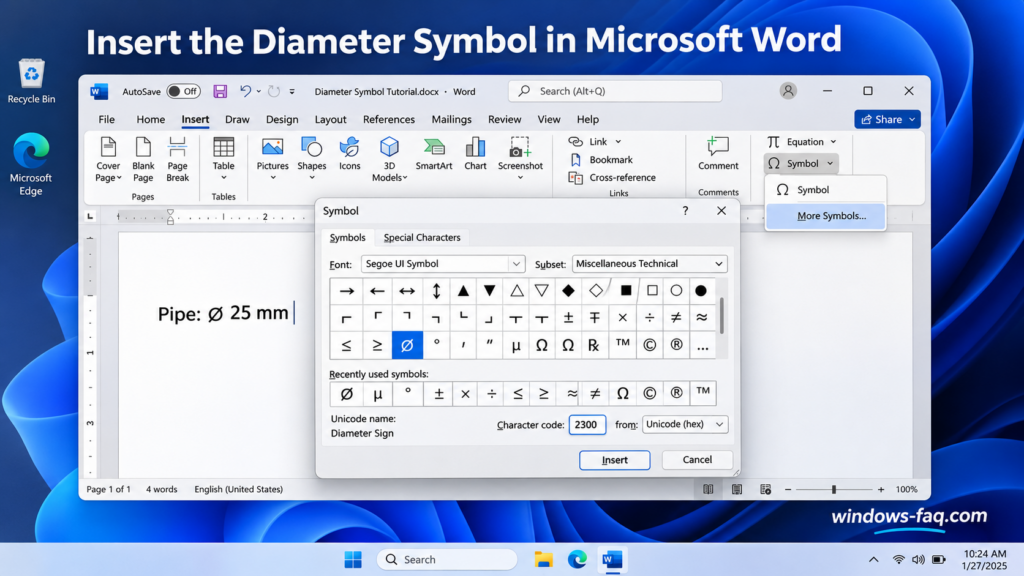
Insert ⌀ using the Unicode keyboard shortcut
- Open your Word document.
- Place the cursor at the desired position.
- Type
2300. - Press
Alt + X.
Word converts the hexadecimal code into the diameter sign ⌀. Unlike traditional Alt codes, this method does not require a numeric keypad.
| Character | Word Unicode shortcut |
|---|---|
| ⌀ | 2300 + Alt + X |
| Ø | 00D8 + Alt + X |
| ø | 00F8 + Alt + X |
| ∅ | 2205 + Alt + X |
If Word converts the wrong part of your text, select only the four-digit hexadecimal code before pressing Alt + X. This prevents Word from interpreting adjacent letters or numbers as part of the Unicode value.
Use the Insert Symbol dialog
Alternatively, you can insert special characters through the Word ribbon. This option is helpful when you want to inspect a symbol before adding it to your document.
- Open the Insert tab.
- Select Symbol and then More Symbols.
- Choose a compatible font, such as Segoe UI Symbol.
- Select Unicode (hex) in the From field.
- Enter 2300 in the Character code field.
- Click Insert and close the dialog.
For additional information about this input method, see Microsoft’s guide to inserting Unicode character codes in Word. If you do not have the desktop version of Microsoft Word, our comparison of the best free word processors for Windows introduces several alternatives for editing documents.
Create a custom AutoCorrect shortcut in Word
If you regularly write technical documents, entering the same Unicode value repeatedly can become inconvenient. A custom AutoCorrect entry allows you to insert the symbol using a short sequence of ordinary characters.
- Open File and select Options.
- Navigate to Proofing.
- Click AutoCorrect Options.
- Enter
;diain the Replace field. - Paste ⌀ into the With field.
- Select Add and confirm with OK.
From now on, Word can automatically replace ;dia with ⌀ when the AutoCorrect entry is triggered. Choose an abbreviation that does not occur naturally in your documents to avoid accidental replacements.
How to insert the diameter symbol in Excel
Microsoft Excel offers several methods for working with diameter measurements. You can paste the character into a cell, generate it using a formula, or display it through a custom number format. However, the difference between text and numeric values is particularly important in spreadsheets.
Use the Excel UNICHAR function
The English version of Microsoft Excel includes the UNICHAR function, which returns a character based on its decimal Unicode value. Unlike the hexadecimal input method in Word, this Excel function requires a decimal number.
=UNICHAR(8960)The formula returns ⌀. For the uppercase and lowercase alternatives, use the corresponding decimal values shown below.
| Excel formula | Result |
|---|---|
=UNICHAR(8960) | ⌀ |
=UNICHAR(216) | Ø |
=UNICHAR(248) | ø |
You can also combine the symbol with a measurement stored in another cell. For example, the following formula adds the diameter sign and the unit mm to the value in cell A1.
=UNICHAR(8960)&A1&" mm"If A1 contains the number 25, the result is ⌀25 mm. However, the combined result is text rather than a numeric value, which can affect subsequent calculations.
Display the diameter sign without converting numbers to text
A custom number format is usually the better option for technical spreadsheets. It changes the appearance of a cell while preserving the original numeric value. Consequently, you can continue using the value in formulas, calculations, sorting, and filtering.
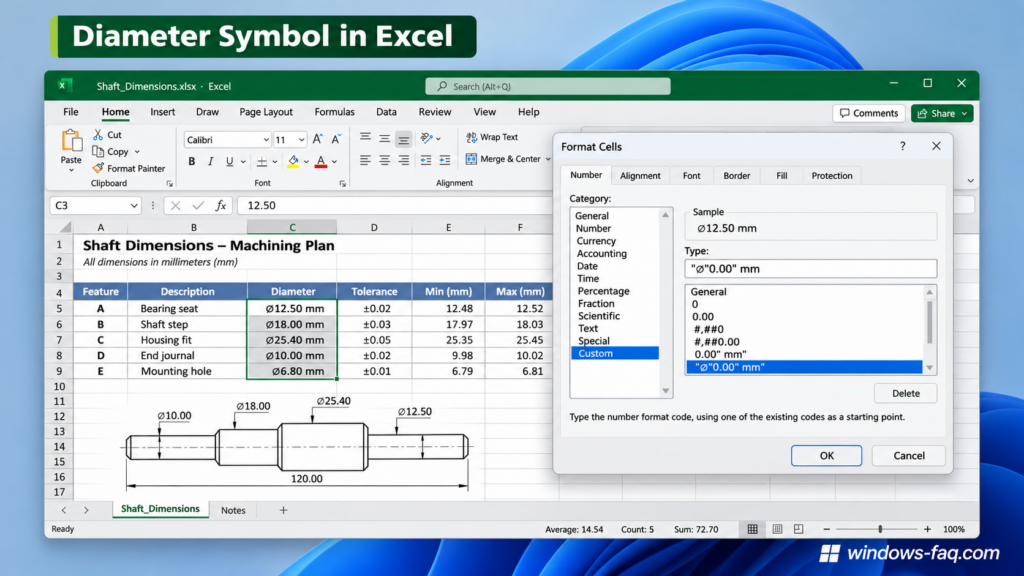
- Select the cells containing your diameter measurements.
- Press Ctrl + 1 to open Format Cells.
- Open the Number tab.
- Select Custom.
- Enter the following format in the Type field.
- Click OK.
"⌀"0.00" mm"A numeric value of 12.5 will now appear as ⌀12.50 mm. Excel still stores the underlying number as 12.5, allowing you to perform calculations without removing the symbol.
If you work with imperial measurements, you can use a similar format for inches.
"⌀"0.00" in"For whole numbers without decimal places, use the following format instead. Make sure the decimal separator matches your regional Excel settings.
"⌀"0" mm"Custom number formats control the displayed value rather than changing the underlying data. Therefore, other applications or file formats may not preserve this appearance when you export the spreadsheet. You can find more productivity tips in our Microsoft Office guides.
Using the symbol in PowerPoint, Outlook, and web applications
In Microsoft PowerPoint, you can usually insert the character through Insert and Symbol. Select a compatible font and locate the corresponding Unicode character if the dialog offers that option.
For Outlook, Microsoft Teams, online forms, and browser-based applications, copying and pasting ⌀ is generally the most convenient solution. The Word-specific Alt + X shortcut is not universally available in other programs, including some Microsoft Office applications.
How to type the diameter symbol on a Mac
Mac users can insert special characters through the macOS Character Viewer. This built-in feature provides access to mathematical symbols, international characters, and technical notation.
- Place the cursor in your document.
- Press Control + Command + Space, or choose Edit and then Emoji & Symbols.
- Expand the Character Viewer if necessary.
- Search for diameter sign or the Unicode value 2300.
- Select or double-click the character ⌀.
On a standard US Mac keyboard layout, you can also use the Option key to insert the Scandinavian letters. Other keyboard layouts may use different combinations.
| Character | Mac keyboard shortcut (US layout) |
|---|---|
| ø | Option + O |
| Ø | Option + Shift + O |
| ⌀ | Character Viewer or copy and paste |
Keep in mind that the Option key shortcuts produce letters with a stroke rather than the dedicated Unicode diameter sign. For technical documentation, use Character Viewer to select the exact character.
How to type the diameter sign on iPhone and Android
Many smartphone keyboards provide additional character options when you press and hold a letter. Depending on your installed keyboard and language settings, you may be able to access Ø or ø directly.
- Open an application with a text input field.
- Display the on-screen keyboard.
- Press and hold the letter O.
- Check the available character variations.
- Select Ø or ø if available.
The dedicated diameter character ⌀ is not normally included in standard smartphone keyboard layouts. If it is unavailable, copy it from this article and paste it into your message, note, spreadsheet, or document.
How to insert the diameter symbol in AutoCAD
AutoCAD supports special control codes for engineering and technical drawings. The commonly used control code for a diameter sign is %%c, which AutoCAD recognizes in supported text fields.
For example, entering the following expression produces a diameter annotation for 25 drawing units.
%%c25The appearance of the resulting symbol depends on the selected font and text style. AutoCAD also uses application-specific character conventions, so its generated diameter annotation does not necessarily correspond to Unicode U+2300.
When creating actual diameter dimensions for circles or arcs, consider using the DIMDIAMETER command. Unlike manually entered text, this creates a dimension associated with the selected geometry, depending on the drawing and dimension settings.
HTML code for the diameter symbol
Web developers can insert the character directly into an HTML document or use a numeric character reference. UTF-8 encoding and a compatible font ensure that modern browsers can display the intended symbol.
| Symbol | HTML character reference |
|---|---|
| ⌀ | ⌀ or ⌀ |
| Ø | Ø |
| ø | ø |
| ∅ | ∅ |
For example, the following HTML source displays a diameter measurement of 25 millimeters. The hexadecimal character reference identifies the actual Unicode diameter sign.
⌀25 mmThe browser displays the result as ⌀25 mm. Although the alternative character reference Ø may produce a similar appearance, it represents a different character.
Common problems when typing the diameter symbol
The symbol appears as a square or empty box
This usually indicates that the selected font does not contain the required character. Try switching to a font with broader Unicode support, such as Segoe UI Symbol, and check whether the character appears correctly.
When sharing technical documents, also inspect the exported PDF or the file on another computer. A character that displays correctly on your own PC may look different if the receiving system uses another font.
The Alt code produces the wrong character
Check that Num Lock is enabled and that you are using the numeric keypad. Furthermore, verify that you entered the leading zero in 0216 or 0248.
Remember that these combinations produce Ø and ø, not the dedicated diameter sign. If you need U+2300, use the clipboard or Unicode input in Word.
Word does not convert 2300 into ⌀
First, make sure you are using the desktop version of Microsoft Word for Windows. Select only the characters 2300 and press Alt + X again.
If the result is still incorrect, use Insert, Symbol, and More Symbols. The Symbol dialog also allows you to check the available characters in your selected font.
Excel cannot calculate values containing the symbol
Combining a number with a character using an Excel formula can turn the result into text. Instead, apply a custom number format if you want to display diameter measurements while keeping the underlying numeric values.
This approach is especially useful for engineering calculations, inventory lists, manufacturing specifications, and spreadsheets containing multiple measurement units.
Examples of diameter measurements in technical documents
Diameter notation is widely used in both metric and imperial measurement systems. The following examples illustrate how the symbol can appear in English-language technical documents.
| Notation | Meaning |
|---|---|
| ⌀8 mm | Hole with an 8 mm diameter |
| ⌀50 mm | Object with a 50 mm diameter |
| ⌀12.5 mm | Shaft diameter of 12.5 mm |
| ⌀0.5 in | Diameter of half an inch |
| ⌀2 in | Diameter of two inches |
| Ø25 mm | Common alternative notation |
Always follow the applicable drawing standard, company specification, or document template. Consistent notation helps prevent misunderstandings and improves compatibility when technical information is exchanged between different systems.
Our practical recommendation for working with diameter measurements
For occasional use in emails or documents, copying and pasting the character is the simplest solution. Microsoft Word users benefit from the Alt + X shortcut, while a custom AutoCorrect entry saves additional time when the symbol appears frequently.
For spreadsheets, we recommend using custom number formats rather than combining measurements and symbols into text. This keeps your data suitable for calculations and makes the spreadsheet easier to maintain. When working with CAD software, use the application’s dimensioning tools whenever possible instead of adding measurement annotations manually.

FAQ: Frequently asked questions about the diameter symbol
What is the correct diameter symbol?
The dedicated Unicode diameter sign is ⌀ with the code point U+2300. The visually similar character Ø is a Latin letter that frequently serves as an alternative in technical documents.
What is the Alt code for the diameter symbol?
Alt + 0216 produces Ø, while Alt + 0248 produces ø in many Windows applications. For the actual diameter sign ⌀, type 2300 and press Alt + X in Microsoft Word.
How do I type the diameter symbol without a numeric keypad?
Copy and paste ⌀ directly into your application or use Windows Character Map. In Microsoft Word, the Unicode shortcut 2300 followed by Alt + X also works without a numeric keypad.
How do I insert the diameter symbol in Excel?
Use the formula =UNICHAR(8960) to generate ⌀. If you want to display the symbol before a number without affecting calculations, apply a custom number format instead.
What is the difference between Ø and ⌀?
Ø is a capital Latin letter with a stroke and has the Unicode code point U+00D8. The dedicated diameter sign ⌀ is a separate technical character with the code point U+2300.
Is the diameter symbol the same as the empty set symbol?
No. The empty set symbol ∅ has the Unicode code point U+2205 and represents a mathematical set without elements. Although it resembles the diameter sign, it has a different meaning.
How do I type the diameter symbol on a Mac?
Open Character Viewer using Control + Command + Space or the Emoji & Symbols menu. Search for the diameter sign or its Unicode value 2300 and select the corresponding character.
What is the diameter symbol command in AutoCAD?
AutoCAD supports the control code %%c for diameter annotations in compatible text fields. To create a diameter dimension directly from circular geometry, use the DIMDIAMETER command.
Does Ø mean average in English?
Not usually. English-language documents generally use Avg., average, mean, or the mathematical notation x̄ instead of Ø to represent an average.
Why does the diameter symbol appear as a box?
The selected font may not contain the required Unicode character. Switch to a compatible font, such as Segoe UI Symbol, or check the character using Windows Character Map.
Conclusion
Typing the diameter symbol is straightforward once you know which character and input method to use. The correct Unicode diameter sign is ⌀, while Ø and ø are widely used alternatives that can be entered with traditional Windows Alt codes.
For Microsoft Word, the shortcut 2300 followed by Alt + X is particularly convenient. Excel users can take advantage of the UNICHAR function or custom number formats. On other devices and in browser-based applications, copying and pasting remains one of the most reliable solutions.
Whatever method you choose, use the appropriate character consistently throughout your technical documents. This helps ensure that measurements remain understandable, searchable, and compatible with other applications.