Frequently Asked Questions


Windows Photo Viewer in Windows 11: Restore It and Fix Problems
Share your love
To use Windows Photo Viewer in Windows 11, right-click a picture, select Open with, and choose Windows Photo Viewer if it is listed. If the classic viewer is missing, a registry workaround may make it available on a PC that still has the required program files and registry entries, but it cannot install missing program files.
Windows 11 normally opens pictures in Microsoft Photos, which is a different application. This guide explains how to check for the classic viewer, make it your default for supported image types, restore missing associations where possible, and troubleshoot photo problems without confusing the two apps.
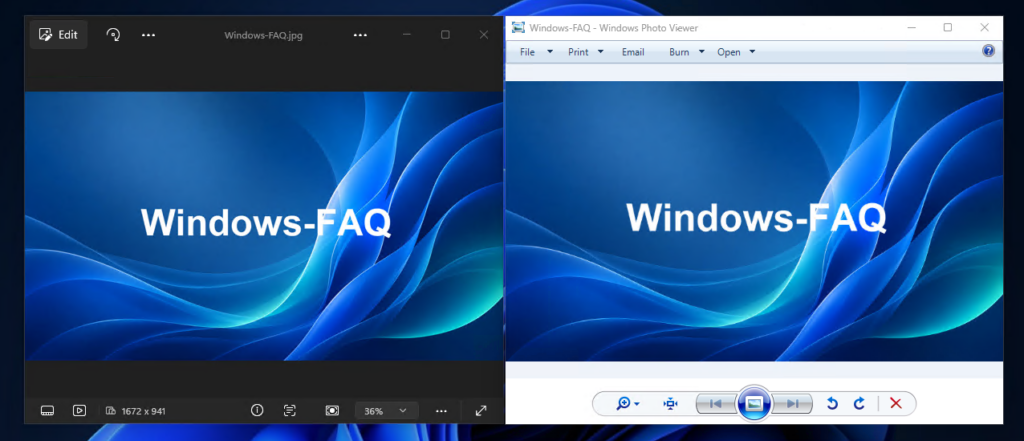
Windows Photo Viewer vs. Microsoft Photos: what is the difference?
Windows Photo Viewer is the traditional image viewer familiar from older Windows releases. Microsoft Photos is the newer app for viewing, organizing, and editing pictures, while Photos Legacy is an earlier version of that Photos app.
| Application | What it is | What matters for this guide |
|---|---|---|
| Windows Photo Viewer | The classic viewer with basic viewing, rotation, slideshow, and printing controls. | Availability depends on the existing Windows components and their registration. |
| Microsoft Photos | The modern Windows photo application. | Store updates and the Repair or Reset options apply to this app. |
| Microsoft Photos Legacy | An older version of the Photos app with its own interface and features. | Installing it does not restore the classic Windows Photo Viewer. |
Microsoft describes the current Photos app and Photos Legacy in its Photos app overview. Check the application name before following a repair guide, because a fix for Photos does not necessarily address a problem with Windows Photo Viewer.
This article is also available in German
You can also read the original German version of this guide on Windows-FAQ.de.
Diesen Artikel auf Deutsch lesenHow to open Windows Photo Viewer in Windows 11
Start with an ordinary JPG file that is saved locally on your computer. This avoids adding a cloud download or an unusual image format to the initial test.
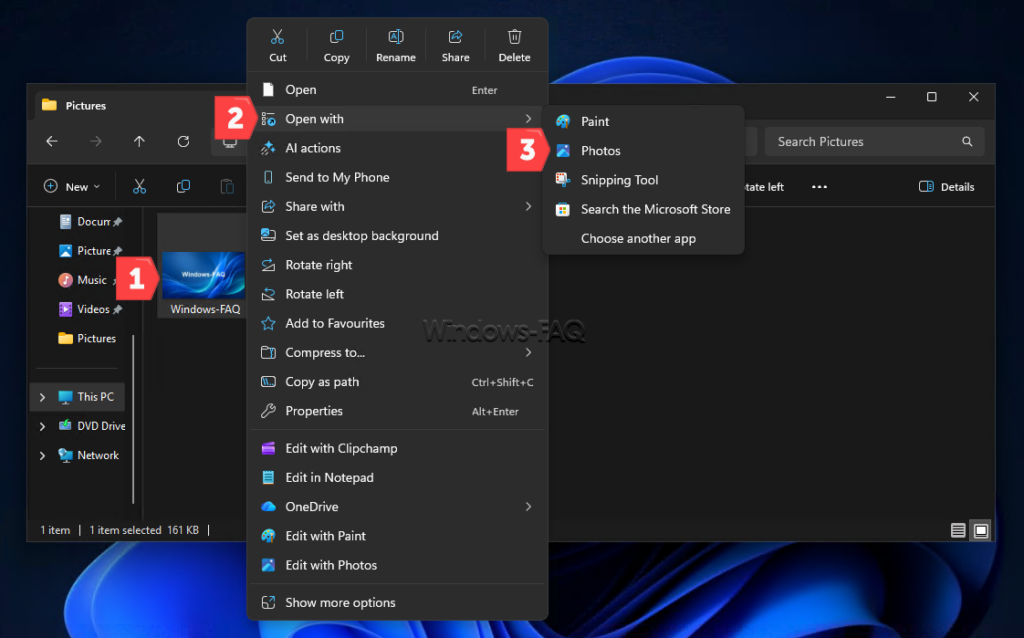
- Press Windows + E to open File Explorer.
- Find a JPG picture and right-click it.
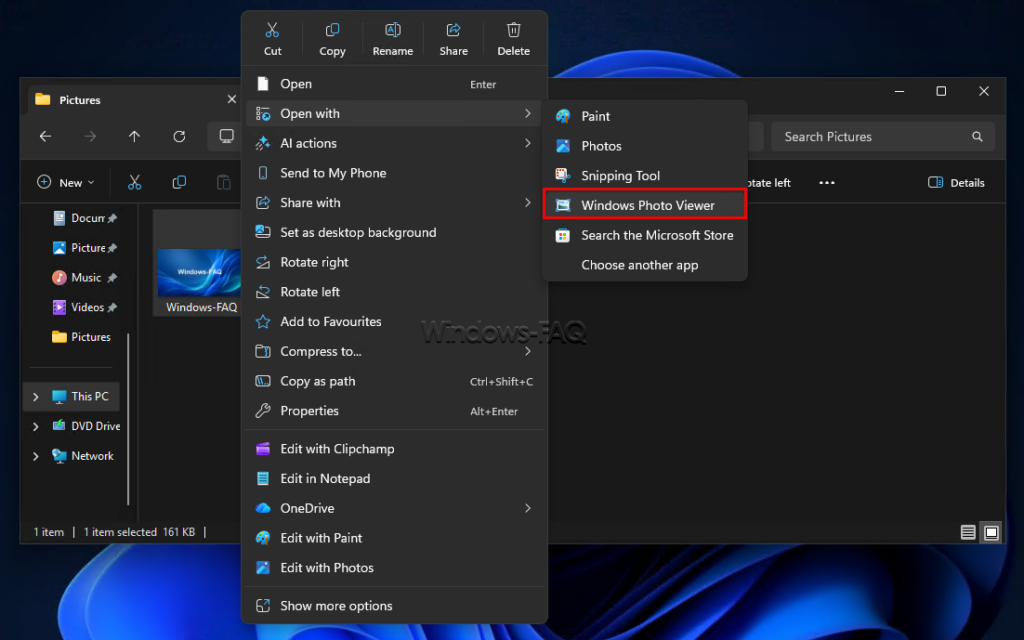
- Select Open with, then Choose another app.
- Select Windows Photo Viewer if it appears in the list.
- Choose Just once to test it without changing the default application.
If the picture opens, the classic viewer is already available for that file type. You can then set it as the default using the next section, without making registry changes.
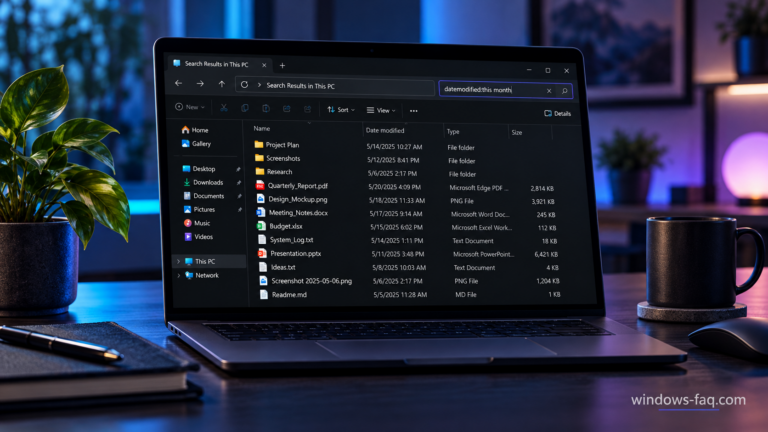
If you cannot locate an older photo, our guide explains how to find files by date in Windows. Remember that a file’s modification date can differ from the date the picture was taken.
Why Windows Photo Viewer may not appear in Start
The classic viewer is normally launched through an image file and its registered Windows handler. It is not a conventional app with a PhotoViewer.exe file that you can simply select through Browse.
Searching Start for Photos normally finds Microsoft Photos, but it does not reliably locate the classic viewer. For Windows Photo Viewer, use a picture’s Open with menu instead of relying on a Start menu entry or looking for a File > Open command.
Set Windows Photo Viewer as the default photo app
Windows assigns default applications by file extension, so changing the app for JPG does not automatically change PNG or JPEG. Once the classic viewer opens a test picture successfully, choose the formats you want it to handle.
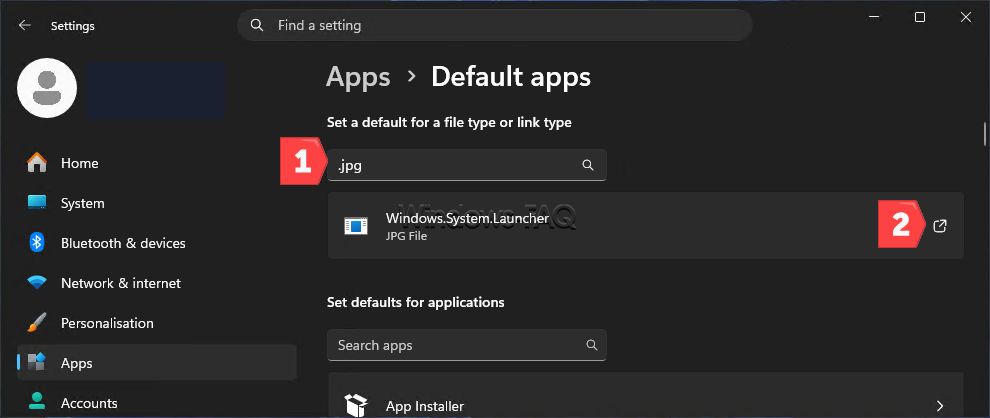
- Press Windows + I to open Settings.
- Go to Apps > Default apps.
- Search for
.jpgin the file-type search field. - Select the current application, choose Windows Photo Viewer, and confirm the selection.
- Repeat for
.jpeg,.png, or other supported extensions you use.
You can also return to Open with > Choose another app and select Always. Microsoft explains both application-based and file-type-based choices in its guide to changing default apps in Windows.
If Windows Photo Viewer is absent from the available choices, changing the default alone cannot make it appear. Check the existing legacy components before attempting the registry workaround below.
Restore Windows Photo Viewer when it is missing
The following method adds image extensions to an existing Windows Photo Viewer registration. It is an optional workaround, not a guaranteed installation method for every Windows 11 release or PC configuration.
You need administrator rights to change the machine-wide registry entries used here. Keep a record of the values you add so that you can remove your own changes later.
1. Check whether the required components are present
Open File Explorer and enter the following folder path in the address bar. Look for PhotoViewer.dll inside the folder, without trying to open the DLL itself.
%ProgramFiles%\Windows Photo Viewer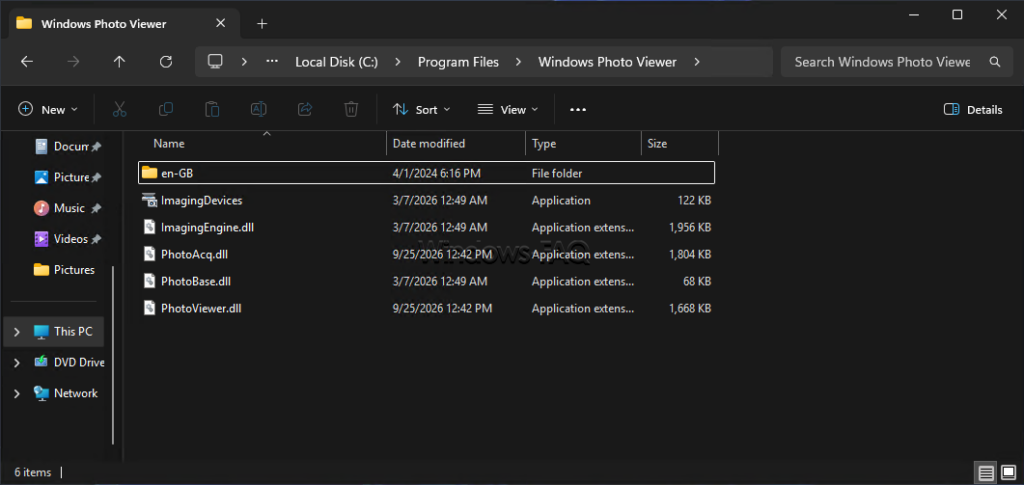
Next, press Windows + R, enter regedit, and approve the security prompt to open Registry Editor. Paste this path into its address bar to inspect the existing image-opening handler:
HKEY_CLASSES_ROOT\PhotoViewer.FileAssoc.Tiff\shell\open\commandThe existing default command should reference PhotoViewer.dll and its ImageView_Fullscreen entry point. Treat this as a presence check only; do not edit the command.
If the DLL or the handler is missing, this limited workaround is not suitable for that installation. Use Microsoft Photos or one of the alternatives below instead of downloading a replacement DLL from an unfamiliar website.
2. Back up the existing file-association key
In Registry Editor, open the following key. If it does not exist, stop here rather than creating an incomplete registration from scratch.
HKEY_LOCAL_MACHINE\SOFTWARE\Microsoft\Windows Photo Viewer\Capabilities\FileAssociations- Select FileAssociations in the left-hand tree.
- Choose File > Export.
- Make sure Selected branch refers to this exact key.
- Save the export with a recognizable name, such as
photo-viewer-associations-backup.reg. - Note which extension values already exist before making any changes.
This follows Microsoft’s documented method for backing up a registry key. The export records the existing values, while your notes identify any additional values you create afterward.
3. Add only the missing image extensions
For each missing extension in the table, right-click an empty area of the right-hand pane and select New > String Value. Enter the extension as the value name, then double-click it and enter the value data exactly as shown.
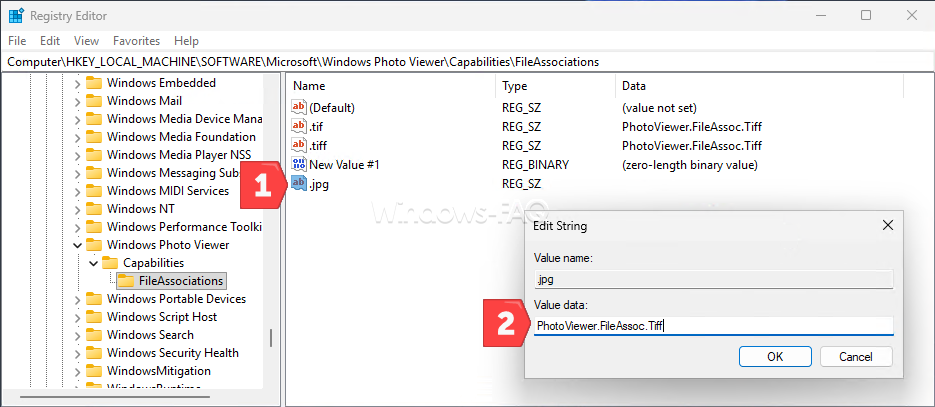
| Value name | Type | Value data |
|---|---|---|
.jpg | REG_SZ | PhotoViewer.FileAssoc.Tiff |
.jpeg | REG_SZ | PhotoViewer.FileAssoc.Tiff |
.png | REG_SZ | PhotoViewer.FileAssoc.Tiff |
.bmp | REG_SZ | PhotoViewer.FileAssoc.Tiff |
Leave existing entries unchanged, including any .tif and .tiff values. If one of the four extensions already has different value data, do not overwrite it as part of this limited procedure.
The word Tiff in the handler name does not convert a JPG or PNG into a TIFF file. These entries advertise additional file associations for the existing viewer; they do not add codecs or force a new default application.
4. Restart and select the viewer
Close Registry Editor, save your work, and restart Windows. Then revisit Open with or Settings > Apps > Default apps and test Windows Photo Viewer with the extensions you added.
If the viewer still does not appear, another part of its registration or the Windows configuration may be different. Choose a current photo app instead of repeatedly importing larger registry fixes whose changes you have not reviewed.
How to undo these registry changes
First, set Microsoft Photos or another working application as the default for the affected extensions. Then return to the same FileAssociations key and delete only the values that your notes confirm you added.
Keep all original entries and the parent keys. Importing the earlier registry backup can restore previous values, but a normal import does not automatically remove values that were added after the export.
Can Windows Photo Viewer open HEIC, RAW, WebP, and GIF files?
A file association tells Windows which application to launch, while a decoder lets that application understand the image data. Adding .heic or .webp to the registry does not, by itself, give the classic viewer support for those formats.
| Image type | Practical approach |
|---|---|
| JPG, JPEG, PNG, and BMP | Use these common formats to test whether the classic viewer works. |
| TIF and TIFF | Check the existing association and test your actual files, especially scans containing multiple pages. |
| HEIC and HEIF | Use Microsoft Photos with the required image extensions or a viewer that explicitly supports these formats. |
| Camera RAW | Check support for your camera model in Raw Image Extension or your chosen photo application. |
| WebP and AVIF | Choose a current browser or image viewer with documented support for the specific format. |
| Animated GIF | Use a browser or viewer that supports animation; displaying a still frame is not full animation support. |
For HEIC pictures in Microsoft Photos, check HEIF Image Extensions and whether HEVC decoding is also required on your PC. Microsoft’s explanation of HEIF and HEVC requirements describes why an additional extension may be needed even for a photograph.
Renaming a file from .heic to .jpg does not convert its contents. If another device needs JPEG, export or convert a copy in a compatible application and keep the original.
Windows Photo Viewer not working: fixes by symptom
Start by comparing a picture that fails with a small local JPG you know is valid. That comparison helps you separate a file or format problem from an application problem before you change more settings.
The wrong app opens when you double-click a picture
Check the default application for the exact extension involved. A working JPG association can coexist with a different app assigned to JPEG or PNG, so test each affected type separately.
If you are unsure of the extension, open File Explorer and select View > Show > File name extensions. Use the displayed extension when searching in Default apps.
Only one photo will not open
Try opening the file in another compatible application, and compare it with a different picture of the same type. If the file is on a network drive, USB device, or cloud service, make sure it is available and try a fully downloaded local copy.
A file that fails in several compatible apps may be damaged or incomplete. Recover a fresh copy from the original device, download, or backup before changing Windows settings.
JPG works, but HEIC or RAW does not
Investigate format and codec support first, especially if the failing images came from a new phone or camera. Restoring more file associations will not fix an application that cannot decode the image data.
Try the file in an updated Photos app or another viewer that supports the format and camera model. Keep the original image while testing any conversion.
Photos opens and then crashes or freezes
If the application is Microsoft Photos, first check Microsoft Store for app updates and complete any pending Windows restart. Then try the app’s repair options if it still fails.
- Open Settings > Apps > Installed apps.
- Find Microsoft Photos.
- Open its three-dot menu and select Advanced options, if available.
- Select Repair and test the app again.
- If the problem remains, consider Reset after reviewing the confirmation.
Save unfinished edits first, because resetting an app can clear its stored data and settings. Microsoft’s app repair instructions apply here; resetting Photos does not repair the separate classic Windows Photo Viewer component.
The picture opens, but its thumbnail is blank or outdated
When the full image opens correctly, the problem may be limited to File Explorer’s cached preview. Follow our instructions to rebuild the thumbnail cache in Windows 11, which removes cached previews while keeping the original pictures.
Give Windows time to generate new thumbnails afterward. A thumbnail-cache cleanup cannot repair corrupt image data or add a missing decoder.
Several Windows components are failing
If other Windows features are also malfunctioning, checking protected system files may be appropriate. Open Command Prompt as administrator, then run the following command and wait for it to finish successfully:
DISM.exe /Online /Cleanup-image /RestorehealthNext, run System File Checker using the command below. This is the sequence described in Microsoft’s DISM and SFC repair guidance.
sfc /scannowReview the result, restart if required, and test the affected applications again. These tools repair Windows components; they do not recover damaged personal photos or guarantee installation of an unavailable legacy viewer.
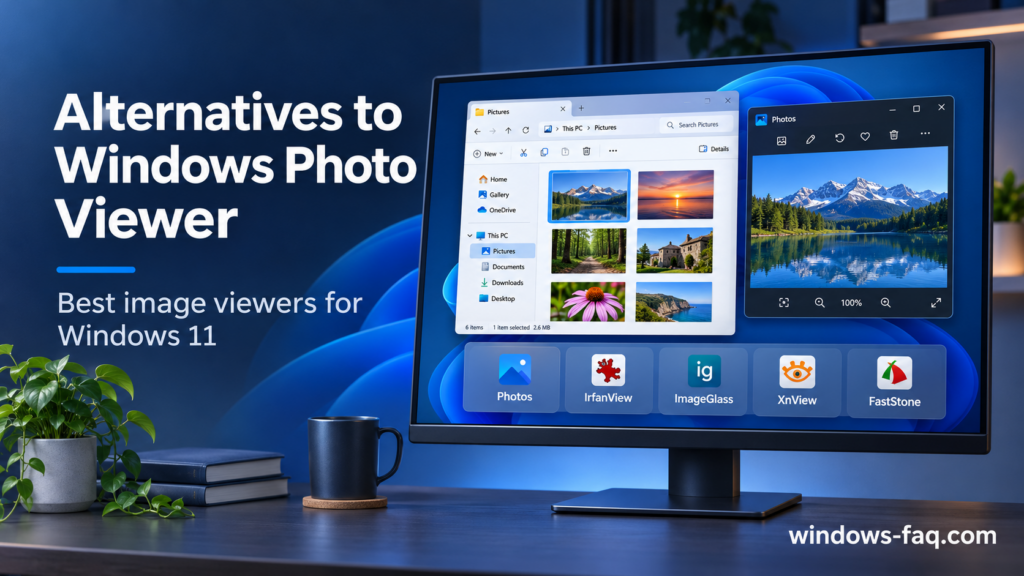
Alternatives to Windows Photo Viewer
Microsoft Photos is the straightforward starting point if you want to view and edit pictures using the standard Windows app. If you prefer a different interface or need more control over image collections, the following applications offer distinct options.
| Application | Why choose it? | Licensing to check |
|---|---|---|
| IrfanView | A traditional viewer with cropping, printing, slideshows, and batch conversion. Some formats require additional plug-ins. | Free for private, noncommercial use. Business use generally requires a paid license, with exceptions defined in the license terms. |
| XnView MP | A useful choice for browsing folders, comparing images, reviewing metadata, and processing multiple pictures. | Free for private use and specified educational, public-service, and nonprofit uses. Commercial company use requires a license. |
| ImageGlass Classic | A modern viewing interface with broad format support, animated-image playback, and basic image tools. | The Classic edition is free under GPLv3 for personal and commercial use. Pro editions have separate paid licensing. |
Use the developers’ official pages to choose the edition and installer that fit your PC. Before adopting an app at work, check its current license rather than assuming that a free personal download includes business use.
A practical way to choose your everyday photo app
Test your shortlist with the same small set of locally stored pictures: an ordinary JPG, a PNG screenshot, a large photo, and any HEIC or RAW files you regularly use. Check opening, moving to the next image, zooming, and printing where those tasks matter to you.
This gives you a more useful comparison than a general claim that one viewer is always faster. Once you find an app that handles your actual files reliably, set it as the default for those extensions and leave other formats assigned to applications that support them.
FAQ: Windows Photo Viewer in Windows 11
Is Windows Photo Viewer still available in Windows 11?
It can be available on installations that retain the classic component and its required registrations. Check Open with first, because its presence is not guaranteed on every Windows 11 configuration.
Do I need a Windows Photo Viewer download?
The restoration method in this guide uses components already on the PC, so it does not need a separate installer. If those components are missing, use Microsoft Photos or a current alternative rather than treating an unfamiliar DLL download as an official installation.
Is Photos Legacy the same as Windows Photo Viewer?
No, Photos Legacy is an earlier version of the Microsoft Photos app. It does not install the classic Windows Photo Viewer interface or replace its registry registration.
Why is Windows Photo Viewer missing from Open with?
The relevant file type may not be registered for the classic viewer, or the required component or handler may be absent. The registry workaround only helps with the limited situation described above; it cannot solve every cause of a missing application.
Why does Windows Photo Viewer open JPG but not PNG?
Windows stores associations separately for each extension. Check whether PNG is registered and assigned to the viewer, then test a valid PNG file to distinguish an association issue from a problem with that particular image.
Can I use Windows Photo Viewer offline?
A supported image that is fully stored on your PC can be viewed without an internet connection. A cloud-only file must first be downloaded, and an unavailable network location must become accessible.
Does this also apply to Windows 10?
The distinction between Windows Photo Viewer and Microsoft Photos also applies to Windows 10, although the dialogs differ. Its Open with dialog may show an Always use this app checkbox instead of the Always and Just once buttons described for Windows 11.
Standard support for Windows 10 Home and Pro ended on October 14, 2025. Extended Security Updates and editions with separate lifecycle dates need to be considered independently; restoring a photo viewer does not change the operating system’s support status.
How do I switch back to Microsoft Photos?
Open Settings > Apps > Default apps and assign Microsoft Photos to each image extension you want it to handle. You can also choose Photos through Open with and select Always for the current file type.