Frequently Asked Questions

How to Install RSAT on Windows 11: Settings and PowerShell
Share your love
To install RSAT on Windows 11, go to Optional features, select View features, search for RSAT, and add the tools you need. You can also install individual components or all available RSAT capabilities with Windows PowerShell.
RSAT gives you access to tools such as Active Directory Users and Computers, DNS Manager, and Group Policy Management on your own PC. This guide explains the requirements, installation commands, verification steps, and common problems, including a separate note for Windows on ARM.
What are RSAT tools in Windows 11?
RSAT stands for Remote Server Administration Tools. It is a collection of management consoles, command-line utilities, and PowerShell modules for administering Windows Server roles and services remotely.
For example, you can use RSAT to manage domain accounts, review DNS records, or edit domain Group Policy from a Windows 11 workstation. Installing the tools adds the management software to your PC; the server services and the permissions needed to manage them remain separate.
This article is also available in German
You can also read the original German version of this guide on Windows-FAQ.de.
Diesen Artikel auf Deutsch lesenBefore you install RSAT: Windows edition, permissions, and architecture
Microsoft lists Windows 11 Pro and Enterprise in its RSAT installation requirements. Windows 11 Home is not supported, and the main instructions below describe the Features on Demand installation method on x64 PCs.
- You need local administrator rights to install the components.
- Windows must be able to access its configured source for optional features. On a typical unmanaged PC, this is Windows Update.
- To use the tools afterward, your PC needs network access to the relevant servers and an account with suitable permissions.
You can check the Windows edition and system type under Settings > System > About. A quick check here can explain why the same instructions behave differently on a company workstation and a personal laptop.
Can you install RSAT on Windows 11 ARM64?
For Windows 11 version 25H2 on ARM64, Microsoft documents selected RSAT tools under Control Panel > Programs > Programs and Features > Turn Windows features on or off. These include Active Directory, certificate services, Server Manager, Group Policy, DNS, and DHCP tools.
The standard RSAT Features on Demand packages are not supported on that platform. If you use an ARM-based PC, follow Microsoft’s ARM64 installation guidance instead of assuming that the x64 capability commands below apply.
Install RSAT using Windows 11 Settings
The Settings app is a convenient choice when you only need one or two management tools. On current Windows 11 installations, the usual path is Settings > System > Optional features; older layouts may place the page under Apps.
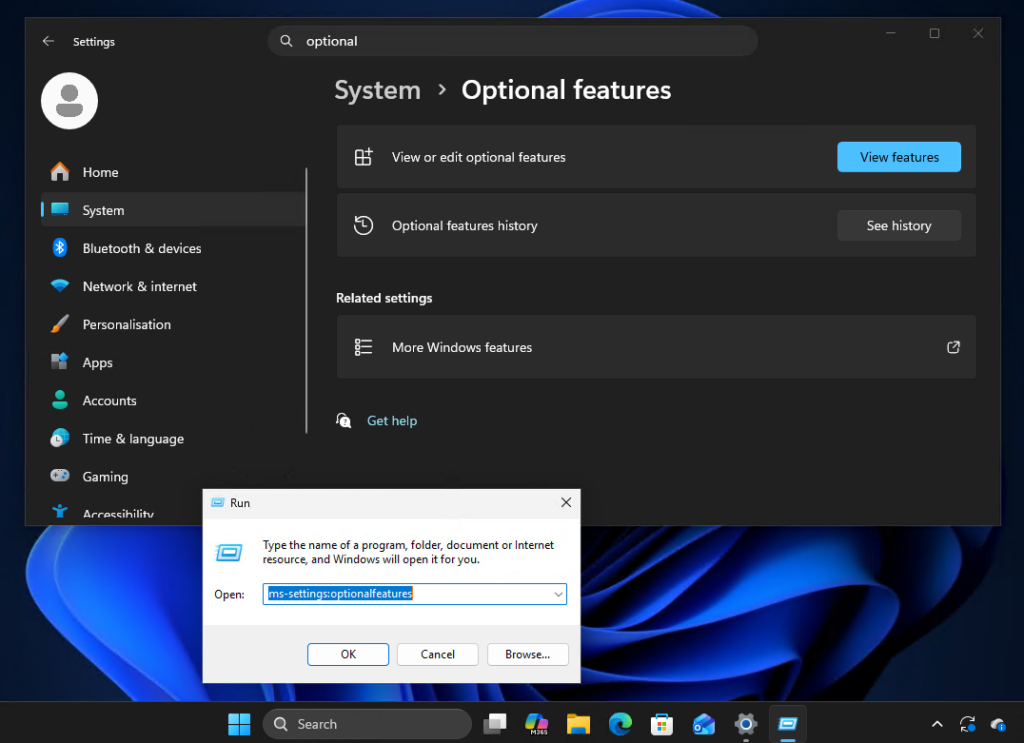
- Use Windows + R to open the Run dialog.
- Enter
ms-settings:optionalfeaturesand select OK. - Choose View features next to Add an optional feature.
- Enter
RSATin the search field. - Select the components you need, such as RSAT: Active Directory Domain Services and Lightweight Directory Services Tools.
- Choose Next, review the selection, and select Add. Depending on your Windows build, the final button may be labeled Install.
- Wait for the installation to finish and check the installed features list.
The ms-settings:optionalfeatures shortcut saves you from having to find the page in a changing Settings layout. Microsoft documents the current interface in its guide to adding and removing Windows features.
Practical tip: start with the tools required for your immediate task. If you only need to manage domain users and groups, the Active Directory component is a sensible starting point, and you can add other components later.
Install RSAT on Windows 11 with PowerShell
PowerShell is useful when you want to see the exact component names or repeat a setup on another PC. Search for Windows PowerShell in Start, choose Run as administrator, and approve the security prompt.
If Windows opens a Terminal window, make sure the active tab is Windows PowerShell. Our explanation of administrator sessions and the differences between Terminal, CMD, and PowerShell helps you choose the correct shell and permission level.
Check which RSAT components are available
The following command lists the RSAT capabilities offered by your running Windows installation. It also shows whether each component is already installed.
Get-WindowsCapability -Online |
    Where-Object { $_.Name -like 'Rsat.*' } |
    Select-Object Name, State
A state of Installed means that the component is present, while NotPresent means it has not been installed. Use this list as the reference for your device, because the available components can vary with the Windows release and architecture.
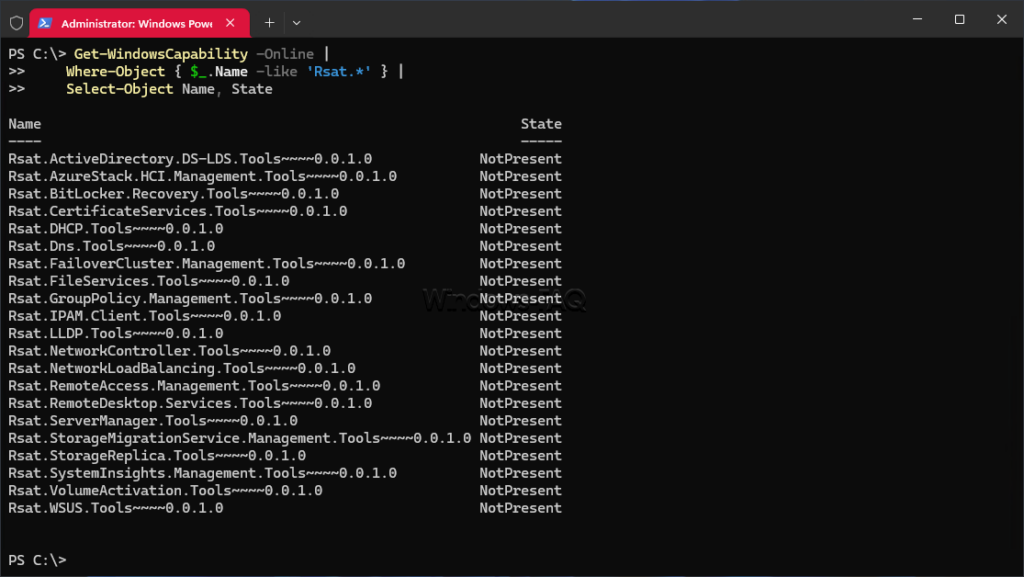
In these commands, -Online means the currently running Windows installation. It does not, by itself, mean that the package must come from the public internet; Microsoft’s Get-WindowsCapability reference explains how the cmdlet targets Windows images.
Install Active Directory Users and Computers
To add Active Directory Users and Computers, install the AD DS and AD LDS tools. This component also includes the Active Directory module for Windows PowerShell and other directory administration utilities.
Add-WindowsCapability -Online -Name 'Rsat.ActiveDirectory.DS-LDS.Tools~~~~0.0.1.0'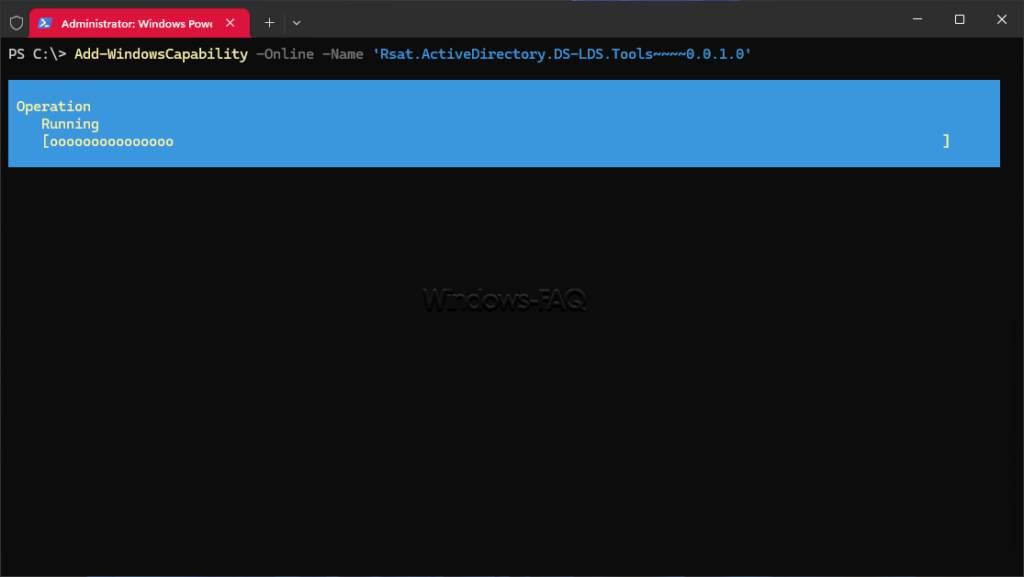
After installation, you can start Active Directory Users and Computers with dsa.msc. The installation does not create an Active Directory domain or grant your account permission to change domain objects.
Install DNS, DHCP, and Group Policy management tools
Each command below installs a separate management component. You can run only the commands for the tools you need.
# DNS Server Tools
Add-WindowsCapability -Online -Name 'Rsat.Dns.Tools~~~~0.0.1.0'

# DHCP Server Tools
Add-WindowsCapability -Online -Name 'Rsat.DHCP.Tools~~~~0.0.1.0'

# Group Policy Management Tools
Add-WindowsCapability -Online -Name 'Rsat.GroupPolicy.Management.Tools~~~~0.0.1.0'

# Server Manager
Add-WindowsCapability -Online -Name 'Rsat.ServerManager.Tools~~~~0.0.1.0'
The full capability name identifies the component Windows should install. Keep the suffix exactly as shown, and use the preceding discovery command if you need to confirm a name on your PC.
Install all available RSAT tools with PowerShell
If you want the complete set of RSAT capabilities offered by your x64 installation, you can install the missing components in a loop. This example selects only entries whose state is NotPresent and stops if an installation command fails.
Get-WindowsCapability -Online |
    Where-Object {
        $_.Name -like 'Rsat.*' -and $_.State -eq 'NotPresent'
    } |
    ForEach-Object {
        Add-WindowsCapability -Online -Name $_.Name -ErrorAction Stop
    }
This can take longer than installing a single component because Windows has more packages to retrieve and process. For a dedicated administration workstation, a complete setup may be convenient; for an occasional task, a smaller selection is usually easier to keep track of.
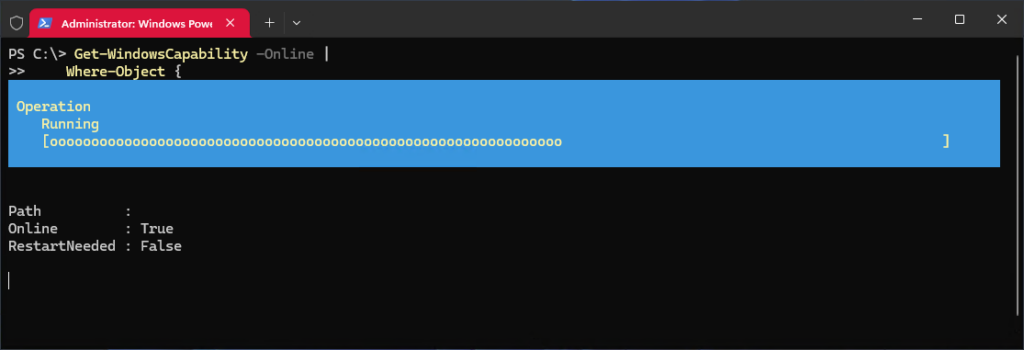
These are Windows client capability commands. The Install-WindowsFeature commands you may encounter in Windows Server tutorials use a different installation mechanism and should not replace the Windows 11 commands above.
Verify the installation and check whether a restart is needed
The installation result includes a RestartNeeded value. If it is True, save your work and restart Windows before continuing.
For a focused check of the Active Directory component, use the command below. The expected final state is Installed.
Get-WindowsCapability -Online -Name 'Rsat.ActiveDirectory.DS-LDS.Tools~~~~0.0.1.0' |
    Select-Object Name, State
You can rerun the complete RSAT listing to check several tools at once. If a bulk installation stopped partway through, this shows which components succeeded and which still need attention.
Which RSAT tools should you install?
The right selection depends on the services you administer. The table covers common tasks, while Microsoft’s RSAT capability catalog lists additional components and dependencies.
| Management task | RSAT component |
|---|---|
| Manage domain users, groups, and computers | Active Directory Domain Services and Lightweight Directory Services Tools |
| Create and edit domain Group Policy Objects | Group Policy Management Tools |
| Manage DNS zones and records | DNS Server Tools |
| Manage DHCP scopes, leases, and reservations | DHCP Server Tools |
| Administer certificate authorities | Active Directory Certificate Services Tools |
| Manage supported file server features | File Services Tools |
| Administer failover clusters | Failover Clustering Tools |
| Manage a WSUS server | Windows Server Update Services Tools |
| Work with several servers in one console | Server Manager |
Group Policy Management is useful when a setting needs to apply to selected computers across a domain. One practical example is deploying a policy to disable UDP for Remote Desktop connections while troubleshooting a specific RDP transport problem.
How to open RSAT tools after installation
You can find installed management consoles through Start or Windows Tools. For the following consoles, you can also use Windows + R and enter the corresponding command.
| Tool | Run command |
|---|---|
| Active Directory Users and Computers | dsa.msc |
| DNS Manager | dnsmgmt.msc |
| DHCP management console | dhcpmgmt.msc |
| Group Policy Management | gpmc.msc |
Group Policy Management and the Local Group Policy Editor serve different purposes. Use gpmc.msc for domain Group Policy management; gpedit.msc opens the local policy editor.
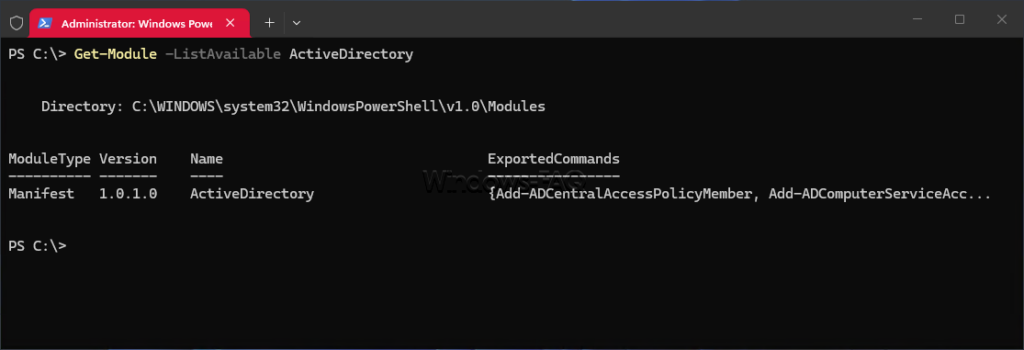
To check whether the Active Directory PowerShell module is available, use the command below in Windows PowerShell. A listed module confirms local availability, but it does not test your connection or access to a domain controller.
Get-Module -ListAvailable ActiveDirectoryInstall RSAT without access to Windows Update
Administrators can install RSAT from a suitable local or network Features on Demand repository. For Windows 11, Microsoft supplies these packages through Languages and Optional Features media that must match the Windows image version.
The source also needs the required architecture, language resources, and dependencies. A normal Windows installation ISO or an arbitrary collection of CAB files is not automatically a complete RSAT source; see Microsoft’s explanation of Features on Demand and their package structure.
Add-WindowsCapability -Online -Name 'Rsat.ActiveDirectory.DS-LDS.Tools~~~~0.0.1.0' -Source 'D:\LanguagesAndOptionalFeatures' -LimitAccessReplace D:\LanguagesAndOptionalFeatures with the actual repository path available to your administrator session. The -Source parameter identifies the package location, and -LimitAccess prevents fallback to Windows Update; both are documented in the Add-WindowsCapability reference.
RSAT will not install on Windows 11: what to check
RSAT is missing from Optional features
Start by checking your Windows edition, system architecture, and the list of already installed features. Windows 11 Home does not support RSAT, while the documented ARM64 route differs from the x64 method.
On an x64 PC, the PowerShell discovery command can show whether Windows offers the required capability even when you cannot find it in the Settings interface. On a managed device, access to the Optional features page may also be restricted by organizational policy.
The command is not recognized or requests administrator rights
Make sure you are entering Add-WindowsCapability in Windows PowerShell and that the session was started with Run as administrator. An ordinary Command Prompt tab cannot interpret a PowerShell cmdlet.
Being signed in with an administrator account does not mean every open window is elevated. If necessary, start a new administrator PowerShell session and repeat the command there.
RSAT fails with error 0x800f0954 on a managed PC
If installation returns 0x800f0954, investigate the configured source for optional components and the applied update policies. The code alone is not enough to justify a particular Registry change or a blanket WSUS bypass.
Microsoft documents that Windows 11 version 22H2 and later can obtain Features on Demand from WSUS through the on-premises Unified Update Platform. It also documents changes to the optional-component policy beginning with Windows 11 version 24H2, so instructions written for older Windows releases may no longer match your environment.
Your IT administrator can review the deployment setup against Microsoft’s version-specific guidance for Features on Demand with WSUS and Configuration Manager. This provides a better basis for choosing the correct package source than changing update settings without identifying the cause.
RSAT fails with error 0x800f081f or missing source files
Error 0x800f081f indicates that a required package or file source could not be found. If you supplied a source manually, check that the repository matches the Windows release, contains the necessary packages, and is readable from the elevated session.
The servicing logs can help distinguish missing content from component-store problems. You can find them at %windir%\Logs\DISM\dism.log and %windir%\Logs\CBS\CBS.log; look around the time of the failed installation.
If the logs indicate component-store or system-file corruption, the repair commands below may be appropriate. They are documented in Microsoft’s Windows Update error guidance, but they do not automatically correct a wrong package source or organizational policy.
DISM.exe /Online /Cleanup-Image /RestoreHealth
sfc /scannow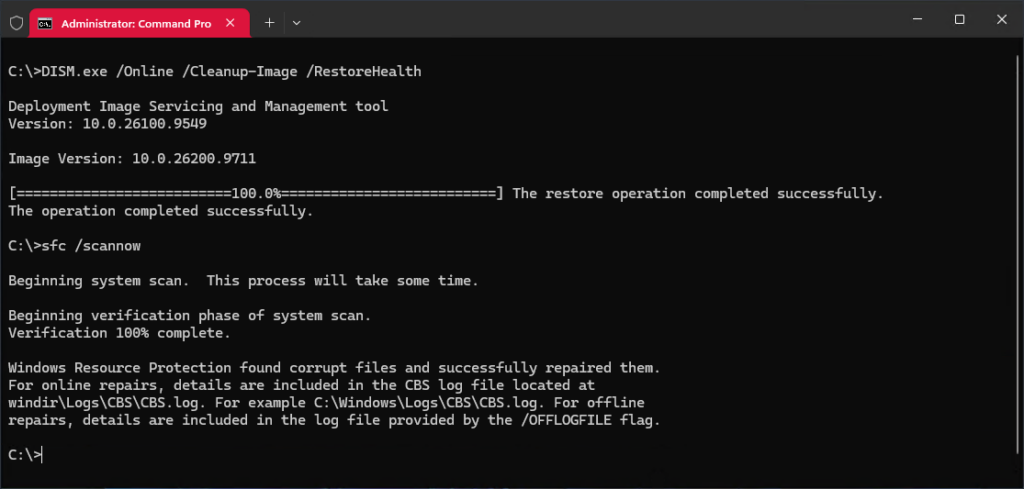
RSAT opens, but it cannot connect to a server
If the console opens successfully but cannot locate a domain or server, check the connection separately from the installation. Useful checks include the correct server or domain name, internal DNS resolution, any required corporate VPN connection, and the permissions assigned to your account.
Local administrator rights allow you to install the tools on your workstation. They do not automatically grant permission to reset domain passwords, change DNS records, or edit domain Group Policy.
How to uninstall RSAT tools from Windows 11
For components installed as Features on Demand, return to Optional features, find the installed RSAT component, and choose Remove. You can also remove an individual capability in an elevated Windows PowerShell session, as shown here for DNS Server Tools.
Remove-WindowsCapability -Online -Name 'Rsat.Dns.Tools~~~~0.0.1.0'This removes the management tools from the local PC; it does not uninstall the DNS service from a remote server. Other RSAT components can have dependencies, so review the result of each removal and any restart requirement rather than assuming every component can be removed in any order.
Microsoft describes the command in its Remove-WindowsCapability reference. On ARM64 devices using the separate Windows Features route, manage the enabled components through that same Windows Features interface.
FAQ: Installing RSAT on Windows 11
Can you install RSAT on Windows 11 Home?
Windows 11 Home is not supported for RSAT. Microsoft lists Windows 11 Pro and Enterprise in its RSAT installation requirements.
Do you need a separate RSAT download for Windows 11?
For the standard x64 installation, you add RSAT through Optional features or PowerShell instead of using a legacy standalone installer. Administrators working without Windows Update can use a matching Languages and Optional Features source.
How do you install Active Directory Users and Computers on Windows 11?
Install the RSAT: Active Directory Domain Services and Lightweight Directory Services Tools component. On x64 Windows 11, its capability name is Rsat.ActiveDirectory.DS-LDS.Tools~~~~0.0.1.0; you can then launch the console with dsa.msc.
Does the PC have to join a domain before you install RSAT?
Installing the tools does not require the PC to be joined to an Active Directory domain. Using them to manage a domain requires suitable network access, name resolution, authentication, and permissions.
Do you need to install every RSAT component?
You can install only the components needed for your work. Windows handles required dependencies, and you can add more tools later.
Does installing RSAT turn Windows 11 into a server?
RSAT adds administration tools to your PC. It does not make the PC a domain controller or install the remote server roles those tools manage.
Do you need to restart Windows after installing RSAT?
Follow the restart requirement reported by Windows. In PowerShell, a RestartNeeded value of True indicates that a restart is required.
Does RSAT work on Windows 11 ARM64?
Microsoft documents selected RSAT tools for Windows 11 version 25H2 on ARM64 through Turn Windows features on or off. The standard RSAT Features on Demand packages are not supported on that platform.