Frequently Asked Questions

How to View Saved Passwords on Windows and in Your Browser
Share your love
Forgot a website password or need to remove an old login? You can often view saved passwords on a Windows PC, but there is no single screen that contains every password stored on the device. Windows, Chrome, Microsoft Edge, Firefox, Android and iPhone each use their own password storage.
This guide shows you where to look, how to reveal a saved password and what to do when the login you need is missing. The Windows instructions apply to Windows 11 and Windows 10.
Quick answer: Open the password manager that originally saved the login. Use Windows Credential Manager for Windows, network and application credentials. Use Google Password Manager for Chrome, Microsoft Password Manager for Edge and the Firefox Passwords page for Firefox. Your device may ask for Windows Hello, a PIN, Face ID, Touch ID or another sign-in method before it reveals a password.
This article is also available in German
You can also read the original German version of this guide on Windows-FAQ.de.
Diesen Artikel auf Deutsch lesenWhere are saved passwords stored on a Windows PC?
Saved passwords are not collected in one universal Windows password list. The correct location depends on the program or device that saved the login.
| Type of saved login | Where to find it |
|---|---|
| Windows, network and application credentials | Windows Credential Manager |
| Passwords saved in Google Chrome | Google Password Manager |
| Passwords saved in Microsoft Edge | Microsoft Password Manager |
| Passwords saved in Mozilla Firefox | Firefox Passwords or about:logins |
| Passwords and passkeys on Android | Google Password Manager |
| Passwords and passkeys on iPhone or iPad | Apple Passwords app |
This separation explains why a login can appear in Chrome but not in Windows Credential Manager, or in one browser profile but not another.
How to view saved passwords in Windows 11 with Credential Manager
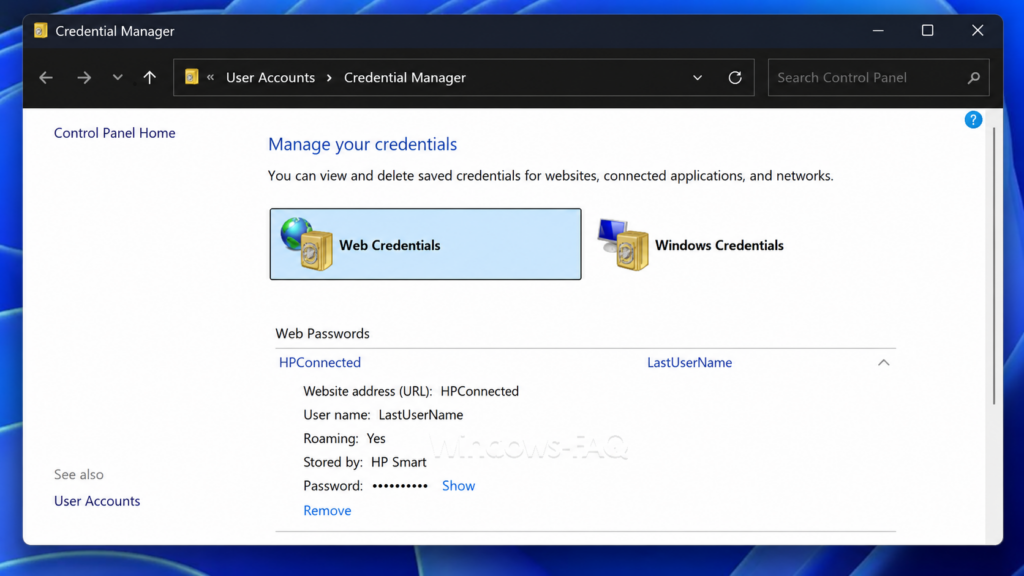
Windows Credential Manager stores credentials used by Windows, connected applications, network shares and certain websites or services. It is useful when you need to check a stored username, remove an outdated network login or manage credentials for another computer, server or NAS device.
- Open the Start menu or the taskbar search.
- Type
Credential Manager. - Select Credential Manager from the results.
- Open Web Credentials or Windows Credentials.
- Expand the entry you want to inspect.
- Select Show if that option is available.
- Confirm your identity when Windows asks for your sign-in information.
Windows may then display the saved password in plain text. The Show option is not available for every credential type. Many entries under Windows Credentials let you edit or remove the login without revealing the stored password.
Why browser passwords may not appear in Credential Manager
Modern browsers normally maintain their own protected password databases. A password saved in Chrome is therefore usually found in Google Password Manager, while an Edge password is found in Microsoft Password Manager. Do not assume that an empty Web Credentials list means your browser has no saved passwords.
Can Windows show your current login password?
No. Credential Manager does not reveal the password for your Windows user account, Microsoft account or local account. It also cannot display your Windows Hello PIN as a readable password.
If you have forgotten the password used to sign in to Windows, use the official account recovery or password reset process. A Windows Hello PIN is tied to the device and is not the same as the Microsoft account password.
How to view saved passwords in Google Chrome
Chrome stores website credentials in Google Password Manager. Depending on your settings, the passwords may be connected to your Google Account or stored only on the current device.
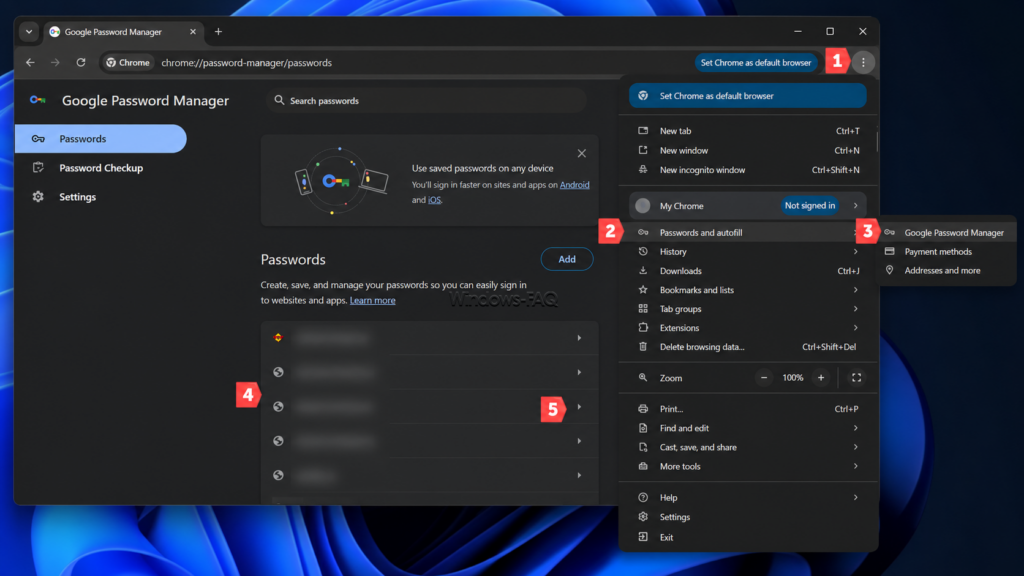
- Open Google Chrome.
- Select the three-dot menu in the upper-right corner.
- Select Passwords and autofill.
- Open Google Password Manager.
- Use the search field or select the website you need.
- Select the eye icon next to the hidden password.
- Complete the Windows Hello, PIN or password prompt.
After authentication, Chrome reveals the saved password. You can also copy, edit or delete the login from the same entry.
View Google passwords without opening Chrome settings
Passwords saved to your Google Account can also be managed at passwords.google.com. Sign in to the correct Google Account, select the website and authenticate again before revealing the password.
If the password appears in Chrome on one computer but not on another, check which Google Account and Chrome profile are active. A password saved only on the original device will not automatically appear elsewhere.
Editing a saved Chrome password does not change the website password
Changing the value in Google Password Manager updates only the copy remembered by Chrome. It does not change the actual password for the website.
To change the real password, sign in to the website, open its account or security settings and complete the password change there. Then update the saved Chrome entry when prompted.
How to view saved passwords in Microsoft Edge
Current versions of Edge use Microsoft Password Manager for passwords and passkeys saved with a personal Microsoft profile.
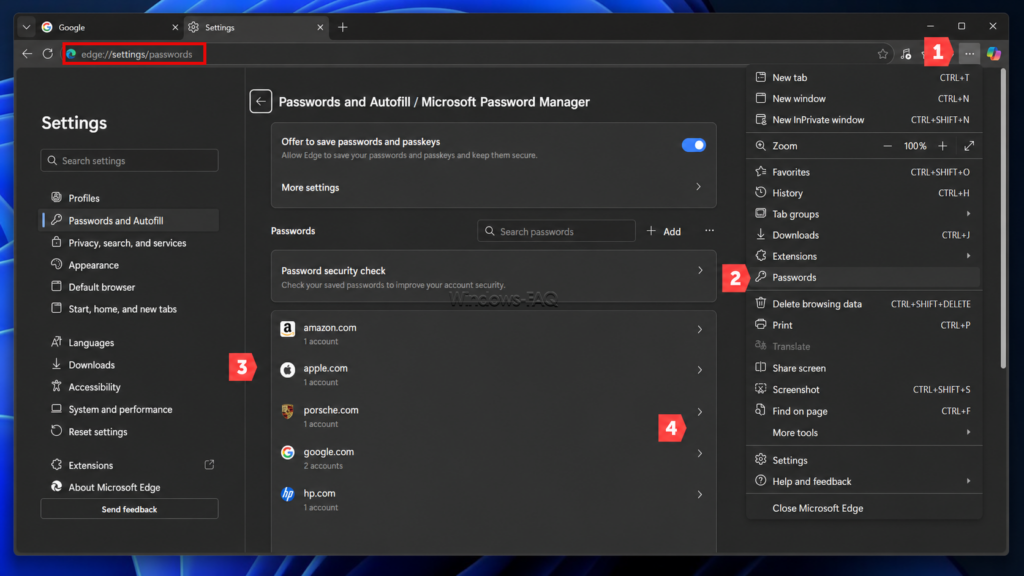
- Open Microsoft Edge.
- Select the three-dot menu next to your profile picture.
- Select Settings.
- Open Passwords and autofill.
- Select Microsoft Password Manager.
- Select the right arrow next to the login you want to inspect.
- Select the eye icon.
- Enter the requested device PIN or password.
You can edit or delete the stored entry from the same page. As with Chrome, editing the saved entry does not change the password on the website itself.
What to do if Microsoft Password Manager is missing
First, make sure you are using the intended Edge profile. Microsoft Password Manager is designed for personal Microsoft account profiles. A work or school profile may have different options, and an IT administrator can restrict password features.
Edge menu names can also vary slightly between versions. Open Edge Settings and search for password if the path above does not match your screen.
How to view saved passwords in Mozilla Firefox
Firefox includes its own password manager. The quickest route is the Passwords command in the Firefox menu.
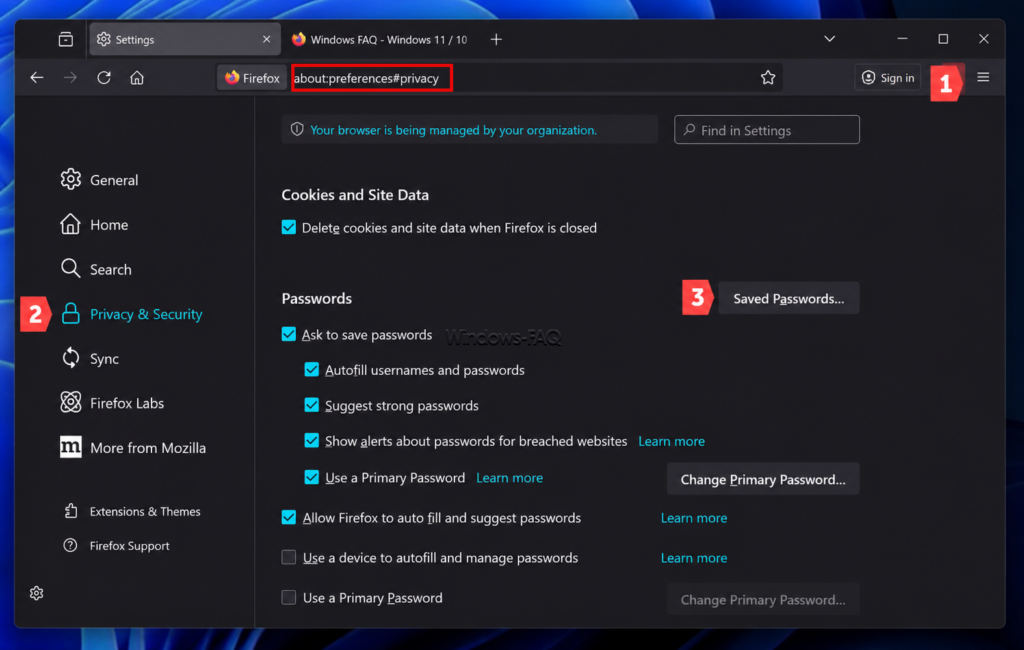
- Open Mozilla Firefox.
- Select the menu button with the three horizontal lines.
- Select Passwords.
- Choose the website or account from the list.
- Select the eye icon next to the password.
- Complete the device authentication prompt if Firefox displays one.
You can also enter about:logins in the Firefox address bar. The password manager lets you search, copy, edit and remove saved logins.
Protect Firefox passwords with a Primary Password
Firefox offers an optional Primary Password, previously called a Master Password. When it is enabled, Firefox asks for this password before it can access protected saved logins.
A Primary Password can be useful on a shared computer, but you must keep it safe. Resetting a forgotten Primary Password can remove the usernames and passwords protected by it.
How to view saved passwords on Android
Most Android phones and tablets use Google Password Manager for passwords and passkeys saved in Chrome and supported apps.
- Open Chrome on the Android device.
- Tap the three-dot menu.
- Tap Settings.
- Open Google Password Manager.
- Select the website or app you need.
- Tap the eye icon or password field.
- Unlock the device with your fingerprint, PIN, pattern or password.
On some Android devices, you can also open the system Settings app and search for Password Manager. The exact menu location may differ between phone manufacturers.
How to view saved passwords on iPhone and iPad
On iOS 18 or later, Apple provides a dedicated Passwords app. It stores website passwords, app passwords, passkeys, verification codes and supported Wi-Fi credentials through iCloud Keychain.
- Open the Passwords app.
- Unlock it with Face ID, Touch ID or the device passcode.
- Select All or use the search field.
- Open the website or app entry.
- Tap the password field to reveal or copy it.
On iOS 17 or earlier, open Settings, select Passwords and authenticate before choosing the required entry.
If a password is missing, check the Deleted or Recently Deleted area and confirm that iCloud Keychain is active on the correct Apple Account.
Why can’t I find a saved password?
A missing password does not always mean it has been deleted. Work through the following checks before resetting the account password.
You are checking the wrong password manager
A Chrome login does not automatically appear in Firefox, Edge or Credential Manager. Open every browser and password manager that you regularly use.
You are using the wrong browser profile
Chrome, Edge and Firefox can maintain separate profiles. Each profile can have its own passwords, history, bookmarks and synchronization settings. Switch to the profile that was active when the login was saved.
You are signed in to the wrong account
Check the Google, Microsoft, Mozilla or Apple account connected to the password manager. This is especially important when you use separate personal and work accounts.
Password synchronization is disabled
The login may exist only on another computer or phone. Check whether password synchronization is enabled and whether the original device is still available.
The website was added to the never-save list
You may have declined the browser’s save prompt and selected an option that prevents future prompts. Review the password manager settings and remove the website from the list of sites that should never save passwords.
The account now uses a passkey
A passkey is not a hidden text password. It uses cryptographic credentials and device authentication. You can manage or delete the passkey entry, but there is no readable password to reveal.
The device is managed by an organization
Company policies can disable password saving, viewing, exporting or synchronization. Contact the responsible IT administrator when the device or browser profile is managed by your employer or school.
The password was never saved
If no password manager contains the login, the browser cannot reconstruct it. Use the website’s Forgot password or account recovery option instead of installing an unknown password recovery tool.
Saved passwords and passkeys are not the same
A saved password is a secret text value that the browser can reveal after authentication. A passkey consists of cryptographic credentials and is unlocked with a trusted device, PIN, fingerprint or facial recognition.
Windows 11 lets you view and delete passkeys stored locally under Settings, Accounts and Passkeys. You can see the service and account associated with the passkey, but Windows does not display a secret passkey value in plain text.
If you remove a passkey, make sure another sign-in or recovery method is available before you delete it.
How to manage saved passwords safely
Saving passwords can be safer than reusing the same weak password across several websites. The password manager is still only as secure as the device and account protecting it.
- Use a unique password for every website and account.
- Let a trusted password manager generate long, random passwords.
- Enable multi-factor authentication or a passkey whenever the service supports it.
- Protect Windows, Android and Apple devices with a secure PIN, password or biometric sign-in.
- Lock the screen whenever you leave the device unattended.
- Run the password security check included with your password manager.
- Change passwords that are weak, reused, exposed in a breach or otherwise compromised.
- Remove obsolete entries that belong to accounts you no longer use.
- Never save passwords on a public, borrowed or untrusted computer.
Be careful when exporting browser passwords
Chrome, Edge and Firefox can export saved credentials to a CSV file. A CSV export is normally readable as plain text. Anyone who can open the file may be able to see every exported username and password.
Use password export only when you need to migrate the data. Store the file temporarily in a protected location, import it into the trusted destination and securely delete the CSV afterward.
FAQ about viewing saved passwords
Can Windows 11 show all saved passwords in one place?
No. Windows Credential Manager, Chrome, Edge, Firefox and third-party password managers use separate stores. You must open the program that originally saved the login.
Can I view my Windows 11 sign-in password?
No. Windows does not provide a built-in function that reveals the current Microsoft account or local account password. Use account recovery or reset the password if you have forgotten it.
Why does the eye icon ask for my Windows PIN?
The PIN or Windows Hello prompt confirms that the person using the browser can authenticate to the device. This helps prevent someone with brief access to an unlocked browser from immediately reading saved passwords.
Why is my Chrome password not listed in Credential Manager?
Chrome normally stores its credentials in Google Password Manager, not in the main Windows Credential Manager list. Open Chrome, select Passwords and autofill and then Google Password Manager.
Does deleting a saved password delete the online account?
No. Deleting a browser entry removes only the stored login. The account on the website continues to exist.
Does editing a saved password change the real account password?
No. It only changes the value remembered by the browser. Change the real password on the website first, then update the saved entry.
Can I view a saved Outlook or Microsoft 365 password?
You may find it in Chrome, Edge, Firefox or another password manager if you previously saved the web login there. The Outlook desktop app does not normally provide a button that reveals the account password. Reset the password when no saved copy is available.
Can an administrator reveal every user’s saved passwords?
Windows does not include a legitimate built-in view-all function for revealing every user’s passwords. Administrators can manage policies and remove certain credentials, but protected browser and account passwords are not presented as one readable master list.
Should I change every password regularly?
Change a password when it is weak, reused, exposed, suspected of compromise or required after an account security incident. Routine changes without a security reason can encourage predictable password variations.
Conclusion
You can view saved passwords only from the password manager that stored them. Use Credential Manager for Windows, network and application credentials. Open Google Password Manager for Chrome, Microsoft Password Manager for Edge and the Passwords page for Firefox.
Android and Apple devices provide their own password managers, while passkeys are managed differently because they are not readable text passwords. If the login is not present in any manager, use the website’s official account recovery process.
After finding the password, review whether it is unique and secure. Replace reused or compromised credentials, enable multi-factor authentication or a passkey and keep exported password files away from untrusted locations.