Frequently Asked Questions
Your Device Ran Into a Problem and Couldn’t Be Repaired: Windows 11 and 10 Fixes
Windows couldn’t repair your PC? Find the right recovery option for update failures, driver problems, corrupted system files, and boot errors. This guide explains what to try before resetting Windows and how to protect your files.
-
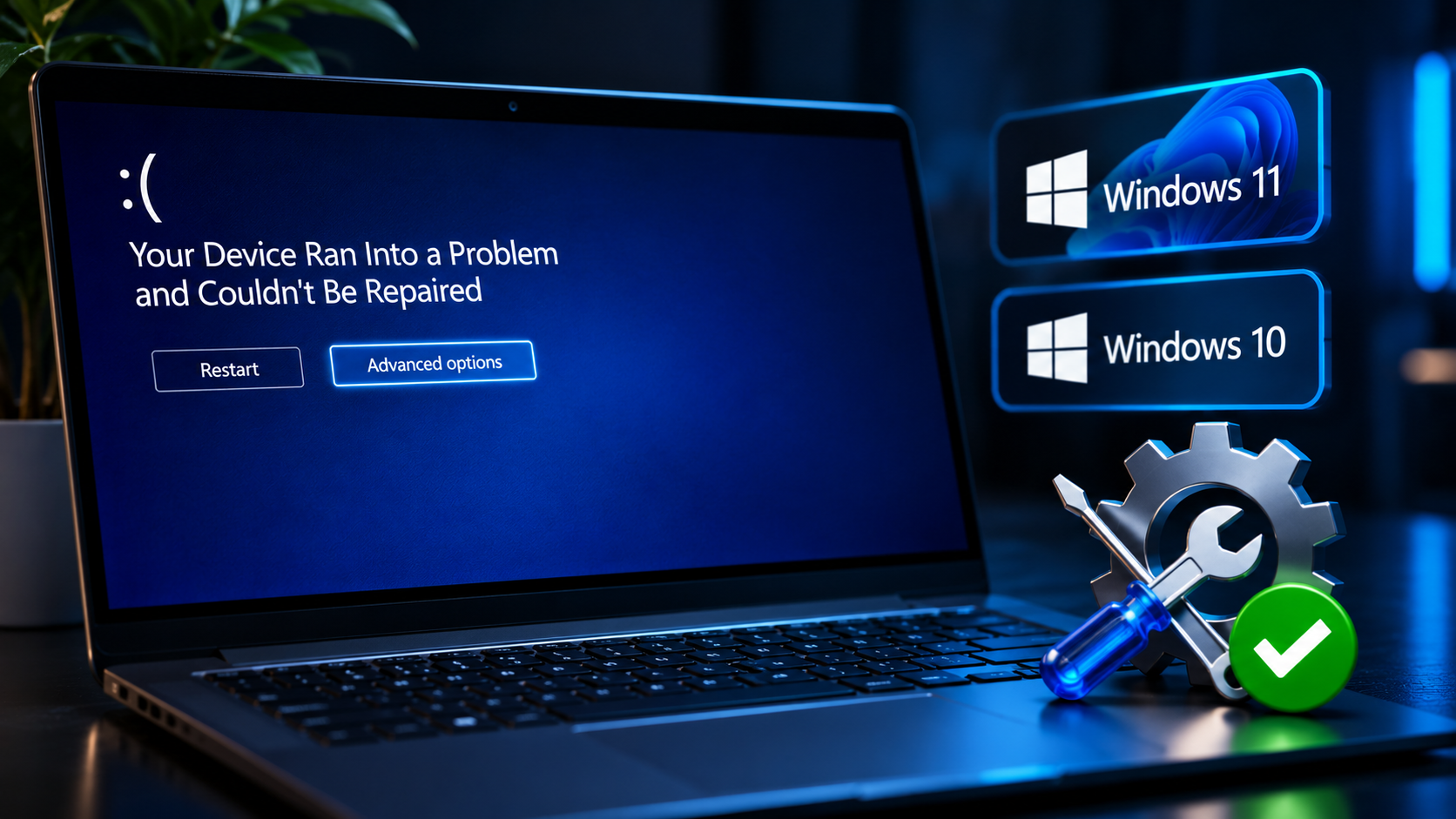
Your Device Ran Into a Problem and Couldn’t Be Repaired: Windows 11 and 10 Fixes

Windows couldn’t repair your PC? Find the right recovery option for update failures, driver problems, corrupted system files, and boot errors. This guide explains what to try before resetting Windows and how to protect your files.
-
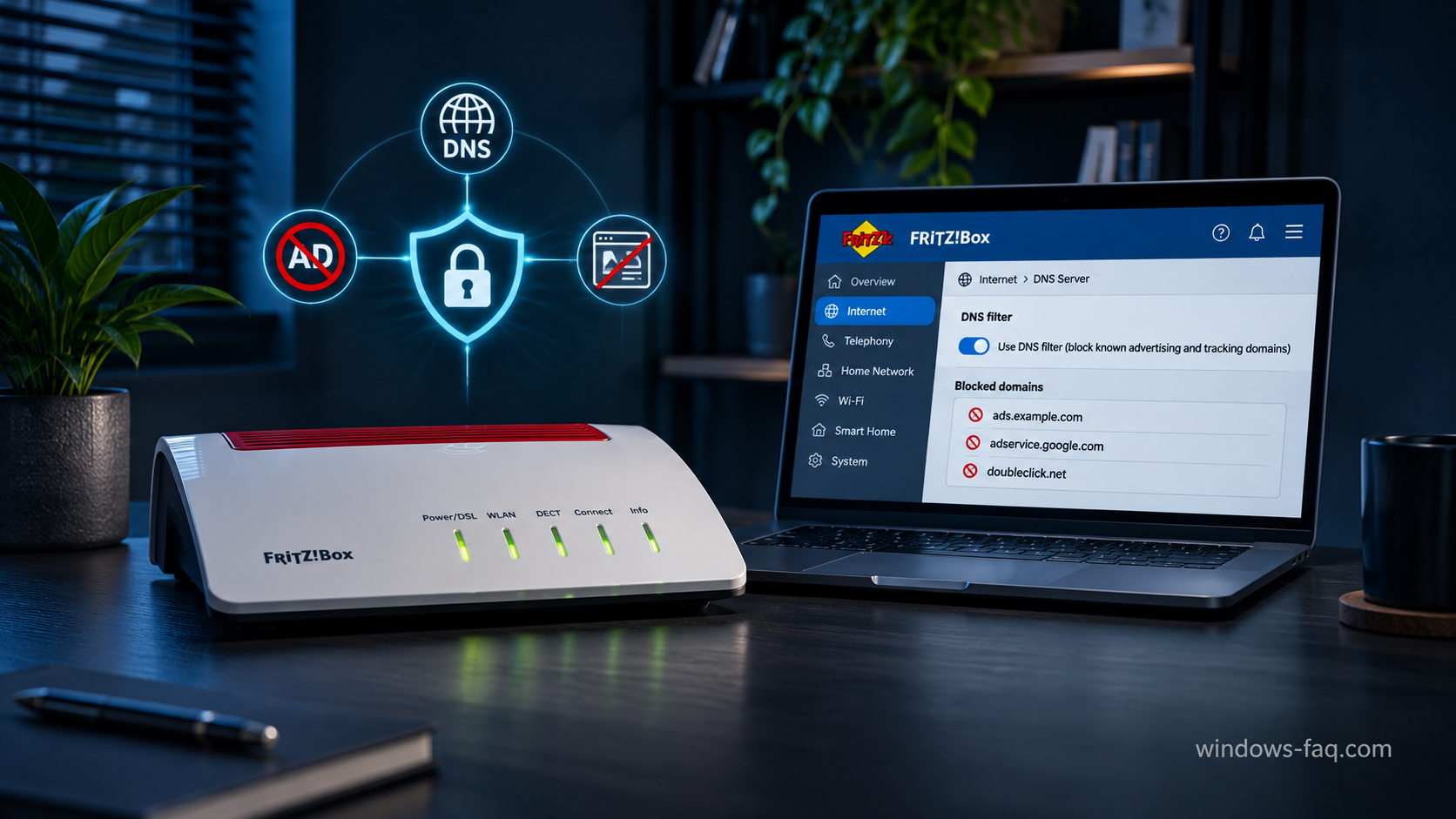
FRITZ!Box DNS Filter: How to Block Ads with FRITZ!OS 8.50
Learn how to use the FRITZ!Box DNS filter to reduce ads and tracking across your home network. This guide covers compatible blocklists, website exceptions, Windows testing and the limits of ad blocking at the router.
-
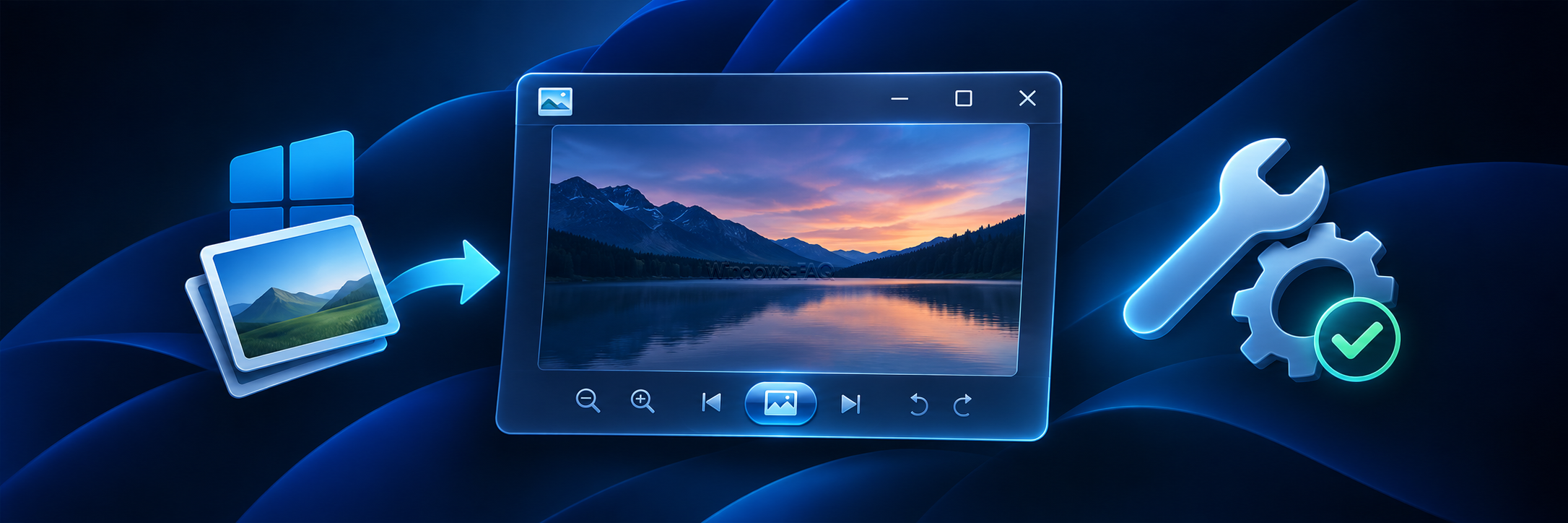
Windows Photo Viewer in Windows 11: Restore It and Fix Problems

To use Windows Photo Viewer in Windows 11, right-click a picture, select Open with, and choose Windows Photo Viewer if it is listed. If the classic viewer is missing, a registry workaround may make it available on a PC that still has the required program files and registry entries, but it cannot install missing program files. Windows 11 normally opens pictures in Microsoft Photos, which is a different application. This guide explains how to check for the classic viewer, make it your default for supported image types, restore missing associations where possible, and troubleshoot photo problems without confusing the two…
-
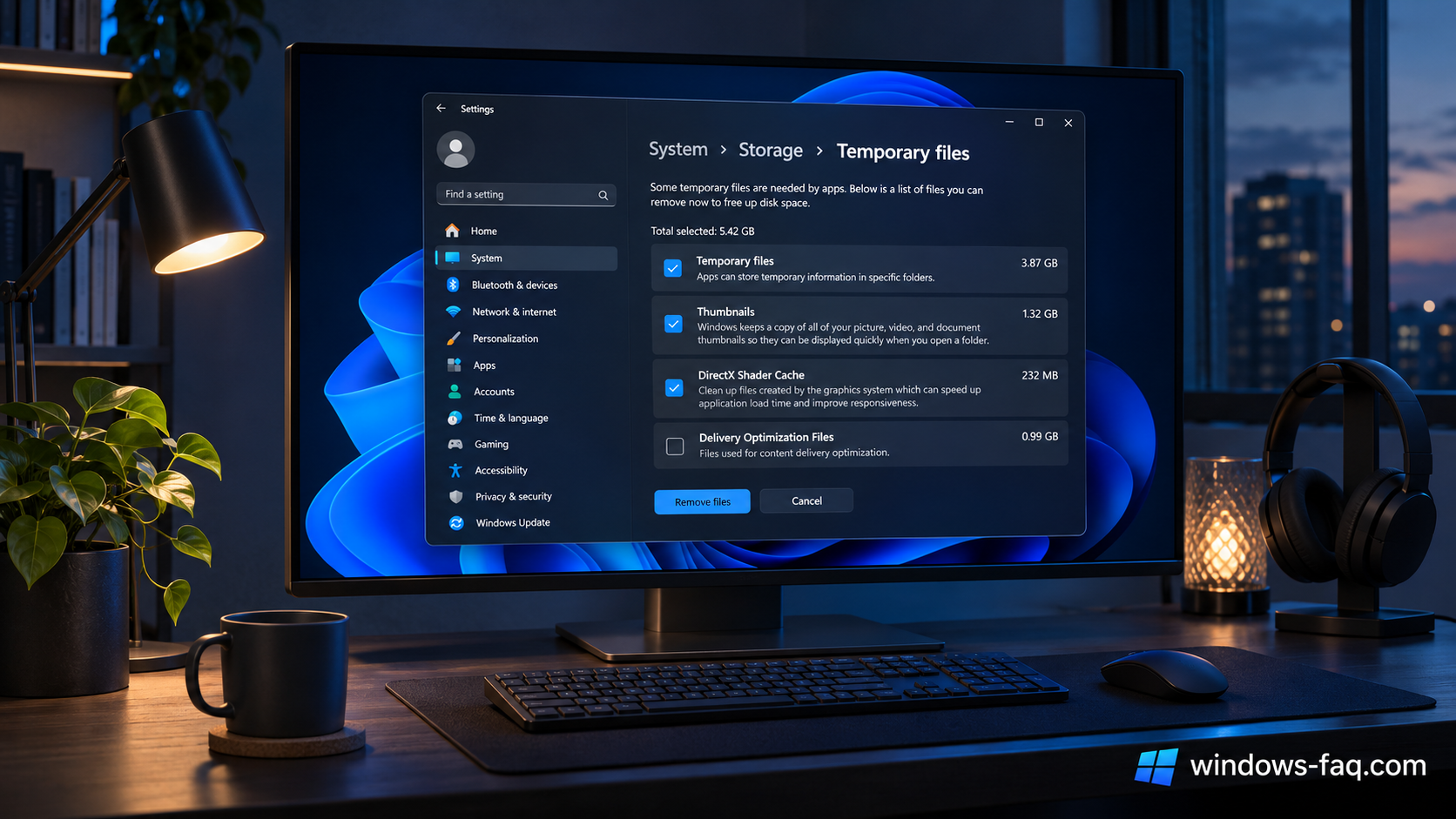
How to Clear Cache in Windows 11: A Step-by-Step Guide
To clear cache in Windows 11, open Settings > System > Storage > Temporary files, review the categories and select Remove files. This removes selected temporary files, while browser, DNS and Microsoft Store caches each require their own cleanup method. A full drive, a website showing old content and a Microsoft Store that will not open can all send you looking for a way to clear the Windows cache. They are different problems, so the right fix depends on what has stopped working. This guide starts with everyday cleanup and then explains the more specific repairs, using tools already included…
-
How to Password Protect a Folder in Windows 11
To password protect a folder in Windows 11, store its files in an encrypted 7-Zip archive or a VeraCrypt container. Windows does not provide a separate password setting for an ordinary File Explorer folder. The right choice depends on whether you want to put documents away or keep working on them regularly. A 7z archive works well for tax records, contracts, or files you need to share securely. A VeraCrypt container gives you an encrypted drive for everyday work. Windows 11 Pro also includes EFS file encryption, but EFS uses your Windows account and encryption keys rather than an additional…
-
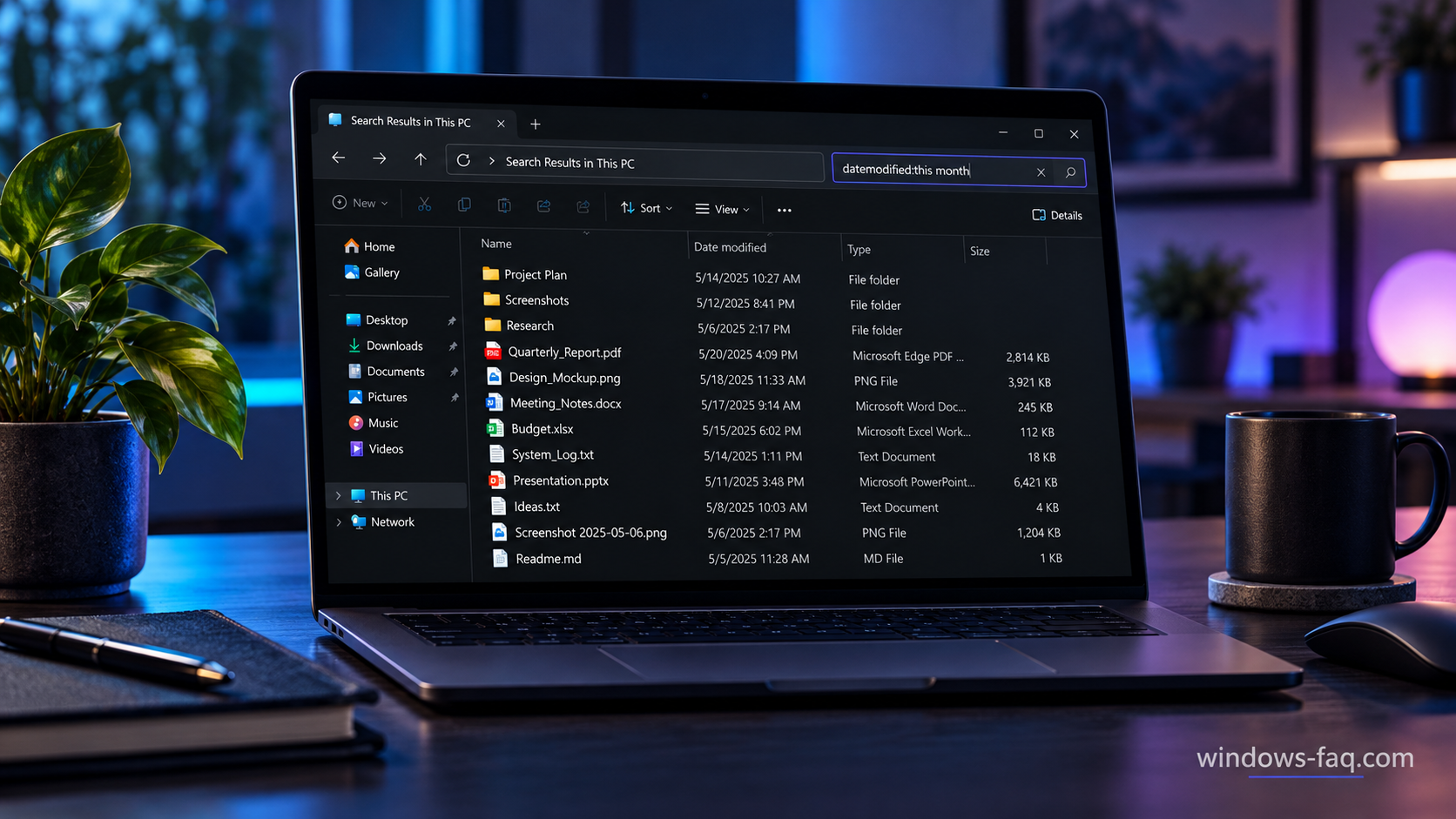
How to Find Files by Date in Windows 11 and 10
To find files by date in Windows 11 or Windows 10, open File Explorer, select a folder, and enter datemodified:today in the search box. To search a date range, enter two periods between the dates, for example datemodified:10/01/2026..10/28/2026 for October 1 through October 28, 2026, using US date formatting. A date filter is useful when you remember working on a document but cannot recall its name. This guide shows you how to search by date modified, choose a custom date range, find newly created files, and narrow the results to a particular file type.
-
How to Create a Windows 11 Bootable USB Drive

To create a Windows 11 bootable USB, use Microsoft’s Media Creation Tool, select USB flash drive, and let the tool prepare an empty drive with at least 8 GB of space. If you already have a Windows 11 ISO, Rufus gives you another way to turn it into installation media. A bootable USB lets you start Windows Setup even when the installed copy of Windows will not load. You can use it to install Windows on a new SSD, reinstall your PC, or open recovery tools to investigate a startup problem.