

Frequently Asked Questions

How to Show the Bookmarks Bar in Chrome, Edge and Firefox
Share your love
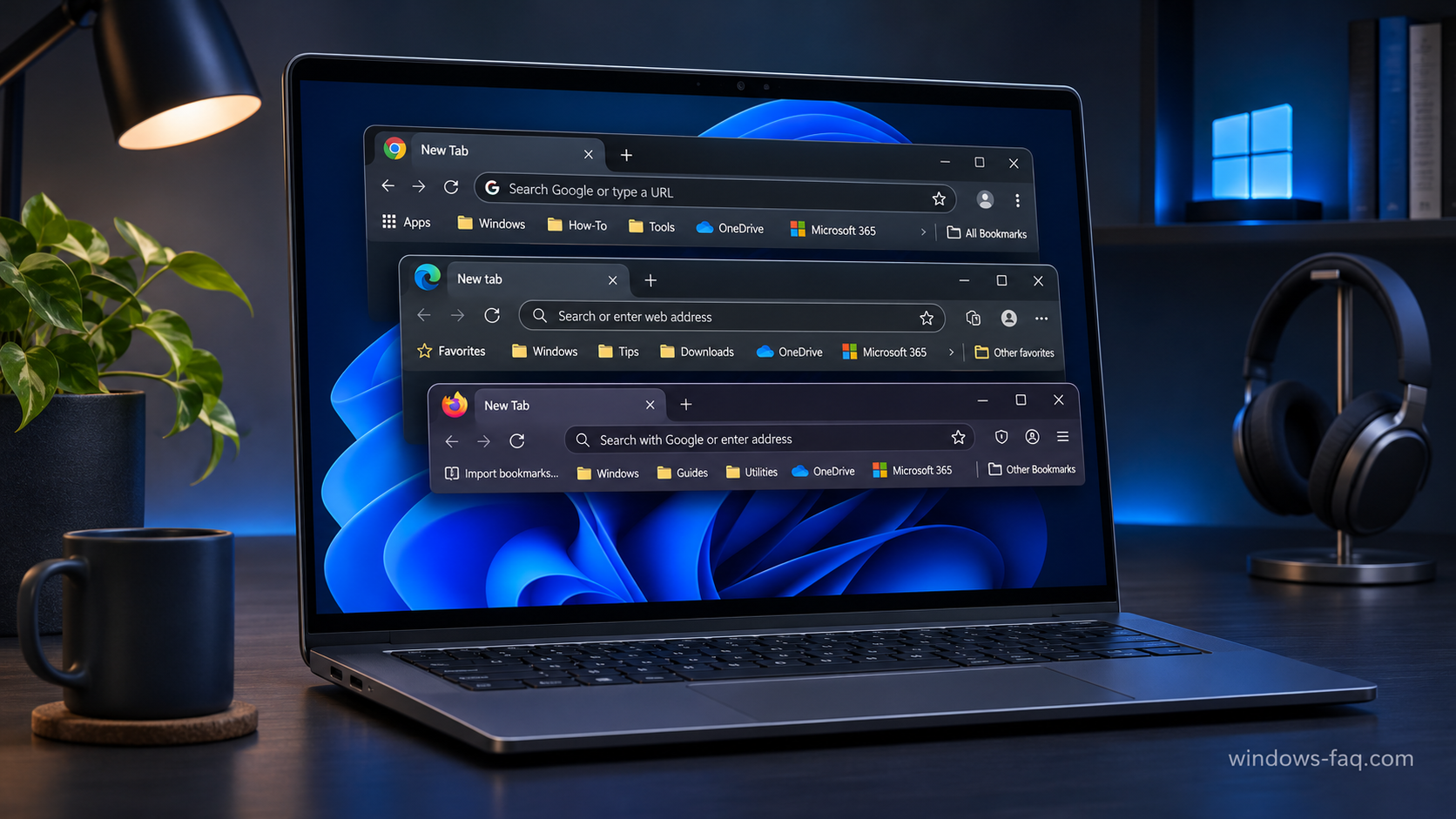
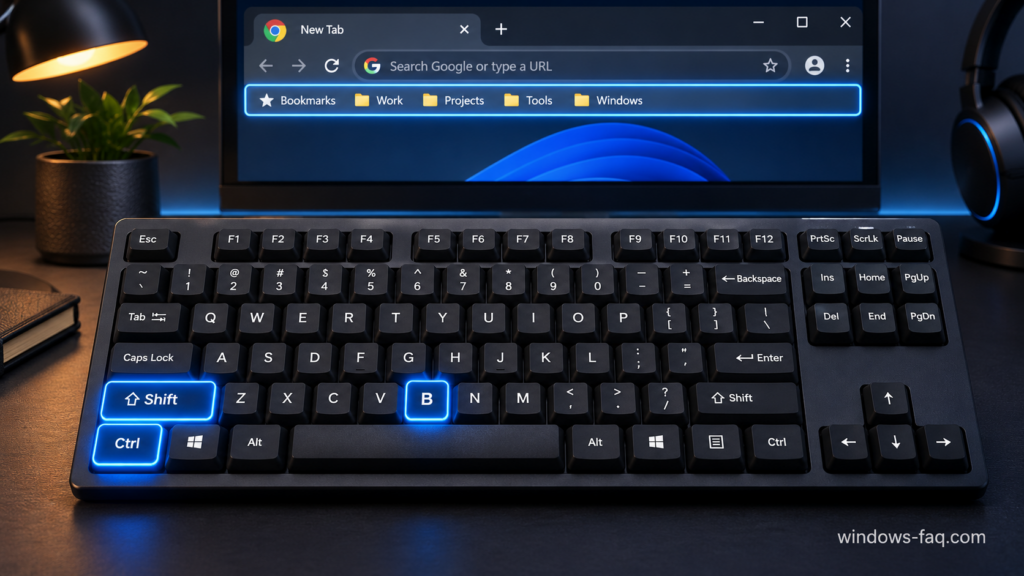
To show the bookmarks bar in Google Chrome, Microsoft Edge or Mozilla Firefox, press Ctrl + Shift + B on your Windows keyboard. This shortcut instantly shows or hides the toolbar that contains your favorite websites. Alternatively, you can change your browser settings to keep the bar visible whenever you browse the web.
Has your bookmarks bar suddenly disappeared? Perhaps you accidentally pressed a keyboard shortcut, changed a browser setting or switched to full-screen mode. Fortunately, a missing bookmarks bar does not usually mean that your saved websites have been deleted.
This guide explains how to restore the bookmarks bar in the three major web browsers, organize your saved websites and bring back the missing navigation pane in Windows 11 and Windows 10 File Explorer.
How to show the bookmarks bar: Quick answer
Most popular desktop browsers use the same keyboard shortcut to control the visibility of their bookmarks toolbar. However, the name of the feature and its permanent display settings differ slightly between browsers.
| Application | Quick solution |
|---|---|
| Google Chrome | Ctrl + Shift + B |
| Microsoft Edge | Ctrl + Shift + B |
| Mozilla Firefox | Ctrl + Shift + B |
| Windows 11 File Explorer | View > Show > Navigation pane |
| Windows 10 File Explorer | View > Navigation pane |
Pressing the browser shortcut again hides the toolbar. If you want permanent access to your favorite websites, use the browser settings described below instead.
This article is also available in German
You can also read the original German version of this guide on Windows-FAQ.de.
Diesen Artikel auf Deutsch lesenWhat is the difference between bookmarks and favorites?
Bookmarks and favorites serve essentially the same purpose. Both allow you to save website addresses so that you can return to them without typing the URL or searching for the website again.
Depending on your browser, the toolbar has a different name:
- Google Chrome: Bookmarks bar
- Microsoft Edge: Favorites bar
- Mozilla Firefox: Bookmarks Toolbar
- Windows File Explorer: Navigation pane, including Quick access
In a web browser, the bar normally appears directly below the address bar. File Explorer, however, uses a navigation pane on the left side of the window to provide convenient access to folders, drives and other storage locations.
How to show the bookmarks bar in Google Chrome
Google Chrome provides several ways to display your saved websites. The keyboard shortcut is particularly convenient when you want to switch between a clean browser window and a permanently visible bookmarks bar.
Show the bookmarks bar using a keyboard shortcut
- Launch Google Chrome.
- Press Ctrl + Shift + B simultaneously.
- Check the area directly below the address bar.
- Use the same shortcut again to hide the bar.
The change takes effect immediately without restarting Chrome. If the bar remains empty, check whether you have actually saved any bookmarks in the corresponding folder.
Always show the bookmarks bar in Chrome
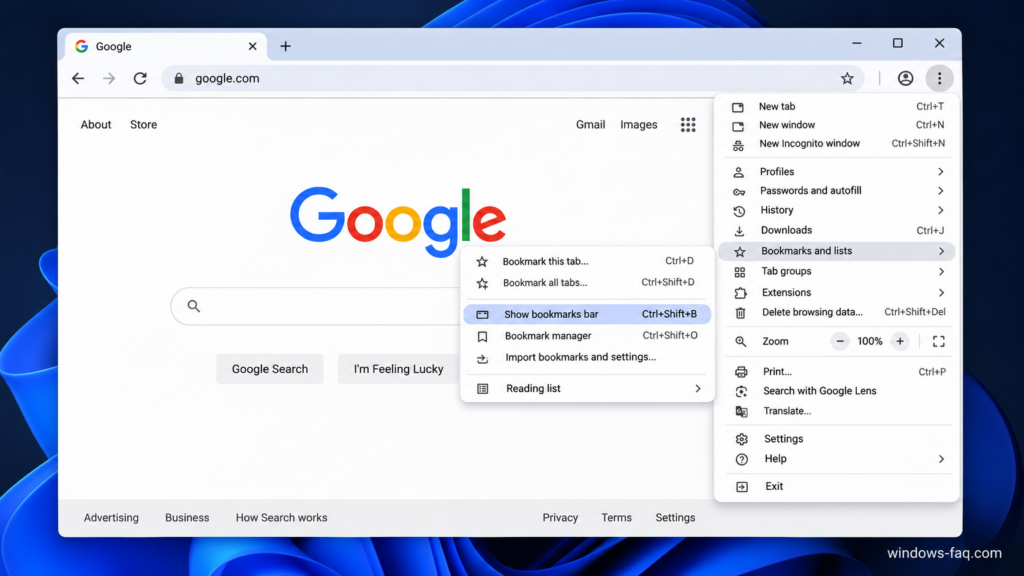
You can also enable the toolbar through the Chrome menu. This method is useful if you prefer changing browser settings with your mouse.
- Open Google Chrome.
- Select the three-dot menu in the upper-right corner.
- Choose Bookmarks and lists.
- Click Show bookmarks bar.
Another option is to enter chrome://settings/appearance in the address bar and enable Show bookmarks bar. This setting keeps your saved websites accessible while visiting regular web pages.
How to add websites to the Chrome bookmarks bar
A visible toolbar is not necessarily populated with bookmarks. For example, your saved websites may be located in another bookmark folder rather than in the Bookmarks bar folder.
- Visit a website you want to save.
- Press Ctrl + D or select the star in the address bar.
- Choose Bookmarks bar as the destination folder.
- Confirm your selection by clicking Done.
Chrome should now display the saved website directly below the address bar. You can also open the Bookmark Manager with Ctrl + Shift + O and move existing bookmarks into the appropriate folder.
How to show the favorites bar in Microsoft Edge
Microsoft Edge calls its bookmarks toolbar the Favorites bar. Although Edge uses different terminology, the feature works much like the bookmarks bar in Google Chrome.
Show or hide the Edge favorites bar
- Start Microsoft Edge.
- Press Ctrl + Shift + B.
- Check whether your favorites appear below the address bar.
This is the quickest way to change the visibility of the favorites bar. Nevertheless, Edge also offers more detailed options that determine when the toolbar should appear.
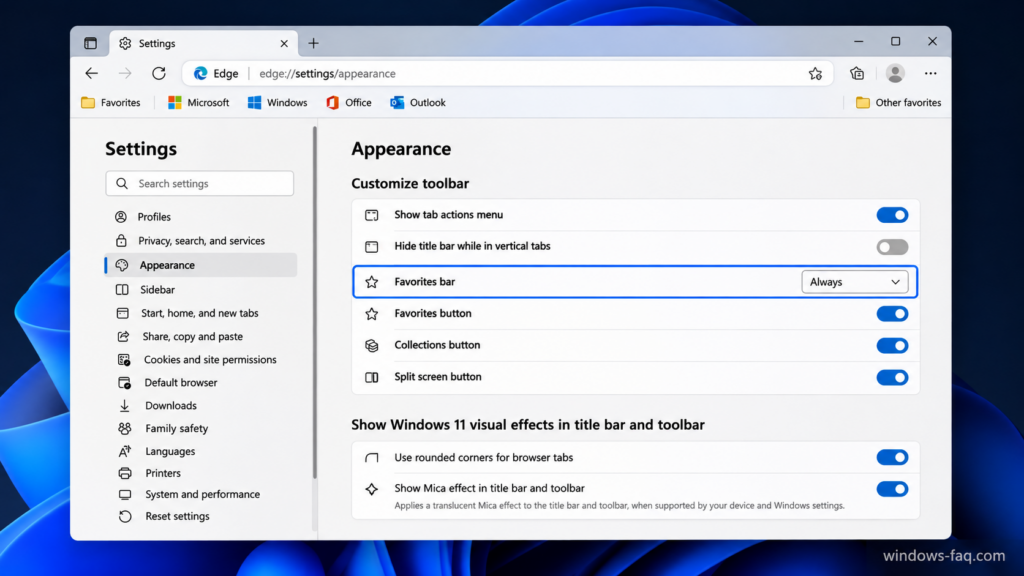
Keep the favorites bar permanently visible in Edge
- Open the three-dot menu in Microsoft Edge.
- Select Settings.
- Navigate to Appearance.
- Under Other appearance settings, open Toolbar.
- Locate the Favorites or Favorites bar setting.
- Select Always.
Depending on your installed version of Microsoft Edge, the layout of the Appearance settings may differ slightly. The available display modes are:
| Setting | Behavior |
|---|---|
| Always | Displays the favorites bar during normal browsing. |
| Only on new tabs | Shows your favorites only on the browser’s new tab page. |
| Never | Hides the favorites bar. |
If the Edge favorites bar disappears whenever you open a website, the Only on new tabs option is probably enabled. Changing this setting to Always resolves the problem.
Add missing favorites to the Edge toolbar
Open a website and press Ctrl + D to save it as a favorite. In the folder selection, choose Favorites bar and confirm the change. Existing favorites can also be organized through the Favorites page, which you can access with Ctrl + Shift + O.
Microsoft provides additional information about these settings in its official guide to displaying the Edge favorites bar.
How to show the bookmarks toolbar in Mozilla Firefox
Firefox refers to this feature as the Bookmarks Toolbar. Like Edge, Mozilla’s browser allows you to keep the toolbar visible on all websites or limit it to the new tab page.
Enable the Firefox bookmarks toolbar with a shortcut
- Open Mozilla Firefox.
- Press Ctrl + Shift + B.
- Look below the address bar for your bookmarks.
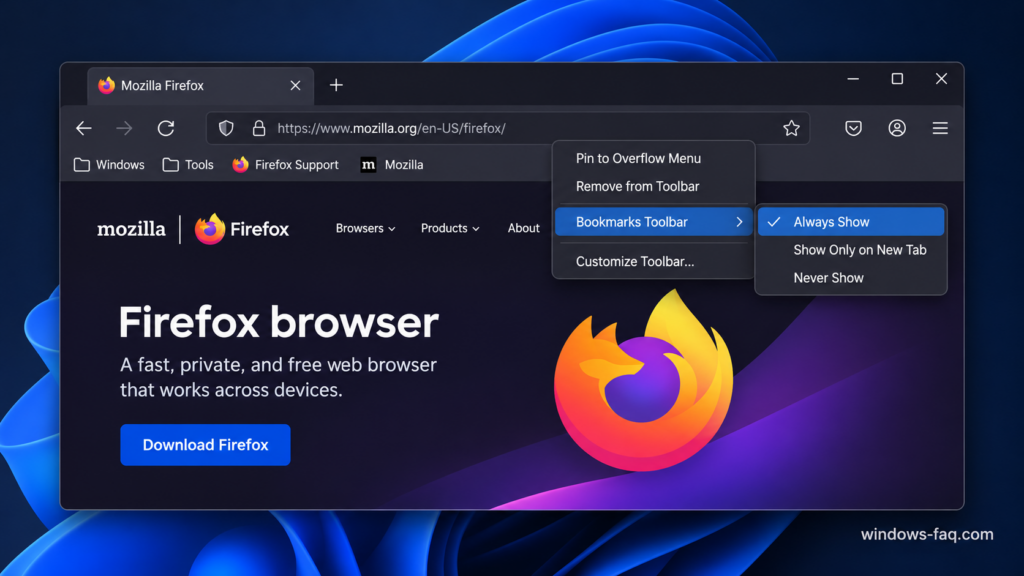
Using the shortcut again changes the toolbar visibility. For more control over its behavior, use the context menu at the top of the Firefox window.
Always show bookmarks in Firefox
- Right-click an empty area of the tab bar or toolbar.
- Open the Bookmarks Toolbar submenu.
- Select Always Show.
Firefox offers three different visibility options: Always Show, Never Show and Only Show on New Tab. Alternatively, you can access these settings through the Firefox menu under More tools > Customize Toolbar.
Add bookmarks to the Firefox toolbar
Visit a website and press Ctrl + D to create a bookmark. Select Bookmarks Toolbar as its location and save your changes. You can also open the bookmark library with Ctrl + Shift + O to move or organize existing entries.
If you recently switched from Chrome or Edge to Firefox, consider importing your existing bookmarks instead of creating them individually. Firefox provides an import feature under Settings > General > Import Browser Data.
How to restore the favorites area in Windows File Explorer
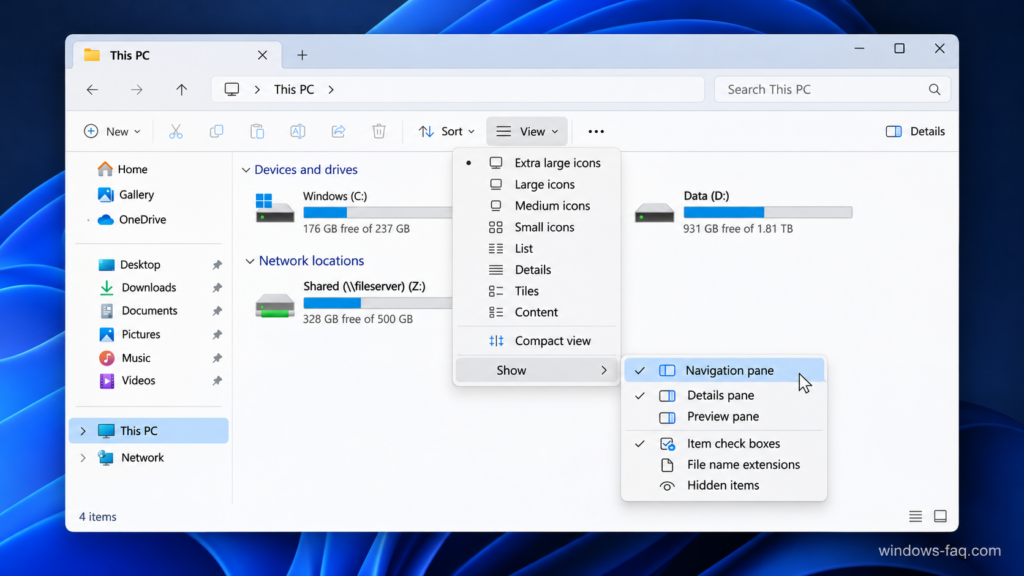
Some Windows users search for a missing favorites bar when they are actually referring to the left-hand column in File Explorer. Microsoft calls this area the navigation pane. It provides access to locations such as Home, Quick access, OneDrive, This PC and connected drives.
Unlike a browser bookmarks bar, the File Explorer navigation pane primarily contains folders and storage locations rather than website addresses.
Show the navigation pane in Windows 11
- Press Windows + E to open File Explorer.
- Click View in the command bar.
- Open the Show submenu.
- Enable Navigation pane.
The left-hand column should reappear immediately. Depending on your Windows configuration, you may also see your pinned folders, network locations and cloud storage.
Show the navigation pane in Windows 10
- Launch File Explorer with Windows + E.
- Open the View tab in the ribbon.
- Click Navigation pane.
- Make sure the Navigation pane option is selected.
Although the feature works similarly in both Windows versions, Windows 10 uses a different menu layout.
Add your favorite folders to Quick access
Quick access is the Windows equivalent of a convenient shortcut collection for frequently used folders. Instead of navigating through several directories every time, you can pin important locations directly to the navigation pane.
- Find a folder you regularly use.
- Right-click the folder.
- Select Pin to Quick access.
You can remove a pinned folder later by right-clicking its Quick access entry and selecting Unpin from Quick access. Removing the shortcut does not delete the original folder or its contents.
If you frequently work with large numbers of documents, our guide on how to find files by date in Windows 11 and 10 explains another useful File Explorer feature.
Why is my bookmarks bar not showing?
If the bookmarks bar disappeared unexpectedly, there are several possible explanations. Before resetting your browser or reinstalling software, check the following settings.
1. Your browser is running in full-screen mode
Full-screen mode hides most browser interface elements to maximize the available screen space. As a result, the address bar, tabs and bookmarks toolbar may temporarily disappear.
Press F11 to exit full-screen mode. On some laptops, you may need to press Fn + F11 instead, depending on the keyboard configuration.
2. The bookmarks bar only appears on new tabs
Microsoft Edge and Mozilla Firefox offer a setting that displays bookmarks exclusively on the new tab page. Chrome can also display bookmarks on its New Tab page even when the permanent toolbar is disabled.
If your bookmarks disappear after opening a website, review the toolbar visibility settings and enable permanent display.
3. Your bookmarks are stored in another folder
A visible but empty bookmarks bar usually means that no websites are stored in the toolbar folder. Open your browser’s bookmark manager and check whether your saved websites are located elsewhere.
Moving a bookmark into the Bookmarks bar, Favorites bar or Bookmarks Toolbar folder makes it available directly from the browser window.
4. You are using the wrong browser profile
Modern browsers support separate profiles for personal and professional use. Each profile can have its own bookmarks, browsing history, extensions and saved passwords.
Check the profile icon in the upper-right area of your browser and switch to the appropriate profile. If you are using a new computer, verify that bookmark synchronization is enabled for the correct account.
Browser profiles also affect stored login credentials. Our guide on how to view saved passwords on Windows and in your browser explains where Edge, Chrome and Firefox store this information.
5. The keyboard shortcut does not work
Make sure the browser window is active before pressing Ctrl + Shift + B. Keyboard customization software, remote desktop sessions or other applications may intercept certain shortcuts.
If the problem persists, use the browser’s settings or toolbar context menu to enable the bookmarks bar manually.
6. A browser policy controls the toolbar
On a company-managed computer, an administrator may control browser settings through organizational policies. This can prevent employees from changing certain appearance options or cause settings to revert automatically.
In Chrome, enter chrome://policy in the address bar to view applied browser policies. Microsoft Edge provides similar information at edge://policy, while Firefox uses about:policies.
If a company policy controls the bookmarks toolbar, contact your IT department rather than attempting to bypass the configuration.
7. The browser configuration is damaged
Occasionally, a browser update, extension or corrupted profile may cause interface problems. Restart the browser, install available updates and temporarily disable potentially conflicting extensions.
Resetting the browser should remain a last resort. Although standard reset functions generally preserve bookmarks, they can change other settings and disable extensions. Export your important bookmarks before performing more extensive repairs.
8. File Explorer is still missing the navigation pane
First, verify the Navigation pane setting using the correct instructions for Windows 10 or Windows 11. Next, close File Explorer and open it again.
If several interface elements are missing, consider reviewing the File Explorer Options and restoring the default view settings. You should not need to reinstall Windows simply because the navigation pane has disappeared.
Practical tips for organizing your bookmarks bar
A bookmarks toolbar becomes less useful when it contains dozens of unrelated websites. A simple folder structure makes it easier to find important links without scrolling through an extensive collection.
For example, you could create folders for work, news, banking, shopping and frequently used online tools. Keep only your most important websites directly on the toolbar and move less frequently visited pages into these folders.
Another useful trick is to shorten long bookmark names. For websites with recognizable icons, you can often remove the bookmark name entirely. This allows more websites to fit on the toolbar while keeping your browser window organized.
Frequently asked questions about the bookmarks bar
What is the shortcut to show the bookmarks bar?
Press Ctrl + Shift + B on Windows to show or hide the bookmarks bar in Google Chrome, Microsoft Edge and Mozilla Firefox. The change normally takes effect immediately.
Why did my bookmarks bar suddenly disappear?
The most common causes are an accidental keyboard shortcut, full-screen mode or a changed browser visibility setting. Press Ctrl + Shift + B and check whether the toolbar returns.
Does hiding the bookmarks bar delete my bookmarks?
No. Hiding the toolbar only changes the appearance of your browser. Your saved bookmarks remain available through the bookmark manager unless you explicitly delete them.
How do I permanently show the favorites bar in Edge?
Open Microsoft Edge settings, navigate to Appearance, select Toolbar and locate the Favorites bar setting. Choose Always to keep your favorites visible during normal browsing.
Why is my bookmarks bar empty?
Your saved websites may be located in a different bookmark folder or browser profile. Open the bookmark manager and move the desired websites into the toolbar folder.
How do I restore the left sidebar in Windows 11 File Explorer?
Open File Explorer with Windows + E and navigate to View > Show > Navigation pane. Enabling this option restores the left-hand column containing your folders and drives.
Is there a keyboard shortcut to show the File Explorer navigation pane?
Windows does not provide a dedicated default shortcut that directly toggles the navigation pane. However, Ctrl + Shift + E expands the folder hierarchy in the navigation pane when available.
Can I transfer bookmarks to another computer?
Yes. Most modern browsers allow you to synchronize bookmarks through your browser account or export them to an HTML file. You can then import that file into another supported browser or computer.
Conclusion
Whether you use Google Chrome, Microsoft Edge or Mozilla Firefox, the easiest way to show the bookmarks bar is to press Ctrl + Shift + B. This universal Windows shortcut works across all three browsers and can save you from searching through complicated settings menus.
For permanent access to your favorite websites, enable the appropriate toolbar visibility setting. If you are missing the folder shortcuts in Windows File Explorer instead, restore the navigation pane through the View menu. Both features make everyday work considerably easier by keeping your most important websites and folders just one click away.
