Frequently Asked Questions
Windows Tips, Tutorials & Troubleshooting Guides
-
Windows Photo Viewer in Windows 11: Restore It and Fix Problems
Read more: Windows Photo Viewer in Windows 11: Restore It and Fix ProblemsTo use Windows Photo Viewer in Windows 11, right-click a picture, select Open with, and choose Windows Photo Viewer if it is listed. If the classic viewer is missing, a registry workaround may make it available on a PC that still has the required program files and registry entries, but it cannot install missing program files. Windows 11 normally opens pictures in Microsoft Photos, which is a different application. This guide explains how to check for the classic viewer, make it your default for supported image types, restore missing associations where possible, and troubleshoot photo problems without confusing the two…
-
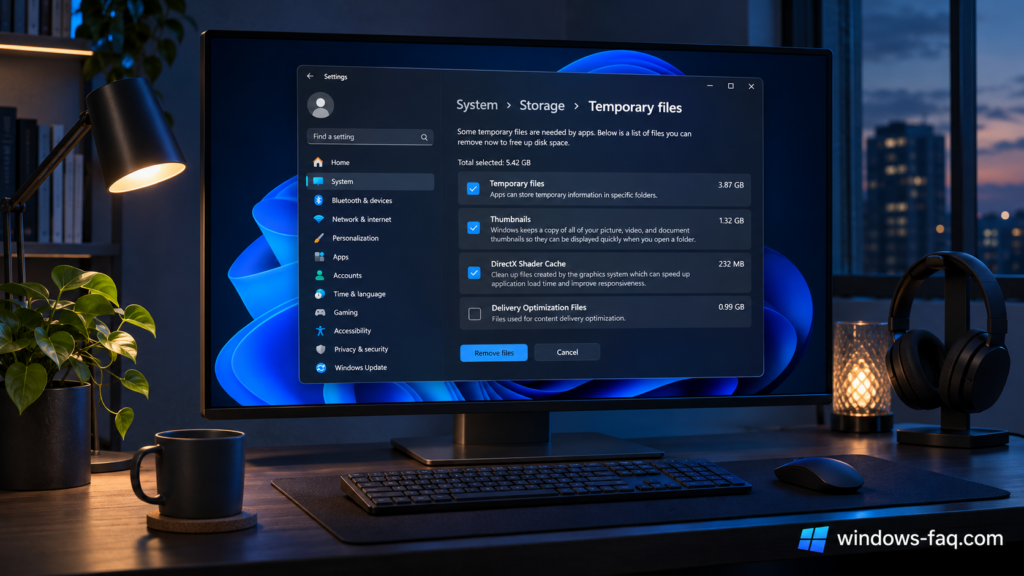
How to Clear Cache in Windows 11: A Step-by-Step Guide
Read more: How to Clear Cache in Windows 11: A Step-by-Step GuideTo clear cache in Windows 11, open Settings > System > Storage > Temporary files, review the categories and select Remove files. This removes selected temporary files, while browser, DNS and Microsoft Store caches each require their own cleanup method. A full drive, a website showing old content and a Microsoft Store that will not open can all send you looking for a way to clear the Windows cache. They are different problems, so the right fix depends on what has stopped working. This guide starts with everyday cleanup and then explains the more specific repairs, using tools already included…
-
How to Password Protect a Folder in Windows 11
Read more: How to Password Protect a Folder in Windows 11To password protect a folder in Windows 11, store its files in an encrypted 7-Zip archive or a VeraCrypt container. Windows does not provide a separate password setting for an ordinary File Explorer folder. The right choice depends on whether you want to put documents away or keep working on them regularly. A 7z archive works well for tax records, contracts, or files you need to share securely. A VeraCrypt container gives you an encrypted drive for everyday work. Windows 11 Pro also includes EFS file encryption, but EFS uses your Windows account and encryption keys rather than an additional…
-
How to Find Files by Date in Windows 11 and 10
Read more: How to Find Files by Date in Windows 11 and 10To find files by date in Windows 11 or Windows 10, open File Explorer, select a folder, and enter datemodified:today in the search box. To search a date range, enter two periods between the dates, for example datemodified:10/01/2026..10/28/2026 for October 1 through October 28, 2026, using US date formatting. A date filter is useful when you remember working on a document but cannot recall its name. This guide shows you how to search by date modified, choose a custom date range, find newly created files, and narrow the results to a particular file type.
-
How to Create a Windows 11 Bootable USB Drive
Read more: How to Create a Windows 11 Bootable USB DriveTo create a Windows 11 bootable USB, use Microsoft’s Media Creation Tool, select USB flash drive, and let the tool prepare an empty drive with at least 8 GB of space. If you already have a Windows 11 ISO, Rufus gives you another way to turn it into installation media. A bootable USB lets you start Windows Setup even when the installed copy of Windows will not load. You can use it to install Windows on a new SSD, reinstall your PC, or open recovery tools to investigate a startup problem.
-
How to Install RSAT on Windows 11: Settings and PowerShell
Read more: How to Install RSAT on Windows 11: Settings and PowerShellTo install RSAT on Windows 11, go to Optional features, select View features, search for RSAT, and add the tools you need. You can also install individual components or all available RSAT capabilities with Windows PowerShell. RSAT gives you access to tools such as Active Directory Users and Computers, DNS Manager, and Group Policy Management on your own PC. This guide explains the requirements, installation commands, verification steps, and common problems, including a separate note for Windows on ARM.
-
Run CMD as Administrator in Windows 11 and 10
Read more: Run CMD as Administrator in Windows 11 and 10To run CMD as administrator, search for cmd, choose Run as administrator, and approve the Windows security prompt. This opens an elevated Command Prompt, which you need for tasks such as repairing protected system files or changing certain Windows settings. The methods below work in Windows 11 and Windows 10, although some menu labels differ. You will also learn how to select CMD inside Windows Terminal, check the permissions of your session, and solve common problems without changing your account settings.
-
Best Free Word Processor for Windows: 8 Word Alternatives
Read more: Best Free Word Processor for Windows: 8 Word AlternativesA free word processor for Windows can handle letters, resumes, reports, and everyday documents without a Microsoft 365 subscription. Our first recommendation for offline writing is LibreOffice Writer. Word for the web is a convenient choice if you want Microsoft’s editor in your browser, while Google Docs works well for shared documents. The right choice depends on where you want to save your files, whether you need an account, and how often you exchange documents with Microsoft Word users. This guide compares eight options, explains their main limitations, and shows you how to install a free writing program and save…
-
How to Turn On Windows Defender in Windows 11 and 10
Read more: How to Turn On Windows Defender in Windows 11 and 10To turn on Windows Defender, open Windows Security, choose Virus & threat protection, select Manage settings, and turn Real-time protection on. If the switch is missing, grayed out, or immediately turns off again, the next step is to find out what is controlling your antivirus protection. The built-in antivirus is now called Microsoft Defender Antivirus. This guide shows you how to enable it in Windows 11 and Windows 10, confirm that it is protecting your computer, and work through the most common activation problems.
-
Windows 11 Auto Login: Sign In Without a Password or PIN
Read more: Windows 11 Auto Login: Sign In Without a Password or PINWindows 11 auto login takes you straight to the desktop without typing a password or PIN at startup. You can configure it with netplwiz, provided your account and device settings allow password-based automatic sign-in. Your account password stays in place: Windows supplies the saved credentials for you. To set it up, press Windows + R, enter netplwiz, select your account, and clear the option that requires a username and password.